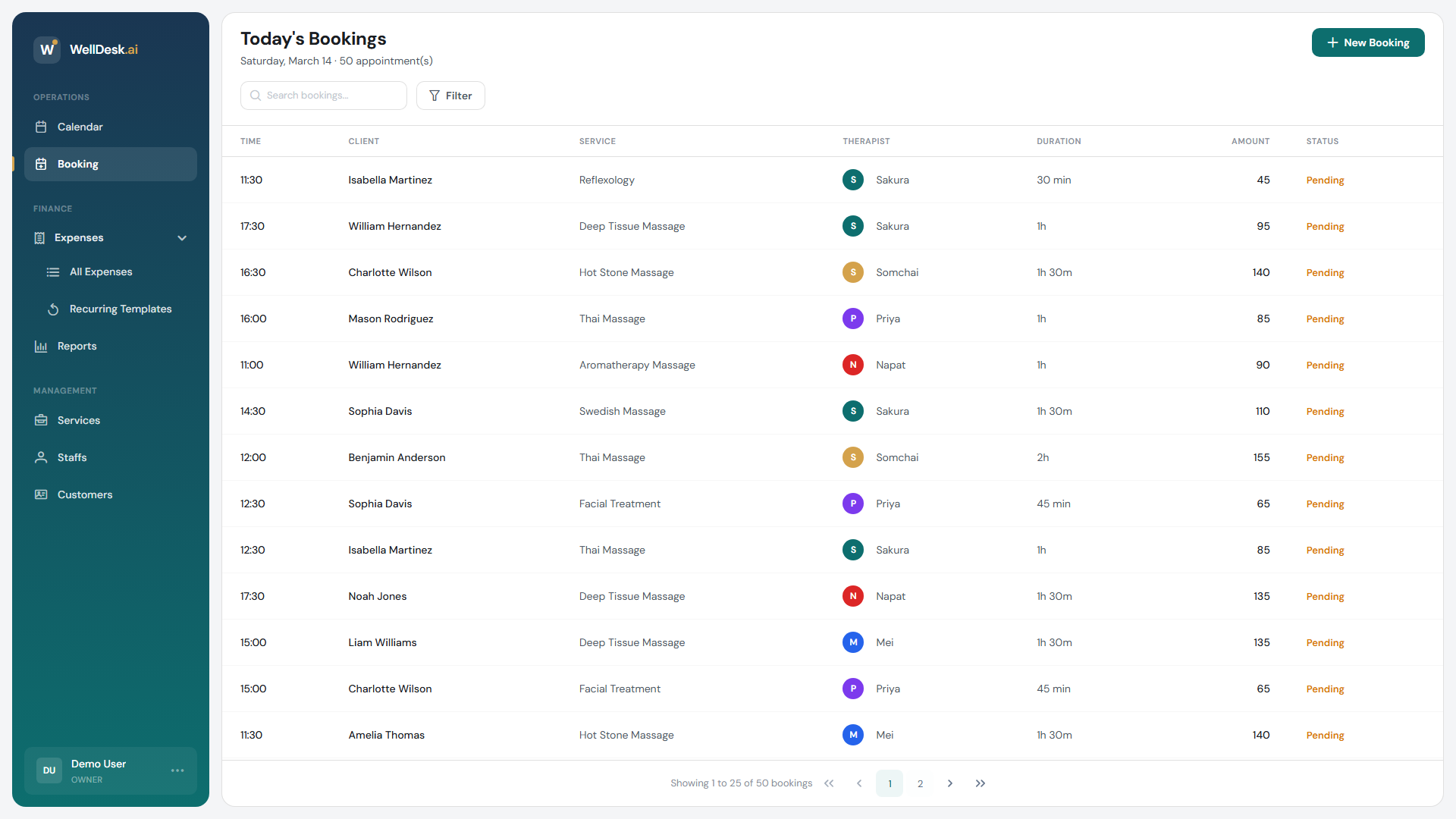
Bookings are the core of WellDesk. You can create a booking manually from the Bookings table or directly from the Calendar by clicking any open time slot. This article walks through both methods.
Prerequisites
- At least one service configured (see Adding a Service)
- At least one client record, or you can create a client during the booking flow
Method 1: Create from the Bookings table
- Navigate to Bookings in the main menu.
- Click the + New Booking button in the top right corner.
- The booking creation dialog opens.
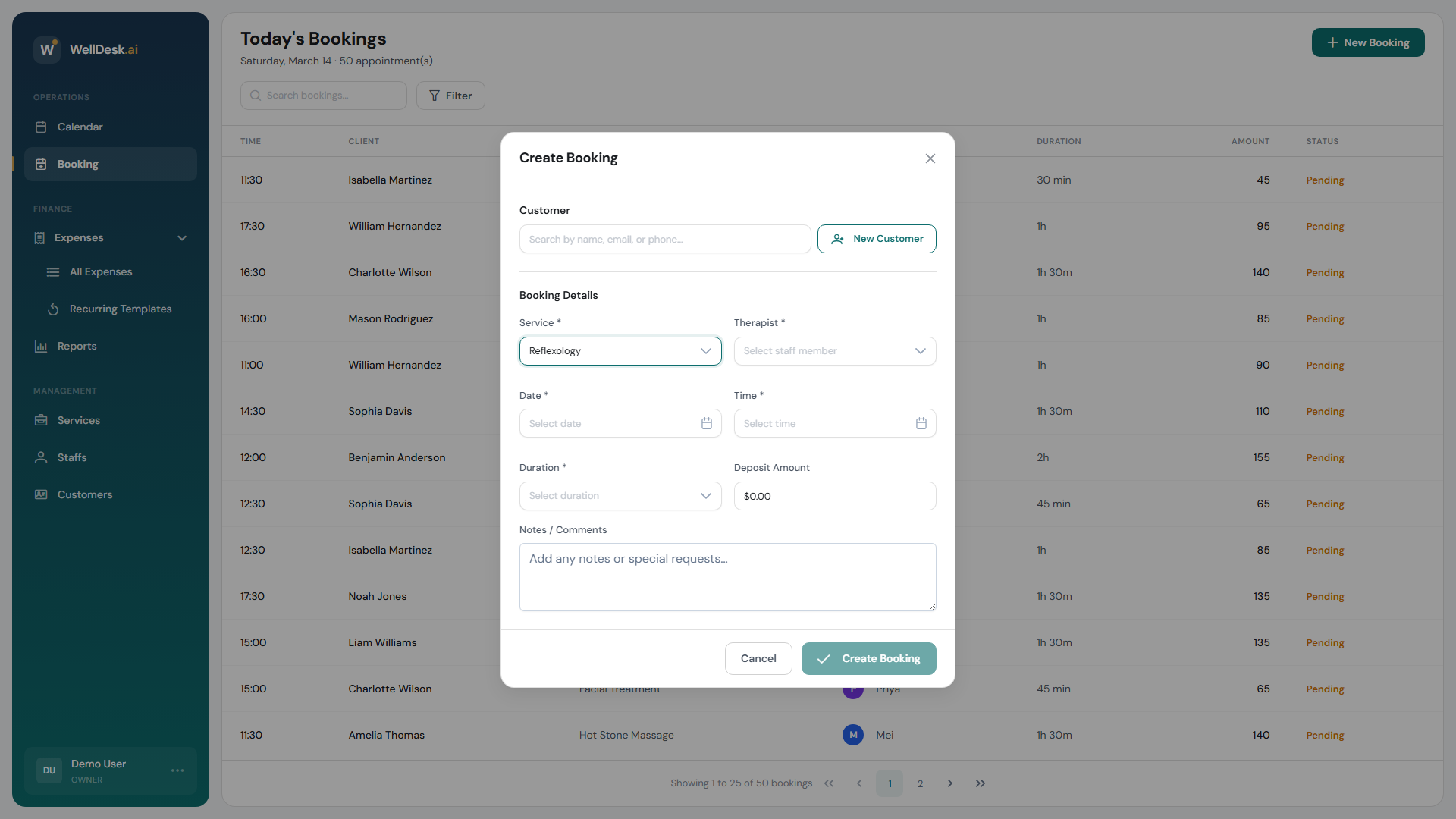
- Fill in the booking details:
| Field | Description |
|---|---|
| Client | Search for an existing client or click + New Client to add one |
| Service | Select from your configured services |
| Staff Member | Choose which team member will perform the service |
| Date | Pick the appointment date from the calendar picker |
| Time | Select a start time (available slots are shown based on staff hours) |
| Notes | Internal notes visible only to staff (not sent to the client) |
- Click Confirm Booking.
Method 2: Create from the Calendar
- Navigate to Calendar.
- Click any empty time slot on the calendar grid.
- The booking creation dialog opens pre-filled with the date and time you clicked.
- Complete the remaining fields and click Confirm Booking.
After creating the booking
Once confirmed, WellDesk automatically:
- Adds the appointment to the Calendar
- Sends a confirmation email to the client (if their email is on record)
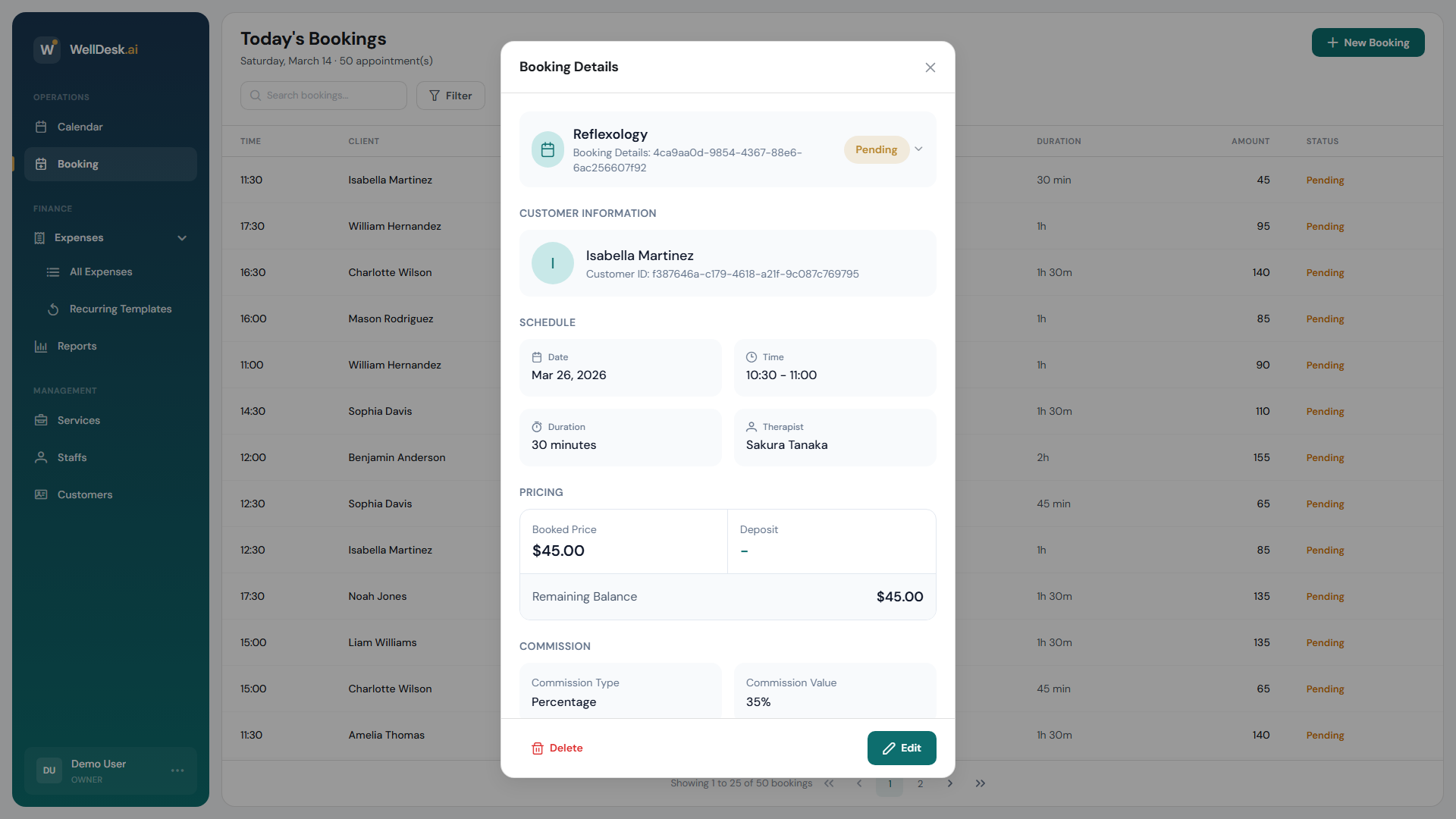
- Updates the Bookings table with status Pending
You can view the full booking details at any time by clicking the booking in the table or calendar.
Tips and best practices
- Add internal notes during booking creation to flag client preferences or allergies — they’re visible to all staff but never sent to the client.
- Double-check the time slot — WellDesk shows available slots based on staff working hours, but it doesn’t prevent double-booking if you manually type a time.
- Create the client record first for VIP or repeat clients so their history is tracked from the start.
FAQ
Can clients book online without my involvement? Yes — share your public booking link from Online Booking → Public Link and clients can self-book 24/7.
What if the client doesn’t have an email address? You can still create the booking. No confirmation email will be sent, so make sure to confirm the appointment verbally.
Can I set a deposit requirement? Deposit settings are configured per service under Services → [Service] → Pricing.