Branding settings let you apply your business identity to the public booking page — matching your colours, choosing complementary fonts, and creating a consistent experience that builds client trust from the first click.
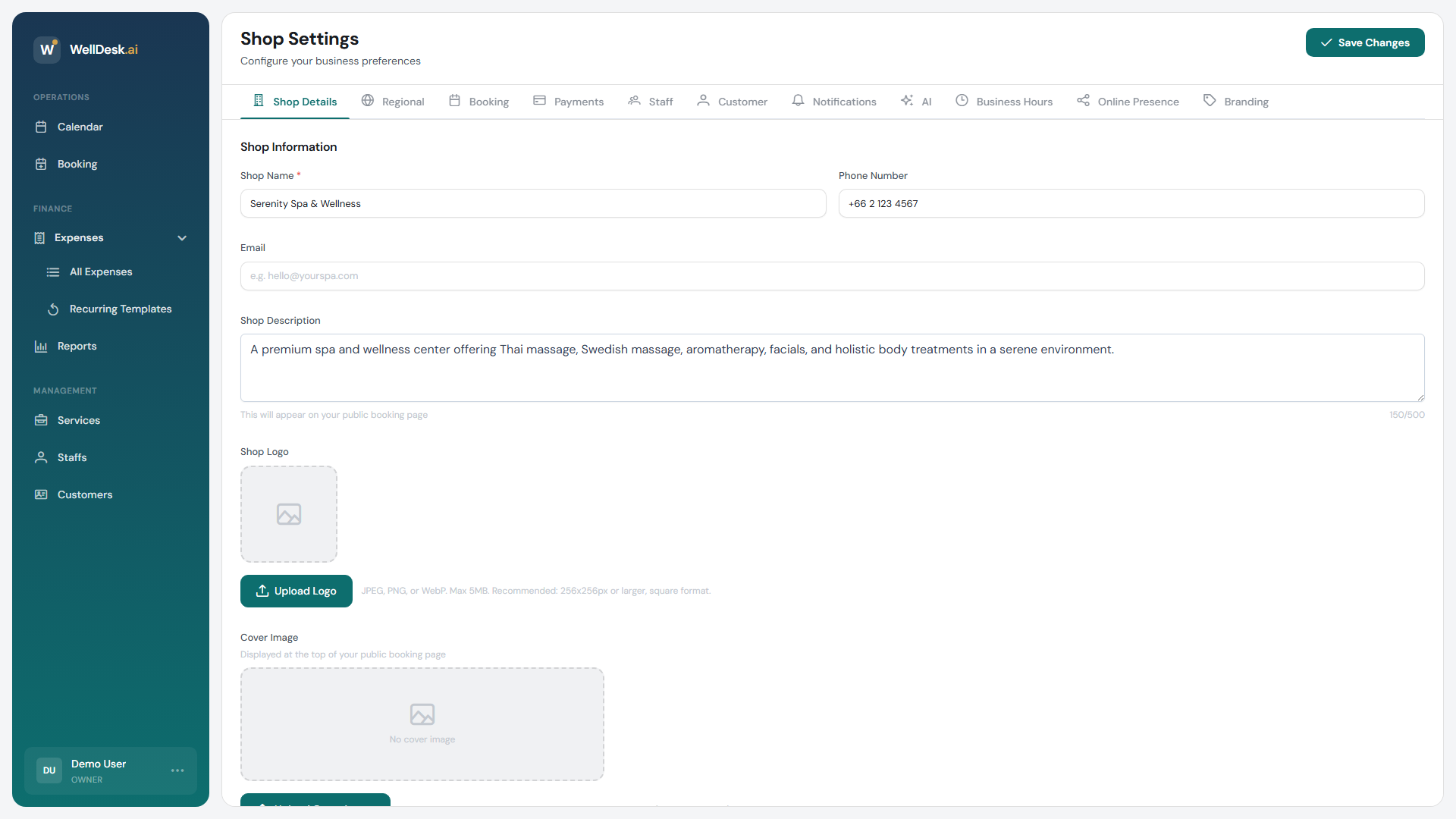
Accessing Branding settings
- Go to Settings in the main navigation.
- Click the Branding tab.
Brand colours
Set the primary and accent colours used across your public booking page — buttons, links, highlights, and interactive elements reflect your palette.
| Colour role | Where it appears |
|---|---|
| Primary colour | Main call-to-action buttons (Book Now, Confirm), active states, selected time slots. |
| Accent colour | Secondary buttons, hover states, decorative highlights. |
| Background colour | Page background. Defaults to white; adjust for a warmer or darker aesthetic. |
| Text colour | Body text on the booking page. |
Enter colours as hex codes (e.g. #2D6A4F) or use the colour picker. Changes are previewed in real time in the Preview panel on the right.
Tip: Aim for a contrast ratio of at least 4.5:1 between your text colour and background for readability. WellDesk shows a contrast warning if your combination falls below accessible levels.
Fonts
Choose the typography used on your public booking page:
| Setting | Options |
|---|---|
| Heading font | A selection of Google Fonts suited to headings — Playfair Display, Raleway, Poppins, and more. |
| Body font | Clean, readable fonts for body text — Inter, Lato, Open Sans, and more. |
| Font size | Base size for body text (default 16px). Headings scale proportionally. |
Select fonts that match the personality of your brand. A luxury spa might choose a serif heading font (Playfair Display) with a clean body font (Inter). A modern fitness studio might use Poppins for both.
Logo and favicon
Upload or update your business logo and browser favicon directly from the Branding tab. These also appear in the Shop Information tab — changes in either location are reflected in both.
| Asset | Recommended format | Minimum size |
|---|---|---|
| Logo | PNG (transparent background) or SVG | 200 × 200 px |
| Favicon | PNG or ICO | 32 × 32 px |
Custom CSS
For advanced customisation beyond the built-in controls, the Custom CSS field lets you apply your own stylesheet rules to the booking page.
/* Example: round all buttons */
.booking-btn {
  border-radius: 2rem;
}
Custom CSS is applied after WellDesk’s default styles, so your rules take precedence. Use browser developer tools to inspect element class names before writing rules.
Warning: Custom CSS is powerful but unsupported — changes to the WellDesk booking page structure may break custom rules after updates. Test thoroughly after any WellDesk platform update.
Previewing your changes
The Preview panel updates as you make changes. To see the full booking page in context:
- Click Open preview in new tab.
- Navigate through the booking flow as a client would.
- Return to Branding settings and refine as needed.
- Click Save Changes when satisfied.
Tips and best practices
- Use your existing brand colours — extract hex codes from your logo or existing marketing materials using a colour picker tool to ensure consistency.
- Test on mobile — most clients book on their phones. Open the preview on a mobile device or use browser developer tools to check the mobile layout.
- Keep fonts to two — mixing more than two typefaces (one heading, one body) creates visual noise. Stick with a pair for a polished result.
- Upload a favicon — a branded favicon makes your booking page feel more professional and helps clients identify your tab when they have multiple open.