Your public booking link is the web address where clients can browse your services, choose a time, and book an appointment — all without calling or messaging you. Sharing this link is one of the most impactful things you can do to grow your business.
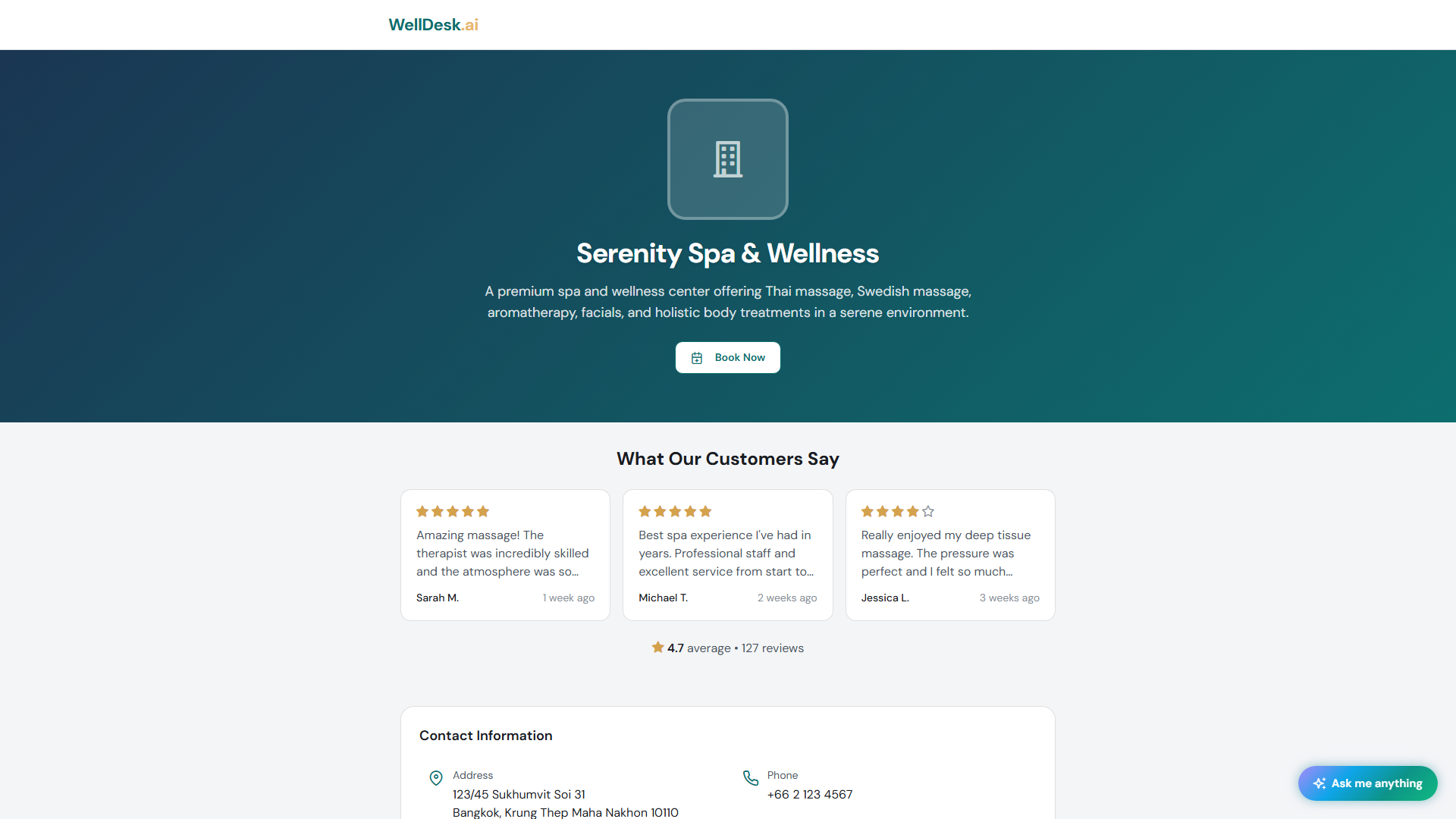
Finding your booking link
- Go to Online Booking in the main navigation.
- Your booking link is displayed at the top of the page.
Your URL follows this format:
https://welldesk.ai/book/your-business-nameClick Copy Link to copy it to your clipboard.
What clients see on your booking page
When a client visits your booking link, they go through a simple three-step flow:
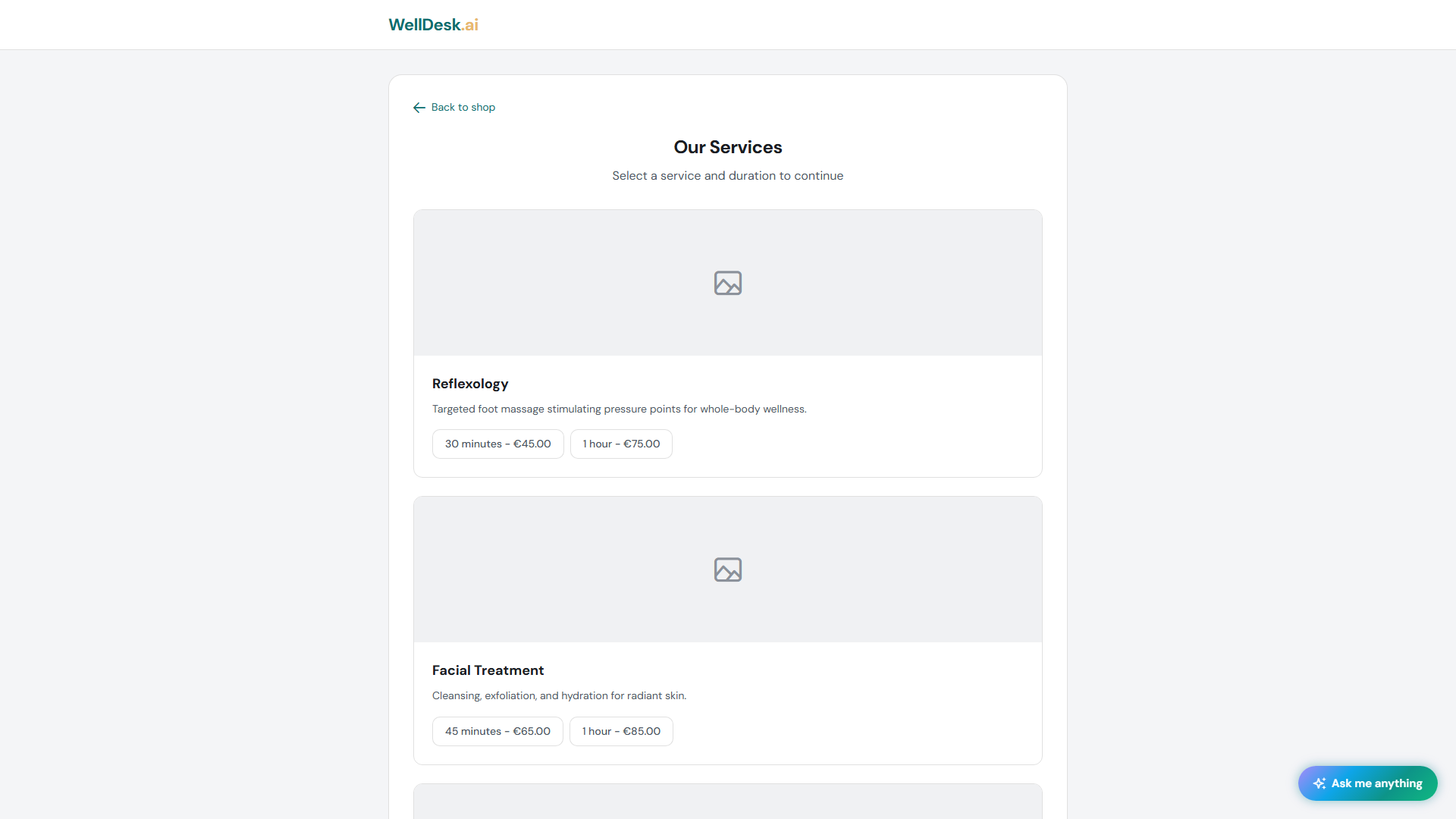
Step 1: Browse services
Clients see your service menu with names, descriptions, photos, durations, and prices. They select the service they want to book.
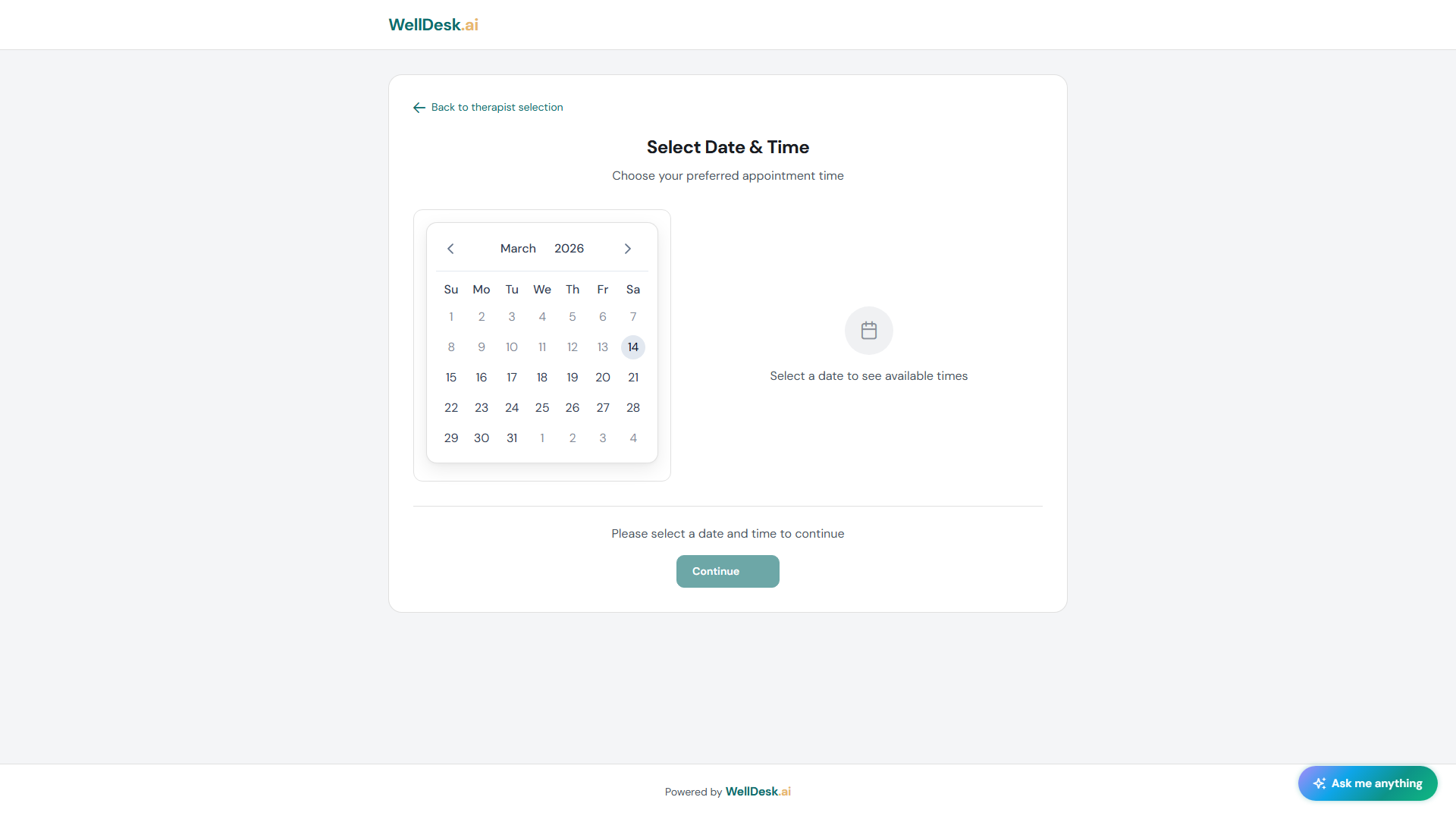
Step 2: Choose a date and time
Available time slots are shown based on your business hours and staff availability. Clients pick their preferred date and time.
Step 3: Confirm booking
Clients enter their contact details (or log in if they’ve booked before), confirm their appointment, and receive a confirmation email.
Sharing your booking link
Website
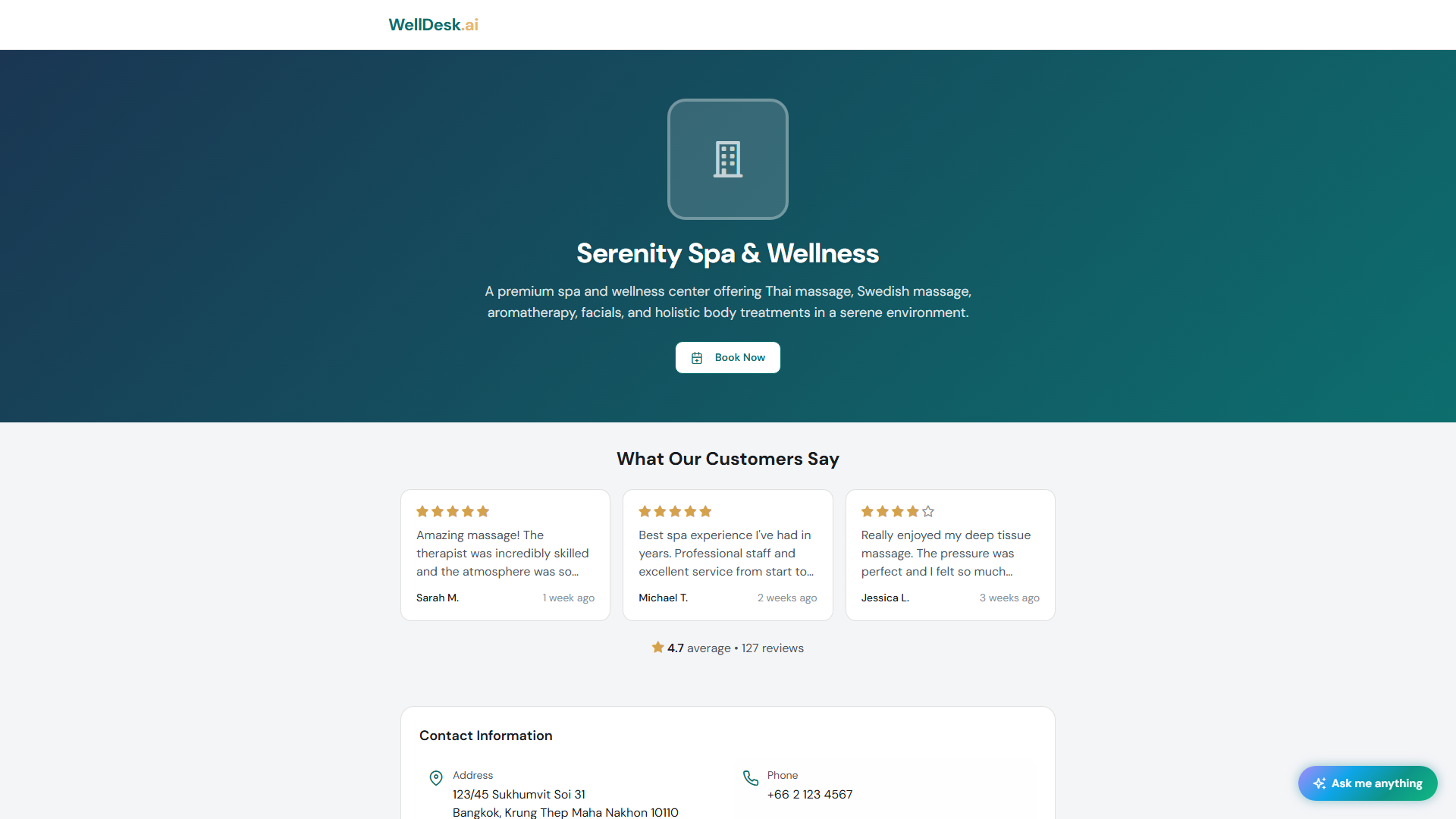
Add the booking link to your website as a prominent button labelled Book Now or Book an Appointment. Place it in your navigation header and on your homepage for maximum visibility.
Social media
- Instagram bio — add your booking link in the URL field of your profile. Use a bio link tool (e.g. Linktree) if you want multiple links.
- Facebook Page — add the link to your About section and pin a post with the link.
- WhatsApp — include your booking link in your WhatsApp Business profile and send it directly to clients who enquire.
Google Business Profile
Add your booking link to your Google Business Profile under Website or use the Appointments link field. Clients can then book directly from your Google listing.
QR code
Click Generate QR Code in the Online Booking section to download a QR code image that links to your booking page. Print it on business cards, menus, or in-salon signage.
Enabling and disabling online booking
To temporarily pause online bookings (e.g. during a holiday period):
- Go to Online Booking → Settings.
- Toggle Online Booking to off.
Clients visiting your booking page will see a message that online booking is currently unavailable and a prompt to contact you directly.
Tips and best practices
- Put your booking link everywhere — the easier you make it to book, the more bookings you’ll receive. Treat your booking link like your phone number.
- Test the flow yourself — visit your own booking page on a mobile device to experience what clients see. Identify anything confusing and address it in your shop settings.
- Keep your services updated — remove any services you no longer offer, and ensure prices and durations are accurate.