Booking Settings determine the rules that govern how and when clients can book appointments — both online and from within the WellDesk admin. Getting these right means fewer scheduling conflicts and a smoother experience for your team and clients.
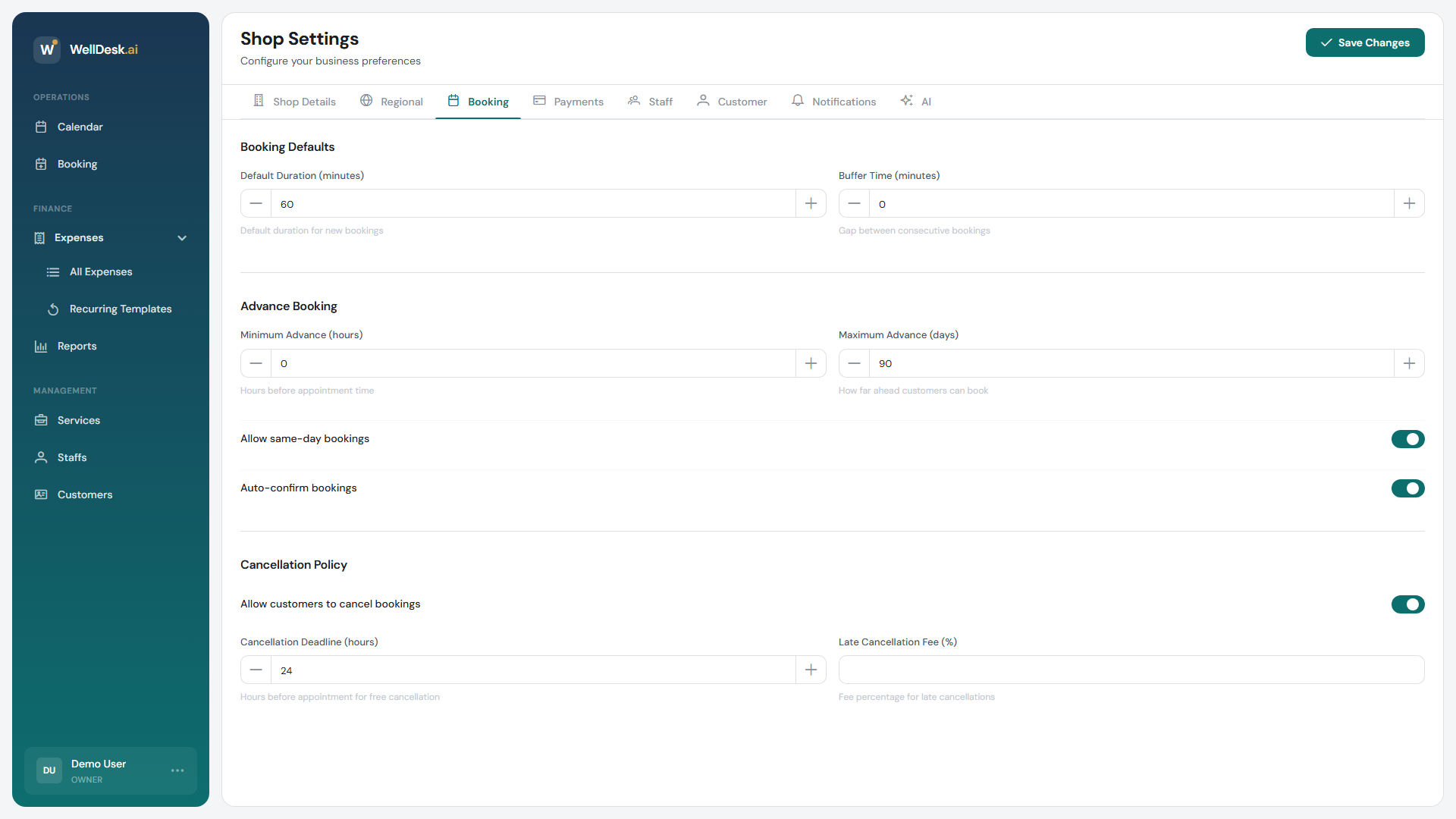
Accessing Booking Settings
- Go to Settings in the main navigation.
- Click the Booking tab.
Auto-confirm bookings
When enabled, new online bookings are automatically confirmed without requiring manual approval from staff.
| Setting | Behaviour |
|---|---|
| On | Booking is confirmed immediately; client receives a confirmation email automatically. |
| Off | Booking is marked as Pending until a staff member or admin approves it manually. |
Auto-confirm is recommended for most businesses. Disable it if you vet new clients before confirming, or if your schedule requires manual review before committing slots.
Booking buffer time
Buffer time adds a gap between consecutive appointments. This gives staff time to clean up, travel between locations, or prepare for the next client.
- Set the buffer in minutes (e.g. 10, 15, 30).
- Buffer time is added after each appointment and is blocked from online booking.
- Buffer applies globally to all services; per-service buffers can be set in Services → [Service] → Duration & Pricing.
Minimum advance booking time
Set the minimum number of hours a client must book in advance. This prevents last-minute online bookings that staff cannot reasonably prepare for.
Example: A minimum of 2 hours means a client visiting at 14:00 cannot book a slot starting before 16:00.
Set to 0 to allow bookings right up to the start time.
Maximum advance booking days
Limit how far ahead clients can book online. This prevents your calendar from filling up months in advance with bookings that are likely to be cancelled or forgotten.
Example: A maximum of 60 days means clients can only book appointments within the next two months.
Leave blank or set to 0 to impose no upper limit.
Allow same-day bookings
Toggle whether clients can book appointments that start on the current calendar day.
- On — clients can book today’s remaining available slots (subject to the minimum advance booking time).
- Off — bookings must be for tomorrow or later, regardless of the minimum advance time.
Tip: Enabling same-day bookings with a short minimum advance time (e.g. 1 hour) is ideal for businesses with walk-in culture or clients who plan at the last minute.
Tips and best practices
- Use buffer time consistently — a 10–15 minute buffer prevents appointments from running into each other and reduces stress for your team.
- Test your booking window before launch — book a test appointment as a client to confirm the minimum and maximum constraints work as expected.
- Review auto-confirm when running promotions — if a campaign drives a spike in bookings, temporarily disabling auto-confirm lets you pace approvals and avoid overbooking.