Booking Settings are the rules that decide when a customer can book you and what they have to tell you. They apply to your public booking page and, where relevant, to bookings your team creates.
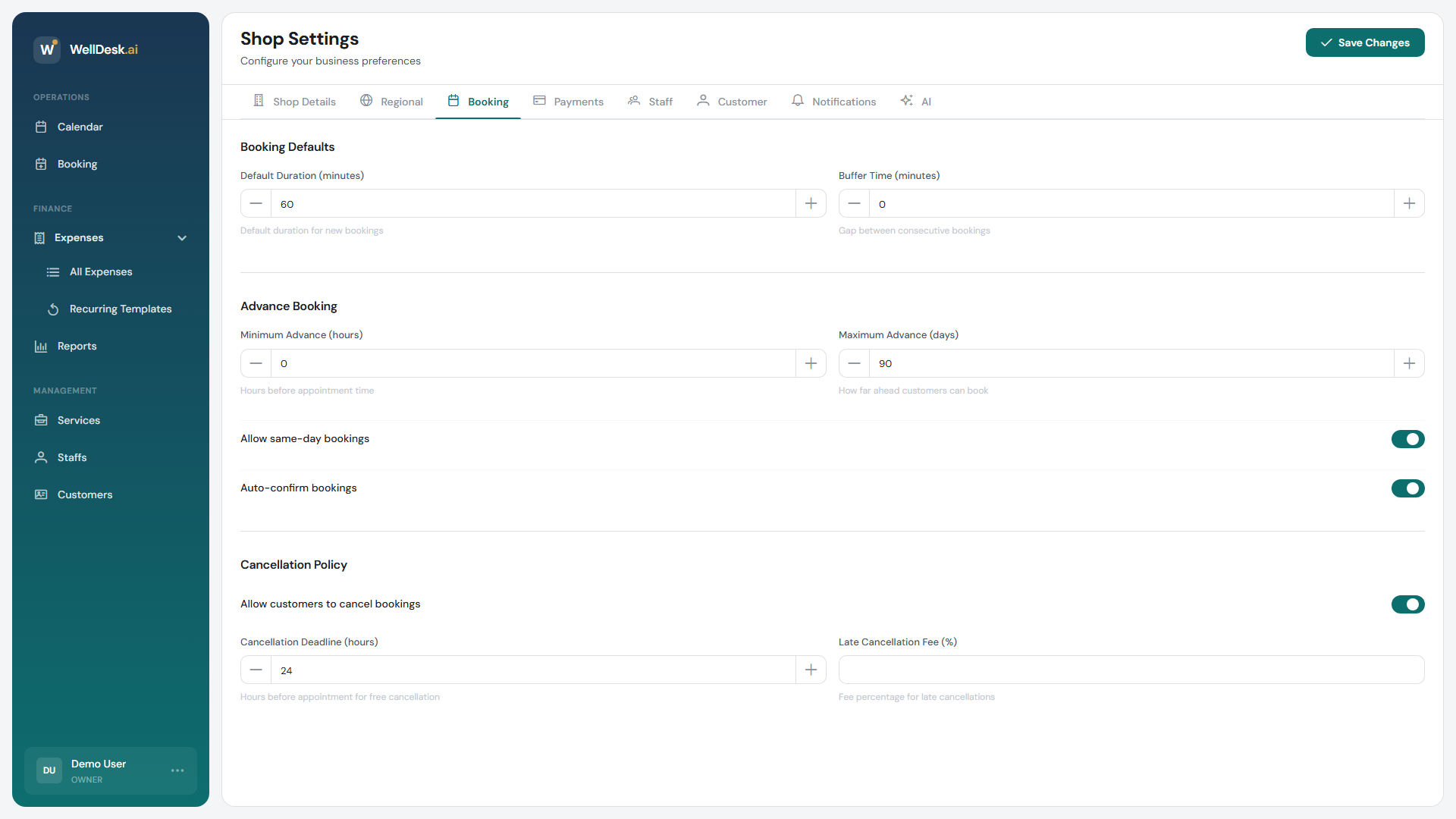
Opening the settings
- In the sidebar, go to Settings → Shop.
- Open the Booking tab.
- Change what you need and click Save Changes.
Booking defaults
| Setting | What it does |
|---|---|
| Auto-confirm bookings | Records whether you accept bookings without reviewing them. |
| Default Duration (minutes) | The duration a new booking starts with before you pick a service. |
| Require Staff Assignment | Bookings must have a staff member assigned. |
Auto-confirm does not currently change what happens to a booking. Every booking arrives as Pending whichever way this is set, and stays there until someone marks it Completed. The setting is stored and shown on your page, but there is no approval step behind it — so do not switch it off expecting bookings to queue for review.
Slot mechanics
| Setting | What it does |
|---|---|
| Buffer Time (minutes) | A gap left between consecutive bookings, for changeover and cleaning. |
| Minimum Advance (hours) | How long before the start time a customer can still book. |
| Maximum Advance (days) | How far into the future customers can book. |
| Allow same-day bookings | Whether today’s remaining slots can be booked online at all. |
A minimum advance of 2 hours means someone looking at your page at 14:00 can book 16:00 but not 15:00. Same-day bookings switched off means the earliest is tomorrow, whatever the minimum advance says.
Buffer time applies to every booking. There is no per-service buffer.
Required customer information
Choose what a customer must give you to complete a booking:
- Require Email Address
- Require Phone Number
Requiring neither gets you the most completed bookings and the least ability to contact anyone. Requiring an email is what lets WellDesk send the confirmation and the reminder, so it is the one worth keeping on. These two toggles are the whole set — there are no per-field settings for date of birth, address or similar.
Cancellation policy
| Setting | What it does |
|---|---|
| Allow customers to cancel bookings | Whether customers can cancel from their confirmation, or have to contact you. |
| Cancellation Deadline (hours) | How long before the appointment a cancellation is still free. |
| Late Cancellation Fee (%) | The percentage recorded against a cancellation made after the deadline. |
Pausing online bookings
You can stop taking online bookings without taking your page down. Your services, team, hours, gallery and contact details stay visible, so you keep your place in search results.
- Go to the Booking tab and find Online Booking Availability.
- Switch Accept online bookings off.
- Optionally write a Message shown to customers — it replaces the default notice on your page.
- Click Save Changes.
While bookings are paused:
- Your Book Now button switches to messaging you on WhatsApp or LINE with a note already filled in. If you have not set up a messenger, it shows your phone number instead.
- Your team can still create bookings from the dashboard as normal.
- Switching it back on reopens bookings immediately.
This is the right tool for a holiday or a fully booked month. Deleting services or setting your hours to closed is not.
Tips
- Test it as a customer. Open your booking page in a private window and try to book — the rules are much easier to judge from that side.
- Be careful with a long minimum advance. Four hours sounds prudent and quietly kills every same-afternoon booking.
- Pause rather than disappear. A paused page still ranks and still tells people how to reach you.