The Calendar is where most people live day to day. It shows your appointments and any blocked time, and it is the fastest way to see what is left in the day.
Open it from Calendar, at the top of the sidebar. It is also where WellDesk opens when you log in.
Day, Week and Month
Switch with the Day / Week / Month buttons, top right. Today jumps back to the current date, and the arrows move a day, week or month at a time.
| View | Best for |
|---|---|
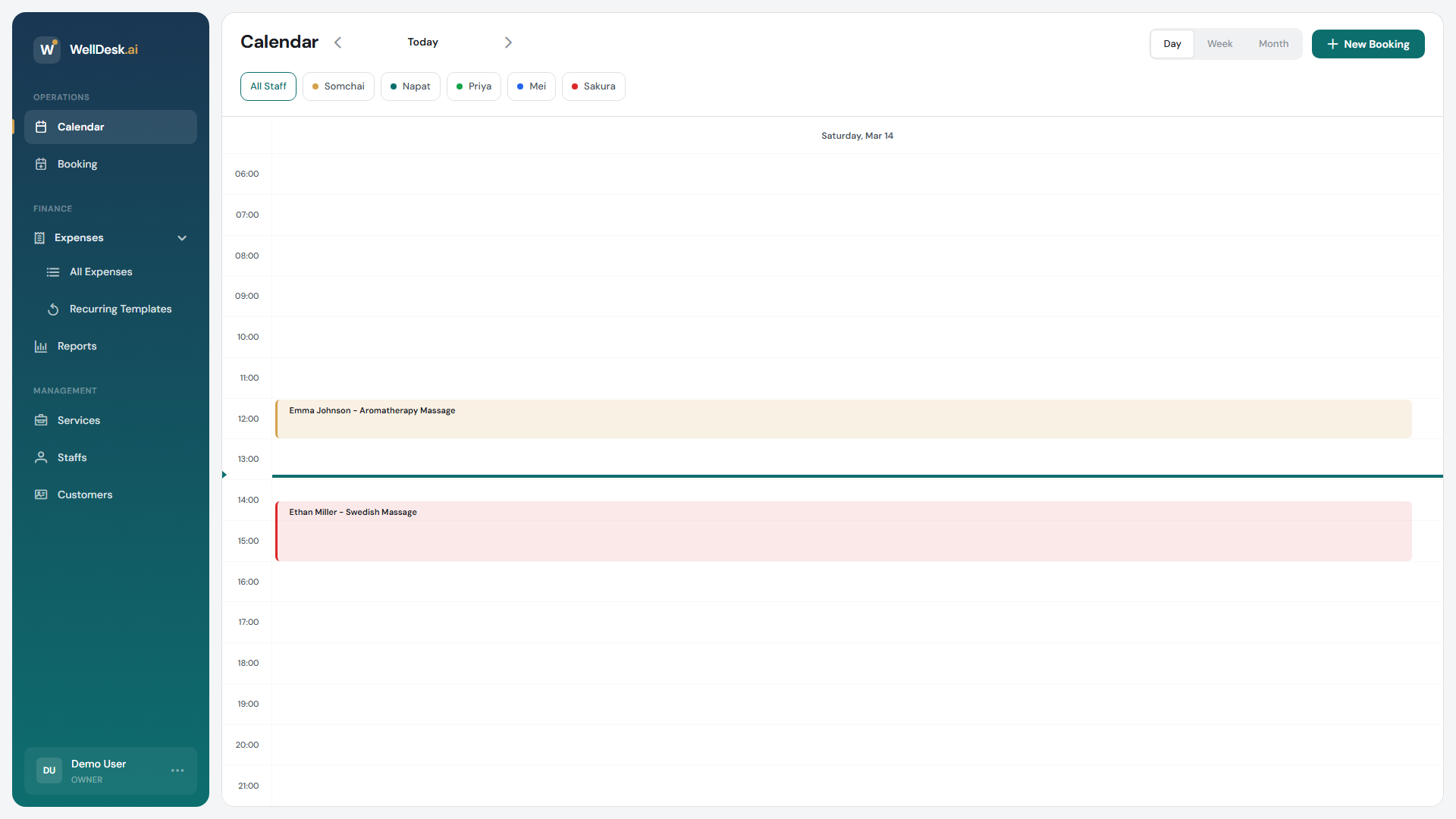
| Day | A busy day with back-to-back appointments |
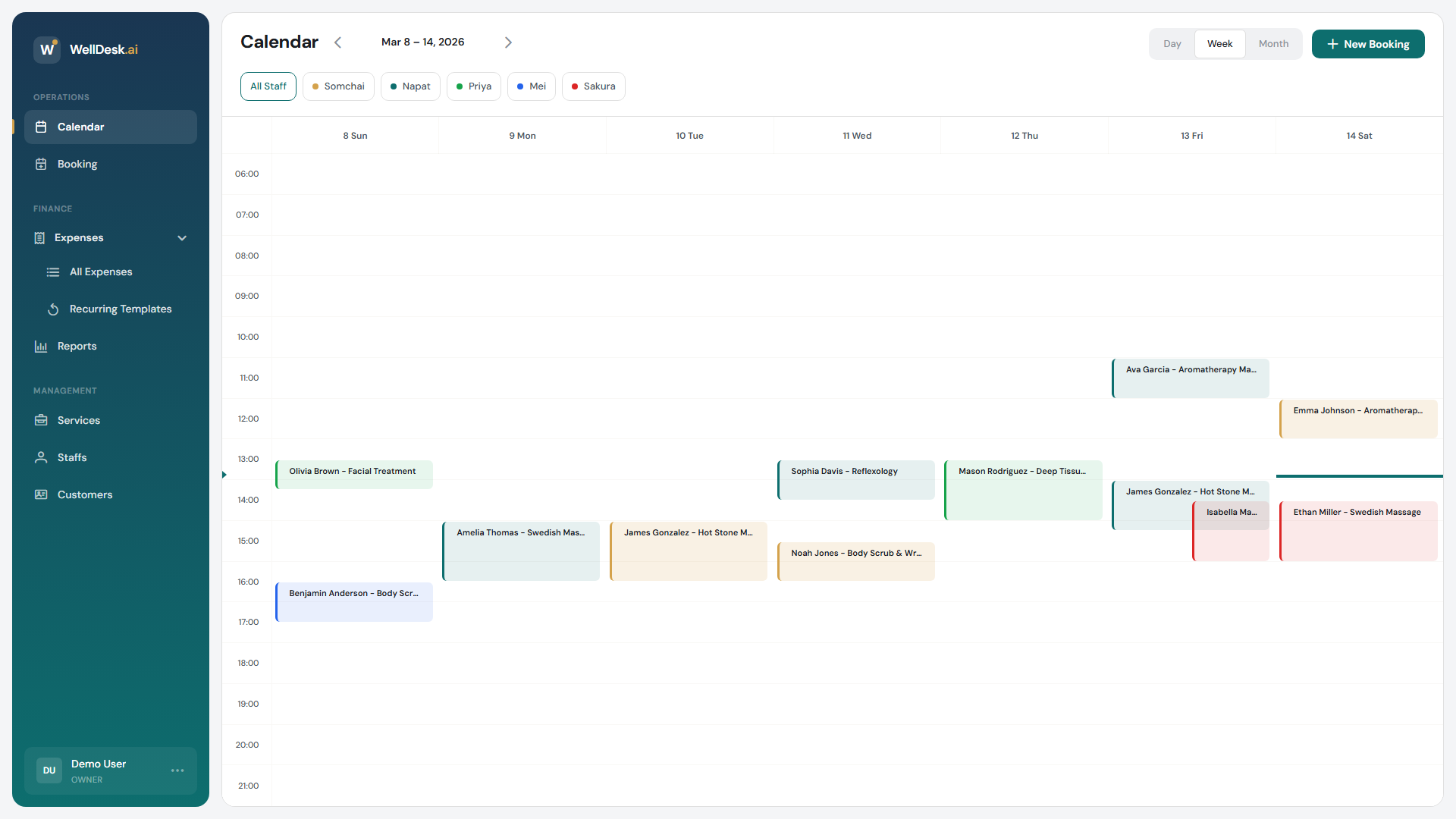
| Week | The default, and the one most people keep — enough context to answer “can you do Thursday?” |
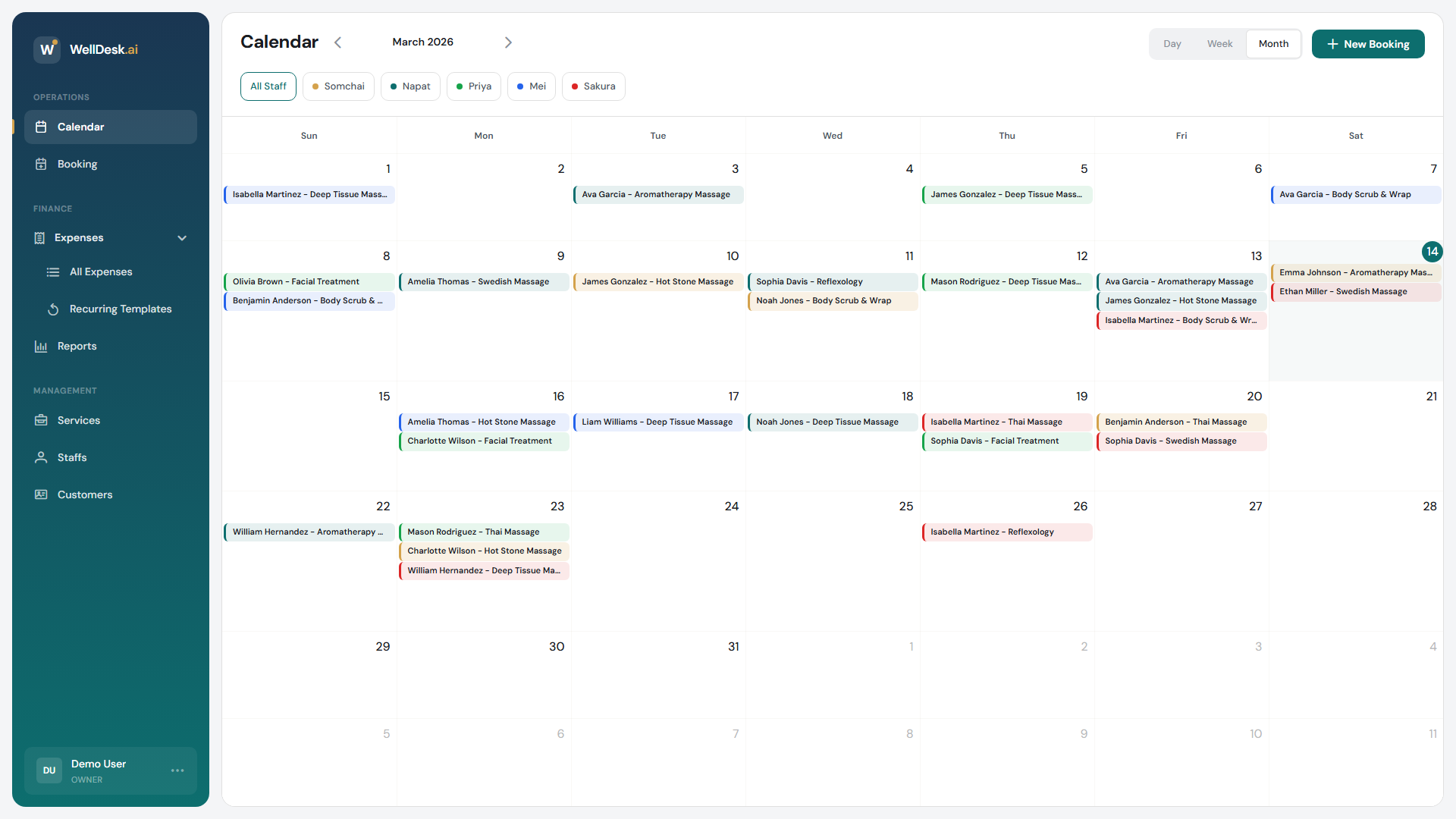
| Month | Spotting quiet spells and how far ahead you are booked |
Day view, for a full day at a glance:
Month view, for how far ahead you are booked:
The time grid starts at 06:00. An appointment earlier than that is still in the list — the grid simply does not begin above it.
Showing one person
Under the toolbar is a row of pills: All Staff, then one per team member, each with its own colour. Click a name to show only their appointments, and All Staff to go back.
The colours are consistent, so in All Staff you can tell whose appointment is whose at a glance.
There is no filter by service or by status on the Calendar. For that, use the Booking list, which filters by status, by team member and by date range.
Opening an appointment
Click any appointment to open its details — customer, service, team member, start and end time, duration and notes.
From there you can complete it, which is also where payment is recorded, or cancel it. See Managing Booking Status.
Appointments cannot be dragged. To move one to a different time, open it and edit the date and time.
Adding to the calendar
Two buttons sit at the top right:
- New Booking — an appointment for a customer. See Creating a Booking.
- Walk-in — hands a tablet to someone standing at your counter so they book themselves.
Clicking an empty slot in the grid does nothing; use the buttons.
To block out time that is not an appointment — a holiday, a day off — set a date exception on the schedule. See Schedules and Working Hours.
What each person sees
Owners and Admins see everyone. Someone with the Staff role sees their own appointments, and whether they can see anyone else’s depends on View Other Staff Bookings under Settings → Shop → Staff.
Tips
- Start the day in Day view, then switch back to Week once you know what is coming.
- Filter to one person when a customer asks for them by name — it is much quicker than reading a full week.
- Complete appointments as they finish. It is the difference between accurate takings and a reconstruction on Friday.