Registering takes a couple of minutes: an account, an email you can open, and a short setup wizard.
Registering
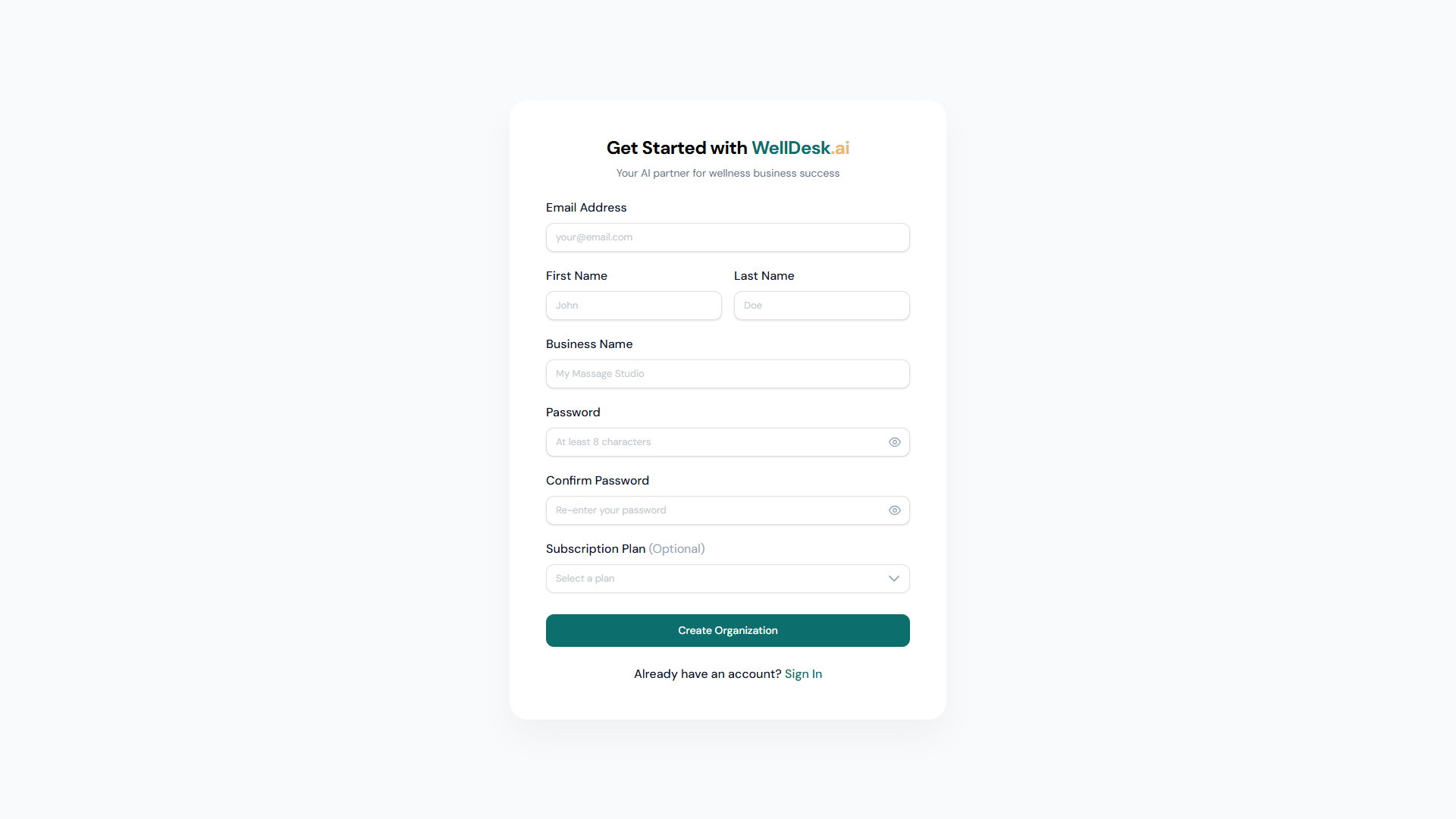
Go to welldesk.ai and start a new account. You will enter:
| Field | Notes |
|---|---|
| First Name / Last Name | Yours, as the owner |
| Business Name | What customers see on your booking page |
| Email Address | Your login, and where WellDesk writes to you |
| Password | At least 8 characters |
| Confirm Password | The same again |
| Subscription Plan | Optional — you can skip it and choose later |
Then click Create account.
Use an address you check daily. Your shop’s booking notifications go there, and so does anything you need to act on.
Verifying your email
WellDesk emails you a verification link. You cannot log in until you use it — this is deliberate, not a delay you can skip.
- Open the email and click the link.
- WellDesk confirms Email Verified.
If it has not arrived within a minute, check spam. You can send another from the login page, though there is a 5-minute wait between requests.
Links expire. If yours has, request a new one — the screen offers it.
Setting up your shop
Verification leads straight into a short wizard, four steps, a minute or two:
- Timezone, currency and language — get the timezone right now; changing it after you have bookings shifts the times they display at.
- How customers reach you — phone and email.
- Where you are located — your address.
- Your logo and social links.
Everything here can be changed later under Settings, and the wizard says so.
What to do next
You have an account and a shop. You cannot take a booking until you add a service, so that is the next thing:
- Add a service — at least one, with a duration and a price. See Adding a Service.
- Check your opening hours, including a midday close if you have one. See Business Hours.
- Share your booking page. See Your Public Booking Link.
If you work alone, one thing is worth checking early: Show Owner in Bookable Staff under Settings → Shop → Staff must be on, or your booking page has nobody to book.