This page walks through the health form from your client’s side, so you know what they see and what to tell them when they ask.
A client books first, then fills in the form on their phone, before the visit or when they arrive. A client with answers on file isn’t asked again, except for questions you set to be asked again.
Right after booking
When a new client books online, the confirmation page shows One more thing before your visit, with Fill in now. It takes about two minutes.
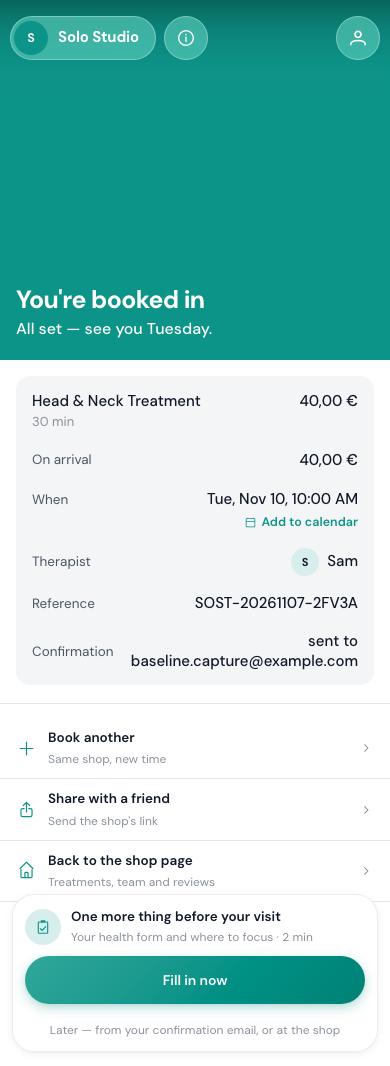
If they’d rather do it later, the card tells them how: from the link in their confirmation email (the reminder has it too), or at the shop when they arrive.
A returning client whose answers are on file isn’t asked to fill in the form again. If one of your questions is due to be asked again, the card also mentions it, and they answer just that question.
The Before your visit page
The link opens the client’s Before your visit page. It shows the booking, the health form, and For this visit, where they can pick a pressure and the areas to focus on or avoid.
On a phone or tablet the form is a short chat. The therapist (or the shop) says hello, the client taps Let’s do it, and the questions come one at a time. Before sending, they see Your answers and can tap Change to fix one. On a computer the same questions are one page.
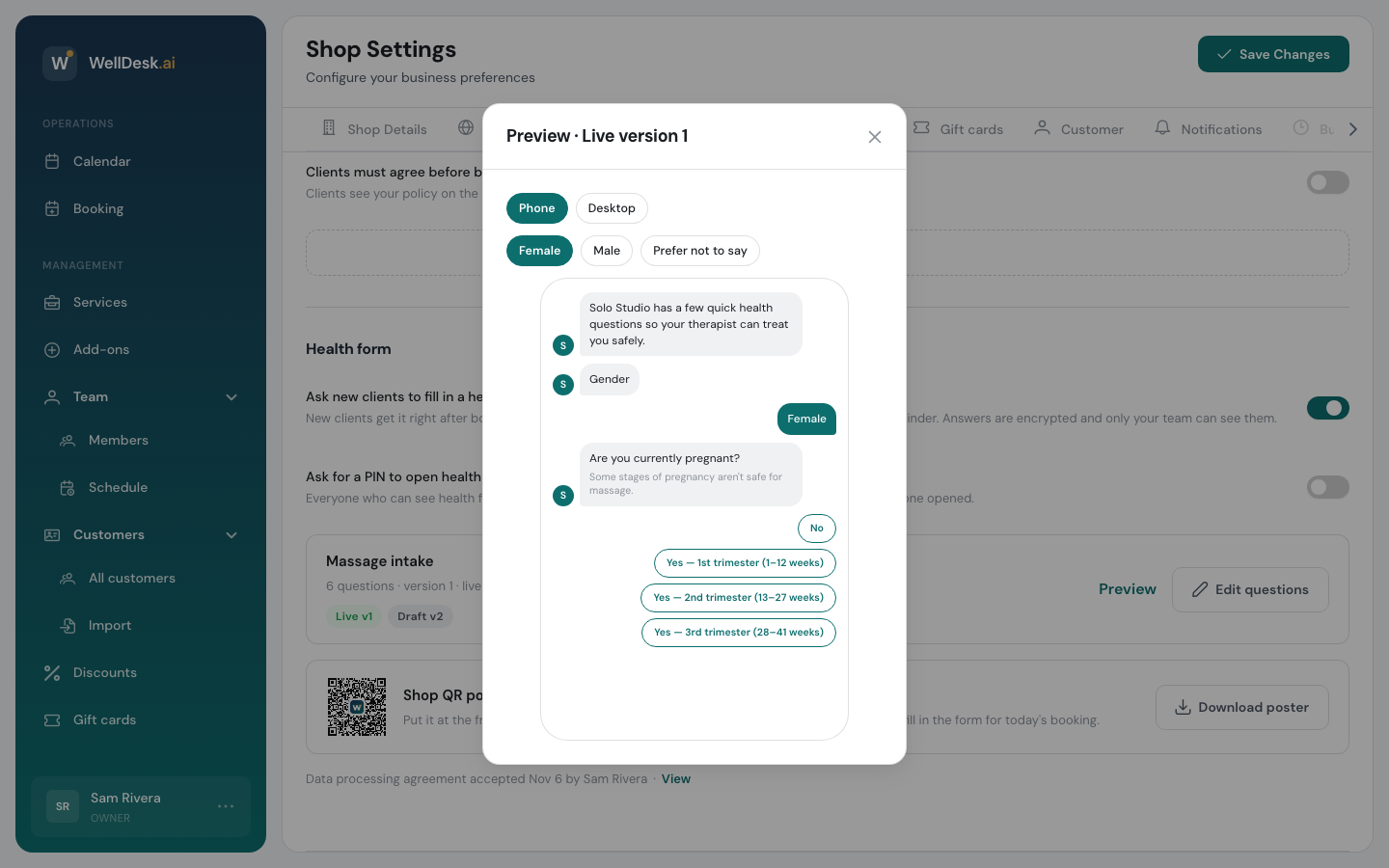
The last step is always the consent: the client ticks that they agree you keep these answers to plan their treatment safely. Then they tap Send to and your shop name.
Once it’s sent, the page says Health form sent. To change an answer later, the client calls you. You can then ask them to fill it in again from the booking (see Reading Health Answers).
If a client’s answers are changed through their link, they get a short email saying when, in case it wasn’t them. The email doesn’t contain the answers.
When an answer stops the booking
If you marked an answer as Stops the booking, a client who picks it sees We can’t do this treatment for you with the message you wrote. They then have three choices:
- Call the shop, so you can find them something suitable.
- Cancel booking. Cancelling here is free, and you are told. The booking’s history says Cancelled from the health form.
- I picked the wrong answer, to go back and change it.
If they send the form without cancelling, the booking shows Needs a look so you call them before the visit. See Reading Health Answers.
Couple bookings
Health answers are personal, so each person fills in their own. The person who booked answers on their own link. Their Before your visit page then shows Your partner fills in their own, with Share their link and Copy link to send the partner theirs.
The partner’s link works only for that booking and stops working after the visit. The partner gives their first name and answers on their own phone. The person who booked doesn’t see the partner’s answers.
At the shop
A client who arrives without having filled in the form can still do it before the treatment. There are three ways.
The front-desk poster
Download the Shop QR poster from Settings → Shop → Booking (see Setting Up the Health Form), print it and put it at the front desk. The client scans it with their phone camera, then:
- Picks their language.
- Types the phone number they booked with, or taps Use my email.
- Confirms Yes, it’s me when the page greets them by first name.
- Fills in the form.
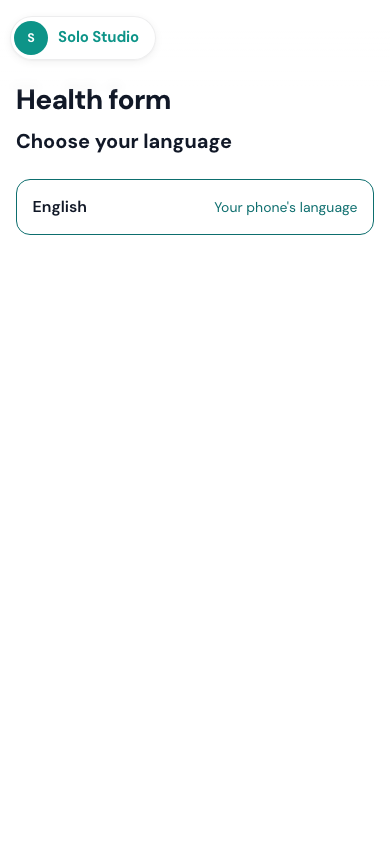
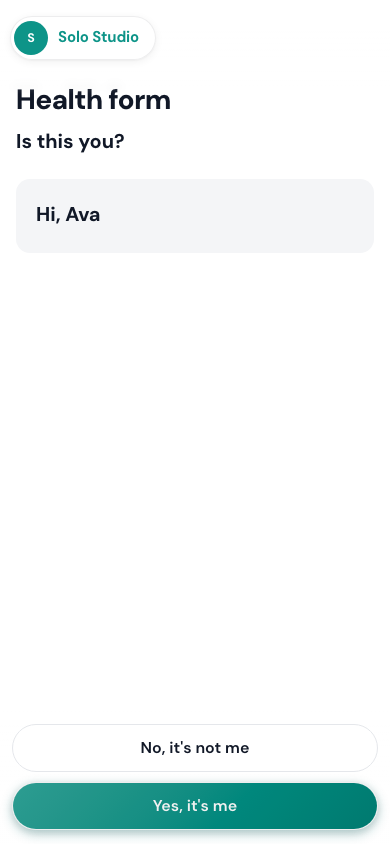
The poster finds today’s booking only. If there isn’t one, the client is asked to come to the desk. A client whose form is already on file is told so and asked to take a seat.
The poster’s code is also on the QR codes page. Make a new poster code there replaces it: printed posters stop working, so print and put up the new one.
Show a QR code from the booking
Open the client’s booking and click Show QR in its Health form section. The client scans the code with their phone camera and the form opens for that booking, in their language.
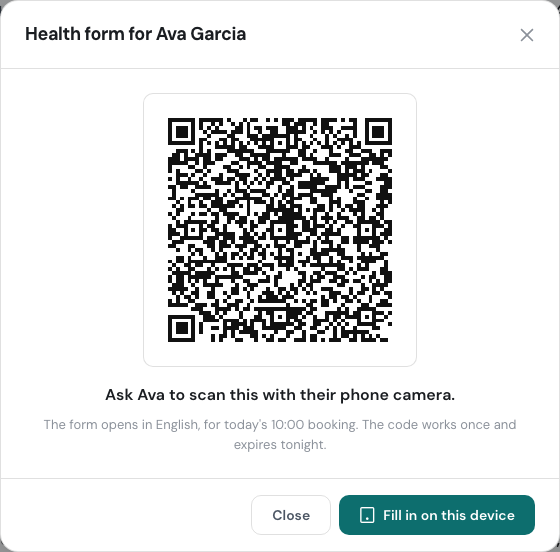
The code works once and expires at the end of the day.
Fill it in on your device
Click Fill in on this device in the booking (or in the Show QR dialog) and hand your tablet or phone to the client. When they finish, the page asks them to hand it back. Close the tab to go back to the booking.
Show QR and Fill in on this device appear on a Pending booking that hasn’t ended yet, for a client on your list. They don’t appear for a walk-in booking without a client.
Keeping the answers
After filling in the form at the shop, the client can tap Save to my account to see their answers later in their own WellDesk account.