A shared front-desk computer or tablet often stays signed in all day. The PIN keeps clients’ health answers closed on it: anyone who wants to open them types their own PIN first.
It’s optional, and only the owner can turn it on or off.
Turning it on
- Go to Settings → Shop, open the Booking tab and find the Health form section. On a phone: Menu → Shop settings → Online booking.
- Turn on Ask for a PIN to open health forms.
If you don’t have a PIN of your own yet, WellDesk asks you to set one first: enter Your password, then a New PIN (4 to 6 digits) and Repeat PIN, and click Save PIN. The setting goes on once your PIN is saved.
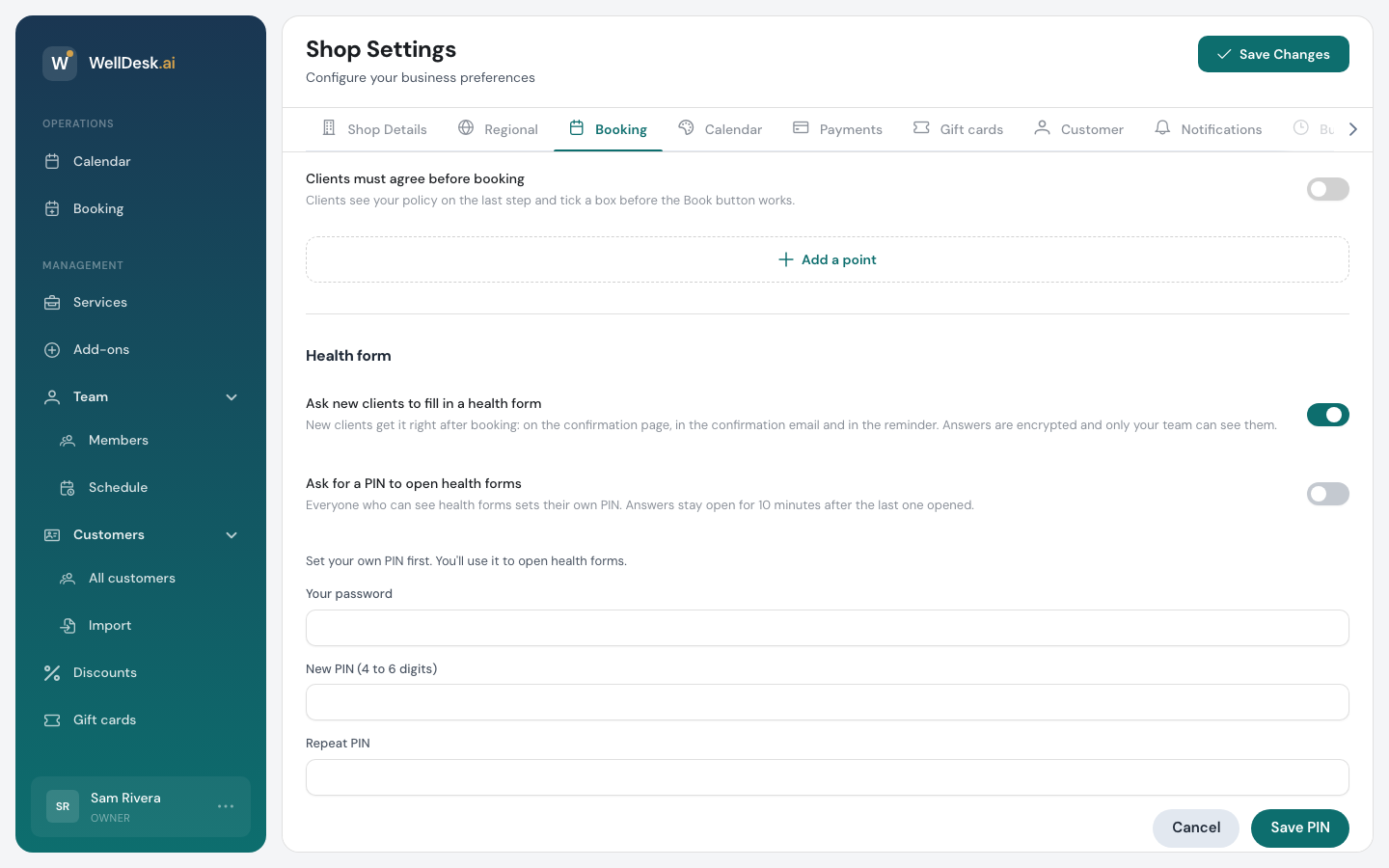
Everyone sets their own PIN
Each person who can open health answers has their own PIN. Nobody shares one.
A team member sets theirs the first time they open a client’s answers: WellDesk asks for their password and a new PIN. They can also set or change it any time in Settings → General, under Health form PIN (on a phone, Menu → General). That card only appears while the shop asks for a PIN.
Opening answers with the PIN
Click View answers on a booking. WellDesk asks Enter your PIN to see the health form. Type it and click Unlock.
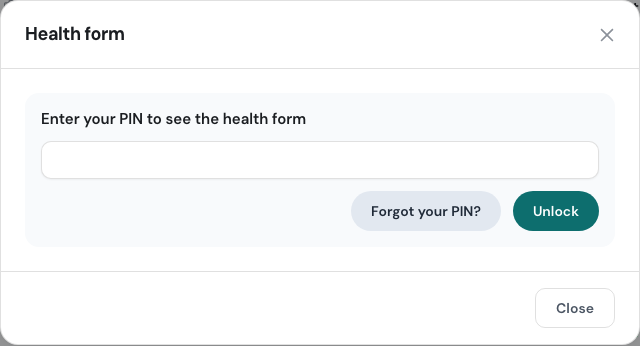
After that, answers stay open for 10 minutes after the last one you opened, so you don’t type the PIN for every client.
Until the PIN is entered, a booking still shows whether the form is on file, but not the flags or the details.
Forgotten PIN or too many tries
Click Forgot your PIN? and enter your password to set a new PIN.
After too many wrong PINs, WellDesk says Too many tries and asks for your password to set a new PIN. The lock-out is recorded under Who has looked for the owner to see.
Turning it off
Turn off Ask for a PIN to open health forms in the same place. Answers then open without a PIN for everyone who is allowed to see them.