A customer record holds what you know about someone and everything they have booked with you.
Open one from Customers in the sidebar: search by name or phone, then click the row.
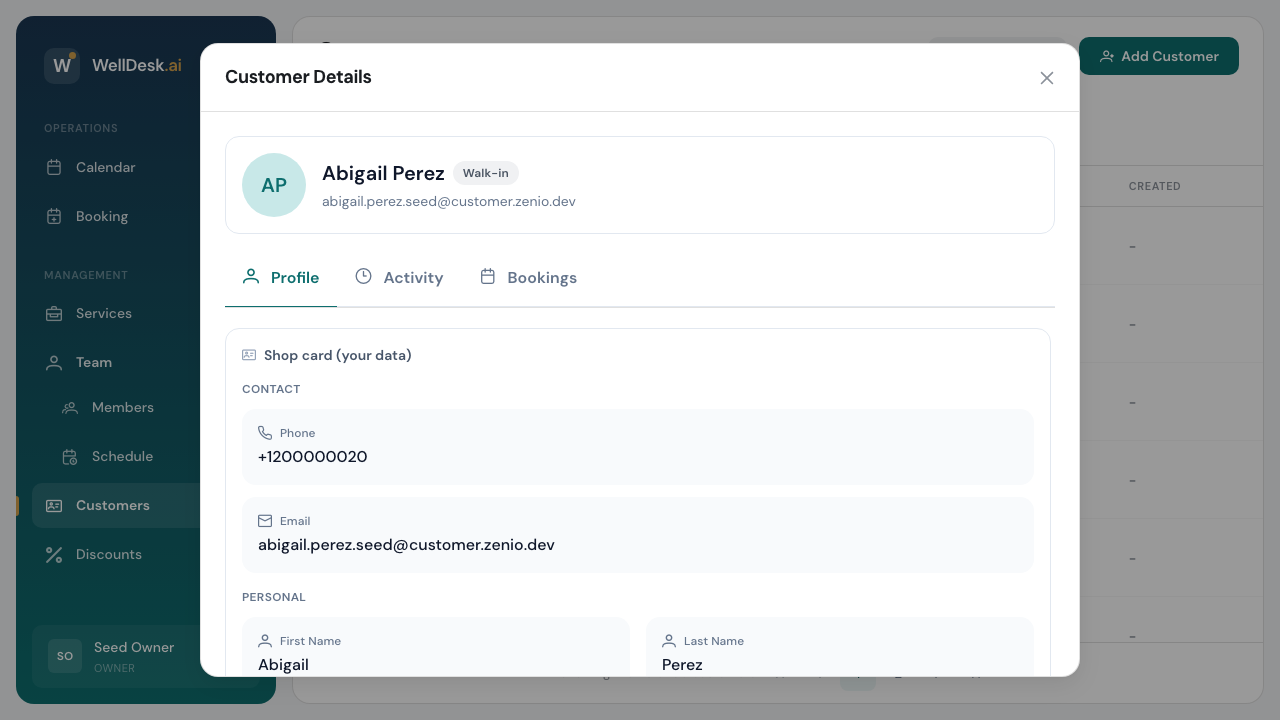
The three tabs
| Tab | What is on it |
|---|---|
| Profile | Contact details, personal details, emergency contact, service notes, tags |
| Bookings | Every appointment: date, service, team member, price, status |
| Activity | What has happened on the account |
Your card and their profile
This is the part worth understanding, because it explains why some fields will not let you type in them.
A record has two sides:
- Shop card (your data) — what your shop recorded. Yours to edit.
- Verified by customer — the customer’s own profile, if they have a WellDesk account. These fields can only be edited by the customer, and a locked field says so when you try.
Where the two differ, the field is marked. Sync from customer copies their verified details over your card — useful when someone has changed their phone number and told WellDesk but not you.
Sync overwrites your card and cannot be undone. You are asked to confirm. If your card holds something deliberate — a name they prefer to be called — syncing will replace it.
For a walk-in customer with no account, there is no verified side. Everything is yours.
Service notes
Under Notes / Preferences. This is the most useful field in the record and the most underused — “prefers a quiet room”, “books mornings”, “pressure on the shoulders, light elsewhere”.
Notes are internal. Customers never see them.
Keep them about the service. Health details are a different matter legally, and WellDesk deliberately does not ask for medical information.
Booking history
The Bookings tab lists every appointment with its date, service, team member, price and status.
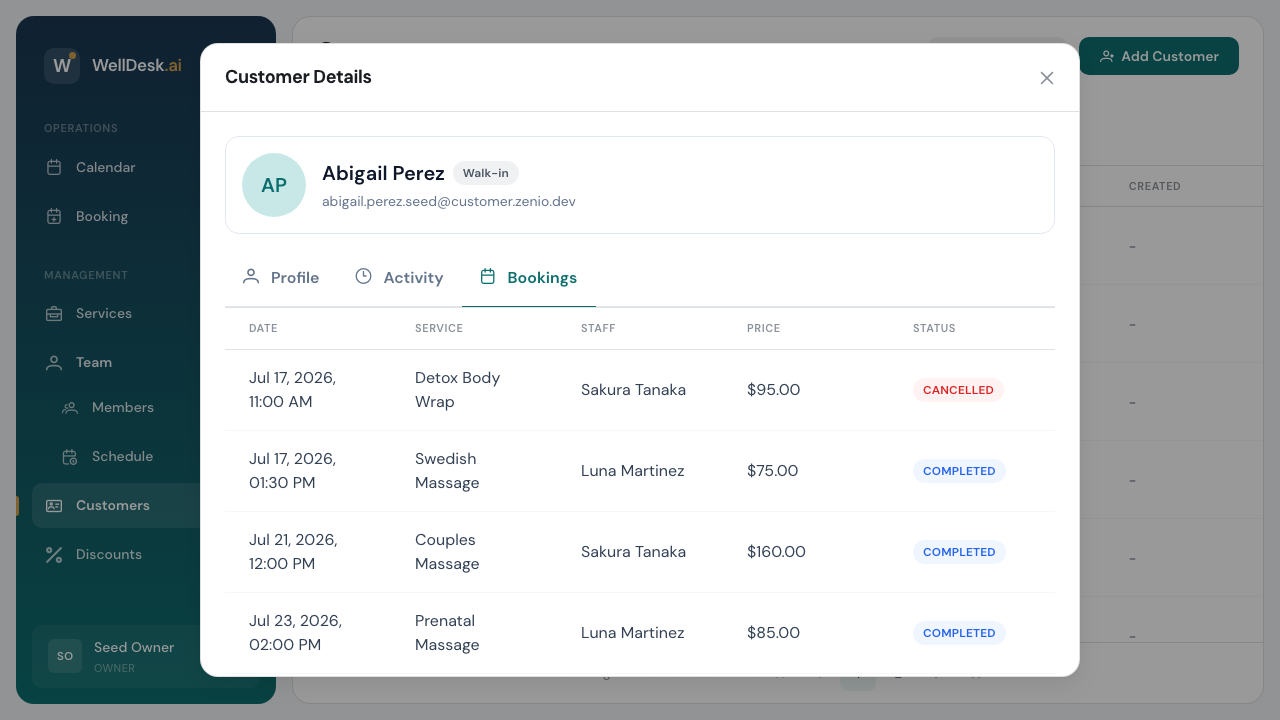
It is the fastest answer to “when was she last in?” and “what did he have last time?” — worth ten seconds before someone arrives.
Inviting a customer to register
Send Invite invites a walk-in customer to create their own account. They get a login, can see their own bookings, and their profile becomes the verified side of the record.
Deactivating
You cannot delete a customer, and there is no archive or merge. What you can do is deactivate a record so it drops out of the default list. Tick Show inactive in the Customers list to see those again.
Merging is not available, which is the practical reason the duplicate rules exist — see Adding Customers.
Who can do what
Owners and Admins have full access to customer records. Someone with the Staff role can see customers and add notes; whether they see appointments beyond their own depends on View Other Staff Bookings under Settings → Shop → Staff.
Tips
- Read the record before the appointment. Thirty seconds of history is what “they remembered me” is actually made of.
- Do not fight a locked field. If a customer’s own detail is wrong, ask them to change it, or sync.
- Record the preference, not the diagnosis.