A QR code lets someone open your booking page or your Google reviews by pointing their phone camera at it: on your counter, in your window, on a card you hand over after a treatment.
Owners and admins find them here:
- On a computer: Online Presence → QR codes in the sidebar.
- On a phone: Menu → QR codes. The QR button on the Shop page row at the top of the Menu shows your booking page code straight away.
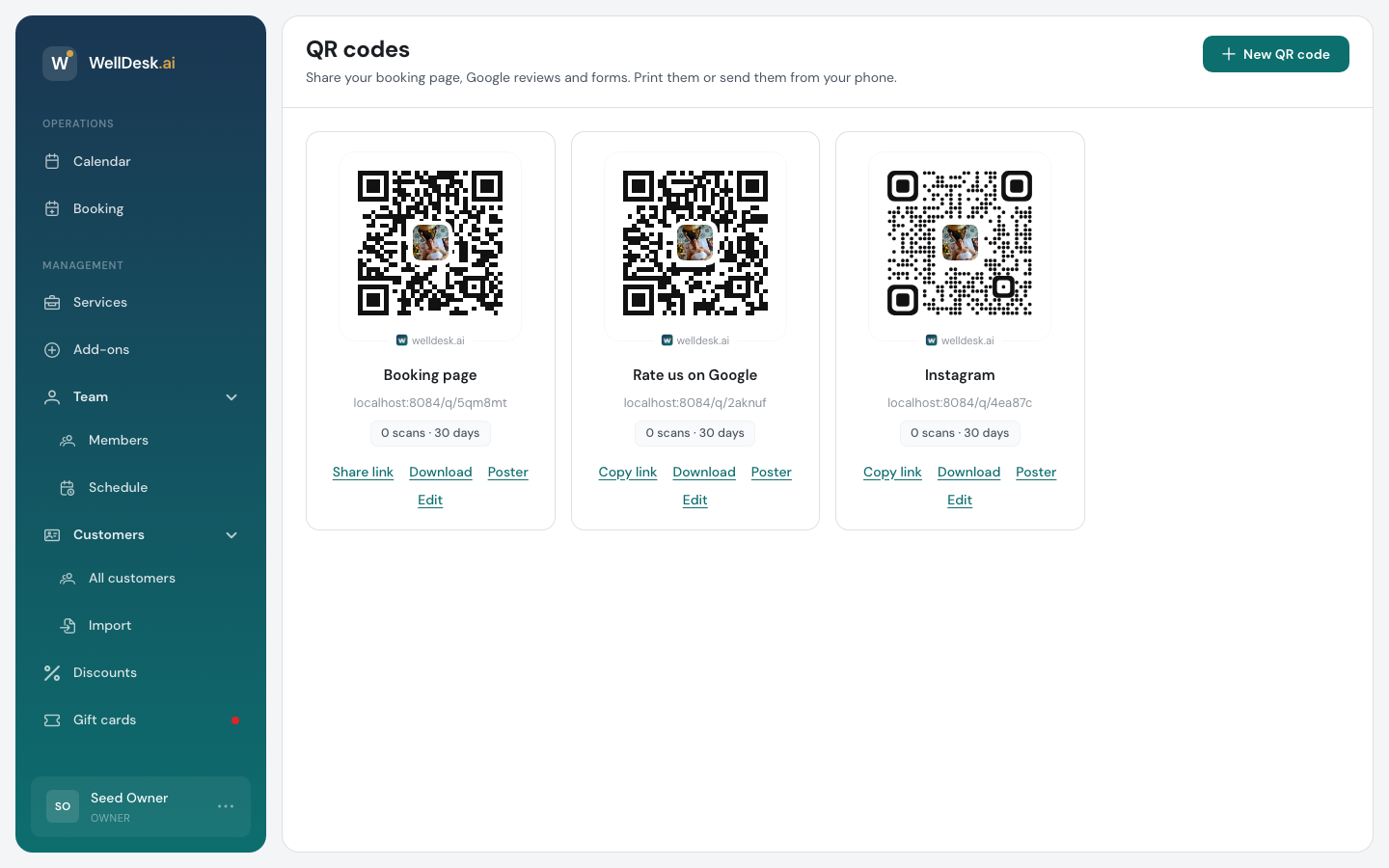
The ready-made codes
You don’t have to make these. They are there already:
| Code | Leads to | When it appears |
|---|---|---|
| Booking page | Your shop page | As soon as your shop has a web address |
| Rate us on Google | The page where clients leave you a Google review | Once your Google Business Profile is connected under Settings → Shop → Online Presence |
| Health form (front desk) | Your health form, for clients filling it in at the shop | Once you have a live health form |
Each code holds a short WellDesk link that forwards to the right place. So if your web address changes, the Booking page code follows it, and codes you already printed keep working. A Rate us on Google code stays even if you disconnect your Google listing.
You can change how a ready-made code looks, but not where it leads.
Sharing, downloading and printing
On a computer
Each code is a card with links under it:
- Share link (Booking page only): opens Share your shop page, with a link for each place you post it, so each booking shows where it came from. See Your Public Booking Link.
- Copy link: copies the code’s link.
- Download: saves the code as a PNG image or an SVG (for a print shop or a design app).
- Poster: makes an A5 PDF poster to print, with your logo, shop name, the caption in each of your languages and the code, sized to scan from about a metre away.
- Edit: changes the code’s look, and for your own codes its name and address.
The health form code has Make a new poster code instead of Edit. Use it if a printed poster went somewhere it shouldn’t: the old posters stop working, so print the new one and put it up. How clients use that poster is in How Clients Fill In the Health Form.
On a phone
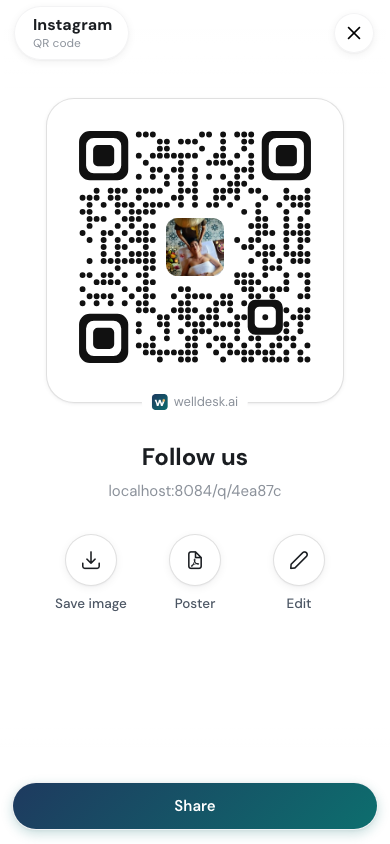
Tap a code to open it. Share at the bottom sends it to WhatsApp, Instagram or any other app on your phone. Save image saves it to your photos, Poster makes the printable poster, and Edit changes it.
Making your own code
Make a code for anything else you want people to open: your Instagram, a price list, a menu. You can have up to 10.
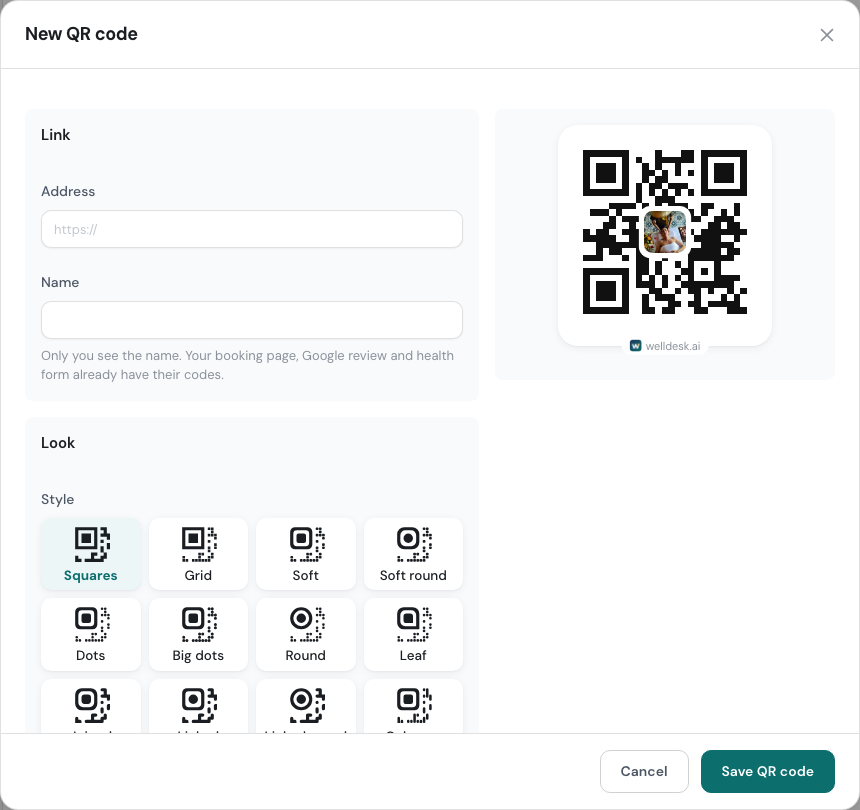
- Click New QR code (on a phone, New QR code at the bottom of the list).
- Under Link, paste the Address. It must start with
http://orhttps://. - Give it a Name. Only you see it.
- Set the Look (see below), and click Save QR code.
Your own codes also hold a short link, so you can change the address later and printed codes follow it. To remove one, open Edit and click Delete QR code. Codes you already printed or shared stop working.
How a code looks
The Look settings are the same for every code:
- Style: the shape of the dots, from Squares (the plain code) to Dots, Round, Leaf and more. Every style is tested to scan, on screen and printed.
- Shop logo in the middle: Show or Hide.
- Colour: Black, or Shop colour. A shop colour too light to scan is darkened for you.
- Caption: the line under the code on the image and the poster, such as Book online. If you offer more than one language, write it in each one.
Scans
Each code shows how many times it was scanned in the last 30 days, for example 12 scans · 30 days. Put the same code in two places and you can’t tell them apart, so make a code for each place you want to compare.
Tips
- Put the booking code where people wait. The counter, the waiting chair, the back of the treatment room door.
- Hand over the Google code at the end of a good visit. Your clients also get a review email on their own if you turn it on. See Notification Settings.
- Print a test copy and scan it before you print fifty.