These settings decide how times, dates and money are shown everywhere else — in your calendar, on your booking page, and in every email your customers receive.
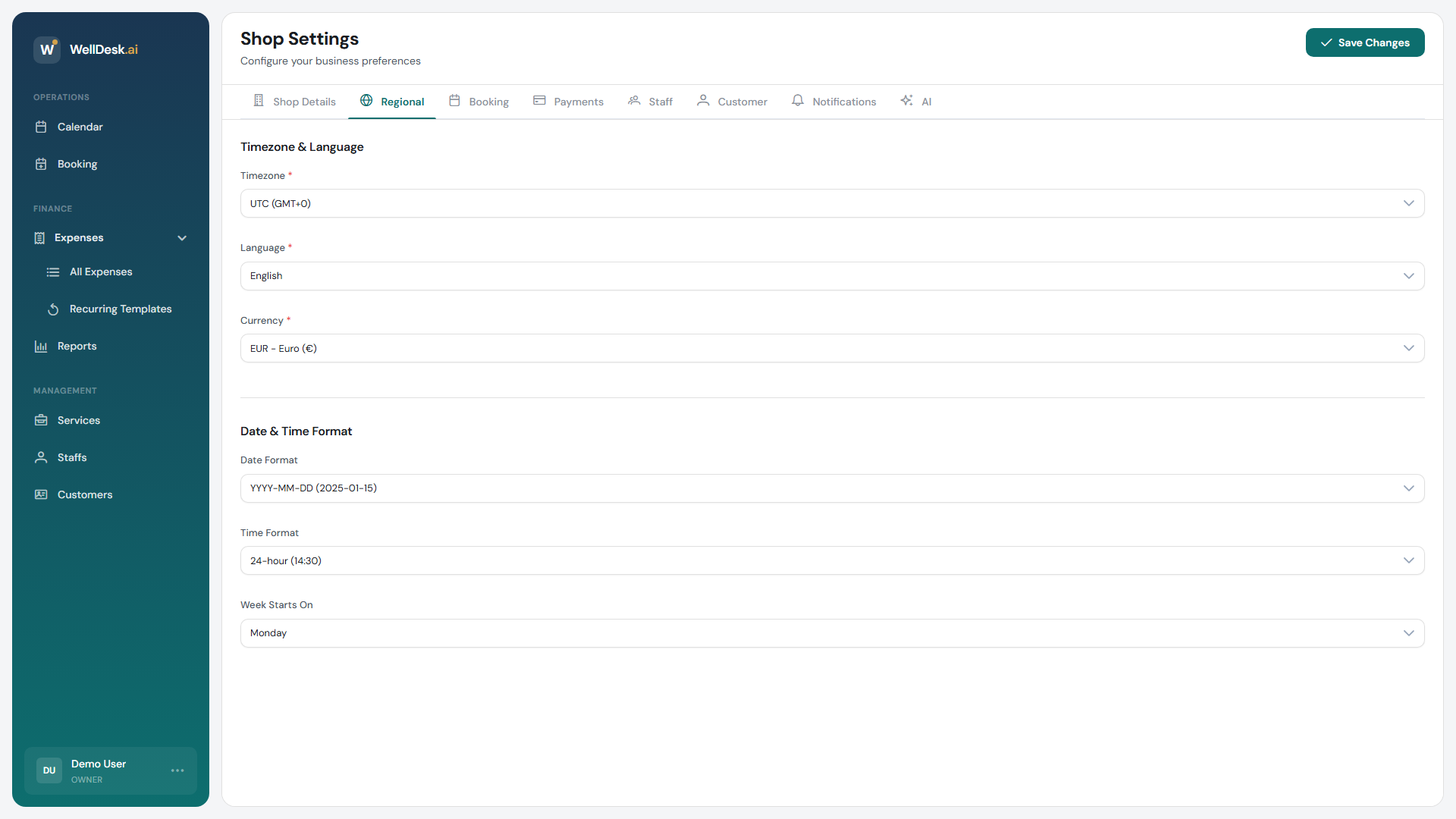
Opening the settings
- In the sidebar, go to Settings → Shop.
- Open the Regional tab.
- Change what you need and click Save Changes.
Timezone and language
| Setting | Notes |
|---|---|
| Timezone | Required. Every booking time is shown in it. Searchable — start typing your city. |
| Default language | Your booking page’s default, and the fallback when a visitor’s language has no content. |
Get the timezone right before you take bookings. Changing it later shifts the times existing appointments display at. If you must, do it when the calendar is quiet and tell your team.
The default language is the fallback, not the only one. To offer more, enable them under Settings → Shop → Regional and write your content in each.
Currency
Searchable, and it applies to service prices, expenses and reports alike. Set it once at the beginning; changing it later does not convert anything — existing numbers stay as they are and are simply relabelled.
Formats
| Setting | Effect |
|---|---|
| Date Format | How dates are written throughout |
| Time Format | 12-hour or 24-hour |
| Week Starts On | Which day your calendar week begins |
Match local convention — a Spanish shop wants 24-hour time and a Monday week start; a US shop generally does not. These are display only and change nothing about the underlying data.
Tax
Default Tax Rate (%) applies to all services unless overridden.
WellDesk does not file anything or produce a tax invoice for you — this rate is for your own records and figures.
Tips
- Do the timezone first, on day one. It is the one setting here with consequences you cannot fully undo.
- Set the currency before entering prices, so you never have to wonder whether an old figure meant euros.
- Check the time format after setup by looking at your own booking page. A 12-hour clock in a 24-hour country reads as careless.