Not every gift card starts online. Someone pays at the desk, or you sold paper vouchers before you used WellDesk. Add those cards yourself, and every card can then be used the same way, in the shop or online.
Adding a gift card
- Go to Gift cards in the sidebar (on a phone: Menu → Gift cards).
- Click Add gift card.
- Fill in the form and click Add gift card.
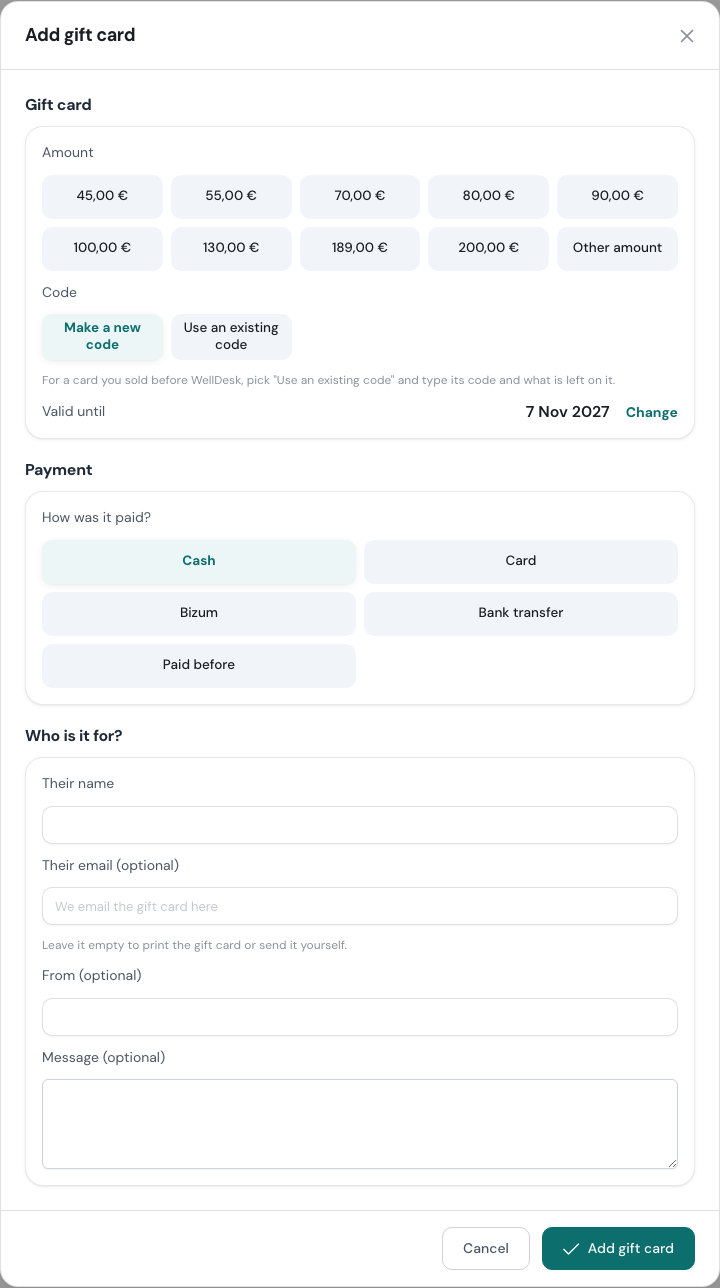
| Field | Notes |
|---|---|
| Amount | One of your amounts, or Other amount (1 to 10,000). |
| Code | Make a new code, or Use an existing code for a card you sold before. |
| Valid until | Starts from your usual validity. Click Change to pick another date. |
| How was it paid? | Cash, Card, Bizum, Bank transfer or Paid before. |
| Their name | The person the card is for. Required. |
| Their email (optional) | WellDesk emails the gift card here. |
| From (optional) | Who it is from, shown in the email and on the card. |
| Message (optional) | A short note, up to 300 characters. |
| Email design | The look of the email. |
Preview the gift card shows the email and the PDF before you add it.
With an email, the person gets the gift card straight away, with the PDF attached. Without one, nothing is sent: the code shows on the card’s page, so you can hand it over yourself.
Cards you sold before WellDesk
Pick Use an existing code, type the code printed on the old voucher, and fill in What is left on it. Choose Paid before under How was it paid?.
From then on the old code works at checkout and on your booking page, like any other card. A code can only belong to one card, and can use 3 to 40 letters, numbers or dashes.
The Gift cards page
Paid cards are listed under Active, with the total still left to use across all of them.
Each card shows who it is for, its code, what is left out of what it started with, and how long it is valid. Cards that are used up or expired are hidden. Show used up or expired at the bottom lists them.
Requests that are not paid yet sit above, under Waiting for payment. See Gift Card Requests.
Looking at one card
Click Open on a card.
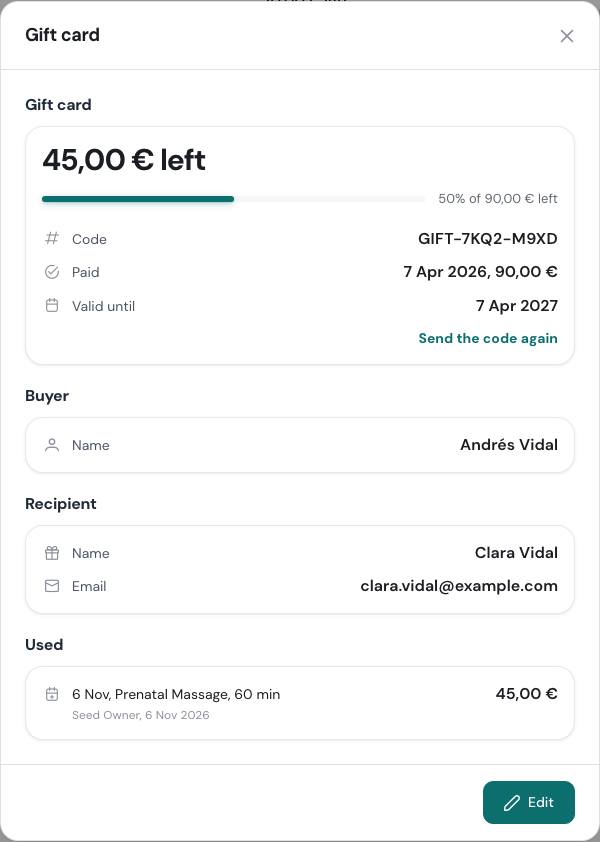
You see the balance, the code, when it was paid and how much, how long it is valid, the buyer and the person it is for.
Used lists every time the balance moved:
- Used: a booking it paid for, with the treatment, the amount, who took the payment and when.
- Put back: money returned to the card, for example when a completed booking was reopened.
- Balance changed: a correction someone made by hand, with the reason they gave.
Sending the code again
If the person lost the email, click Send the code again. They get the same email and PDF again.
Changing a card
Click Edit to change the person’s email, the message, the design, the Valid until date or the Balance.
Changing the balance needs a reason, for example “used in the shop before WellDesk”. The reason shows under Used, so anyone can see later where the money went.
After you change the email, the message or the design, WellDesk offers to send the card again so the person has the corrected version. The message and design of a used up or expired card can’t be changed.
To give someone more time on an expired card, set a new Valid until date.