Team → Members lists everyone in your shop with their role, status and when they joined.
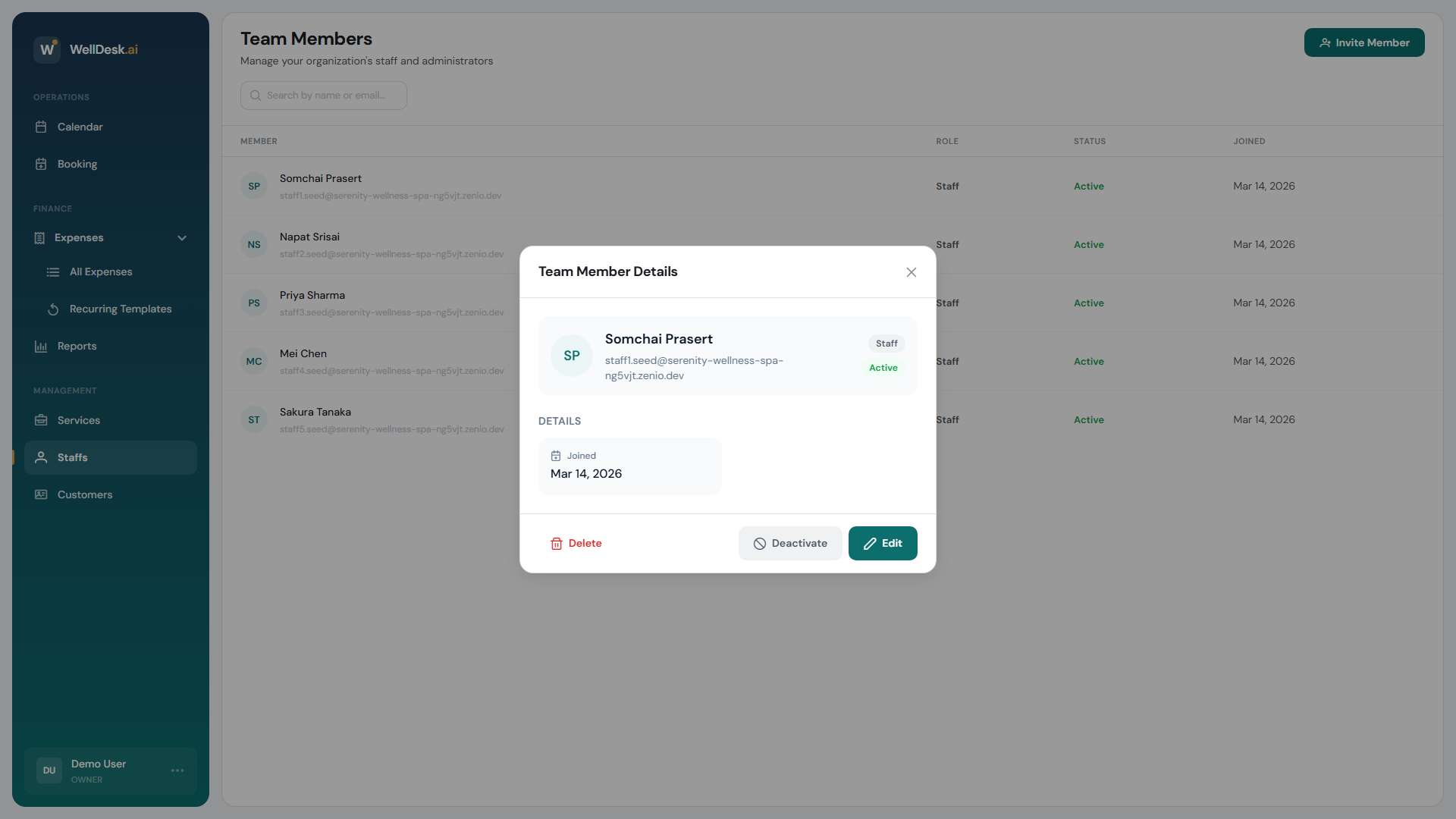
Editing someone
Click a row to open Team Member Details, then edit.
| Field | Notes |
|---|---|
| First Name / Last Name | Shown on bookings and on your public page |
| Phone Number (Optional) | Internal — customers do not see it |
| Bio | Appears on your public booking page |
| Avatar | Their photo, JPEG, PNG or WebP |
| New Password (Optional) | Sets a new password for them. Leave blank to keep the current one. |
The bio and photo are the ones that matter commercially — they are what a customer reads when choosing between two therapists. A name alone converts worse than a face and two sentences.
You can set a colleague’s password. Leave the password fields empty unless you intend to. It is there for the person who is locked out on a Saturday, not for routine edits.
What is not on the profile
- No commission rate. Commission is set on each service’s pricing tier, not per person — see Pricing Tiers.
- No services. Anyone bookable can be booked for any treatment.
- No working hours. Those live on the schedule — see Schedules and Working Hours.
Changing someone’s role
Roles are set when you invite someone, and shown in the Members list as Owner, Administrator or Staff. See Roles and Permissions for what each can do.
Deactivating, and deleting
Two different things:
Deactivate — for someone who has left, or is away long-term. They cannot log in and are not bookable, and everything they have done is preserved. Reactivate them the same way. This is what you want almost every time.
Delete — permanent, and the confirmation says so. Keep it for an account created by mistake.
Both are on the member’s row. Deactivated members are hidden from the default list; use the status filter to see them.
Prefer deactivating. Commission reports and booking history are built on who did the work. Deleting the person makes your own past harder to read.
Who is bookable
Team members are bookable by default. Two settings decide whether you and your admins appear on the public page at all, under Settings → Shop → Staff:
- Show Owner in Bookable Staff
- Show Admin in Bookable Staff
If you work alone, the first one has to be on or your booking page has nobody to book.
Tips
- Write the bio yourself if they will not. Two sentences about what they are good at beats an empty space.
- Deactivate the day someone leaves. It removes them from booking without touching the record.
- Check the bookable toggles after adding your first colleague — that is when shops discover the owner was hidden all along.