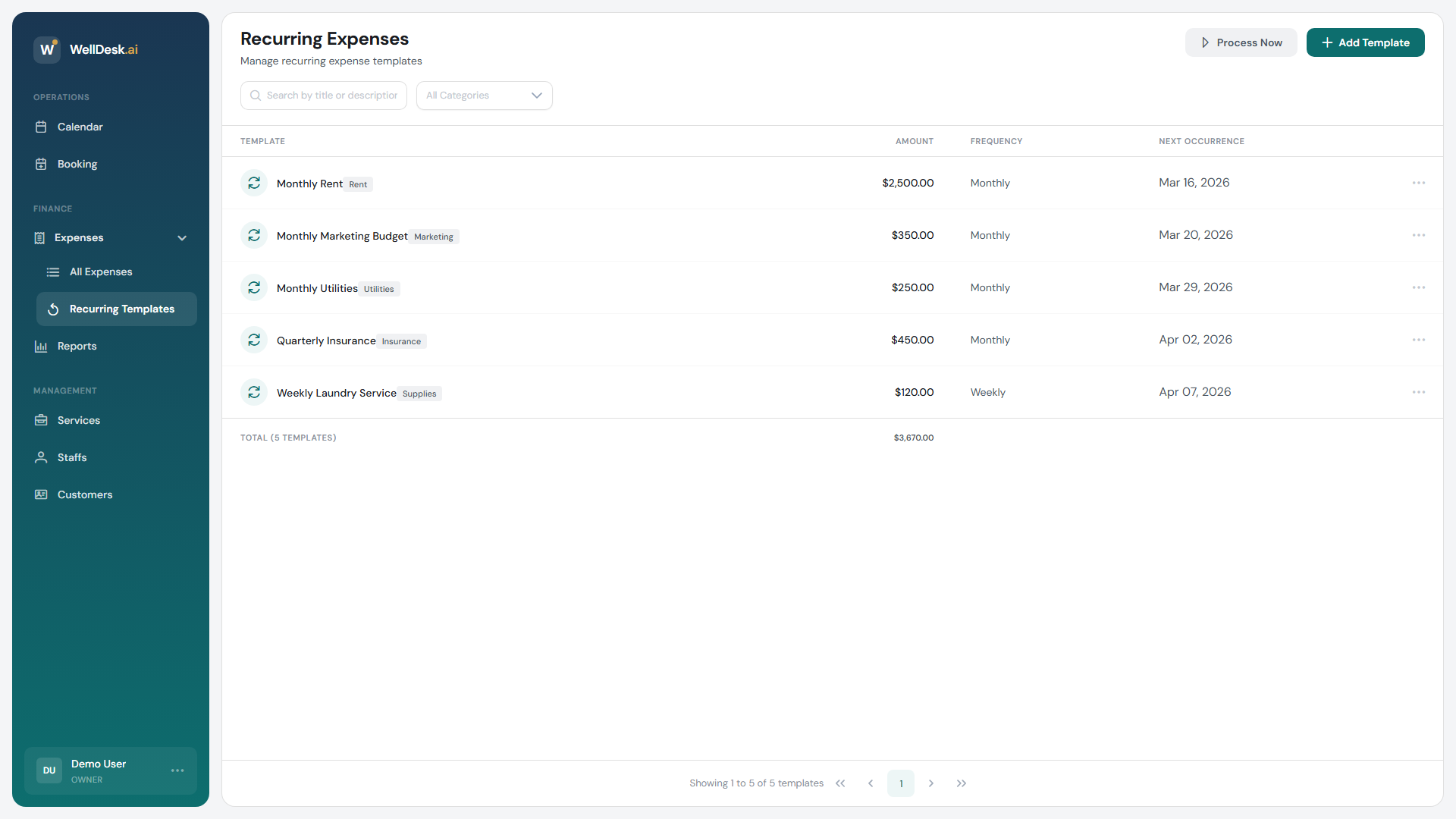
A recurring expense is a template, not an expense. It holds the details of a cost that comes round on a schedule, and creates the actual entry each time it is due.
What belongs here
| Cost | Typical frequency |
|---|---|
| Rent | Monthly |
| Insurance | Monthly or yearly |
| Software subscriptions | Monthly or yearly |
| Utilities | Monthly |
| Accountant | Monthly or quarterly |
Anything whose amount changes every time — stock, repairs — is easier as a single expense. See Tracking Expenses.
Creating a template
- Go to Expenses → Recurring Templates.
- Click Add Template.
- Fill in the dialog and click Add Template.
| Field | Notes |
|---|---|
| Title | e.g. “Monthly Rent” |
| Description (Optional) | Contract or account reference |
| Amount | The cost each time |
| Category | Same fixed list as single expenses |
| Frequency | Daily, Weekly, Monthly or Yearly |
| Every | The interval — “Every 3” with Monthly is quarterly |
| Next Occurrence | When the next entry should be created |
| End Date (Optional) | Leave blank to run indefinitely |
Frequency plus Every is how you get anything that is not a round month: quarterly is Monthly every 3, fortnightly is Weekly every 2.
The list
The table shows each Template, its Amount, Frequency and Next Occurrence — that last column being the one to check when you are wondering whether something has already been counted this month.
Creating the entries now
Process Now generates any entries that are due, immediately, rather than waiting. Useful when you have just set up a template and want this month’s entry to exist straight away.
Generated entries land in All Expenses like any other expense, and can be edited there if the amount differed this time.
Editing and removing
Open a template to change its amount, frequency or end date, then Save Changes. Changes apply to entries created from then on — entries already generated stay as they are, which is what you want, since they record what was actually paid.
There is no pause or resume. To stop a template, set an End Date, or delete it. Deleting the template does not remove the expense entries it already created.
Tips
- Review templates a couple of times a year. Subscription prices drift upward quietly.
- Set an end date on anything with a term — a lease, a loan — so it stops itself.
- Check Next Occurrence after editing. It is the field that decides whether you get an entry this month or next.