Your booking page is usually the first thing a new customer sees of you. It is worth an hour.
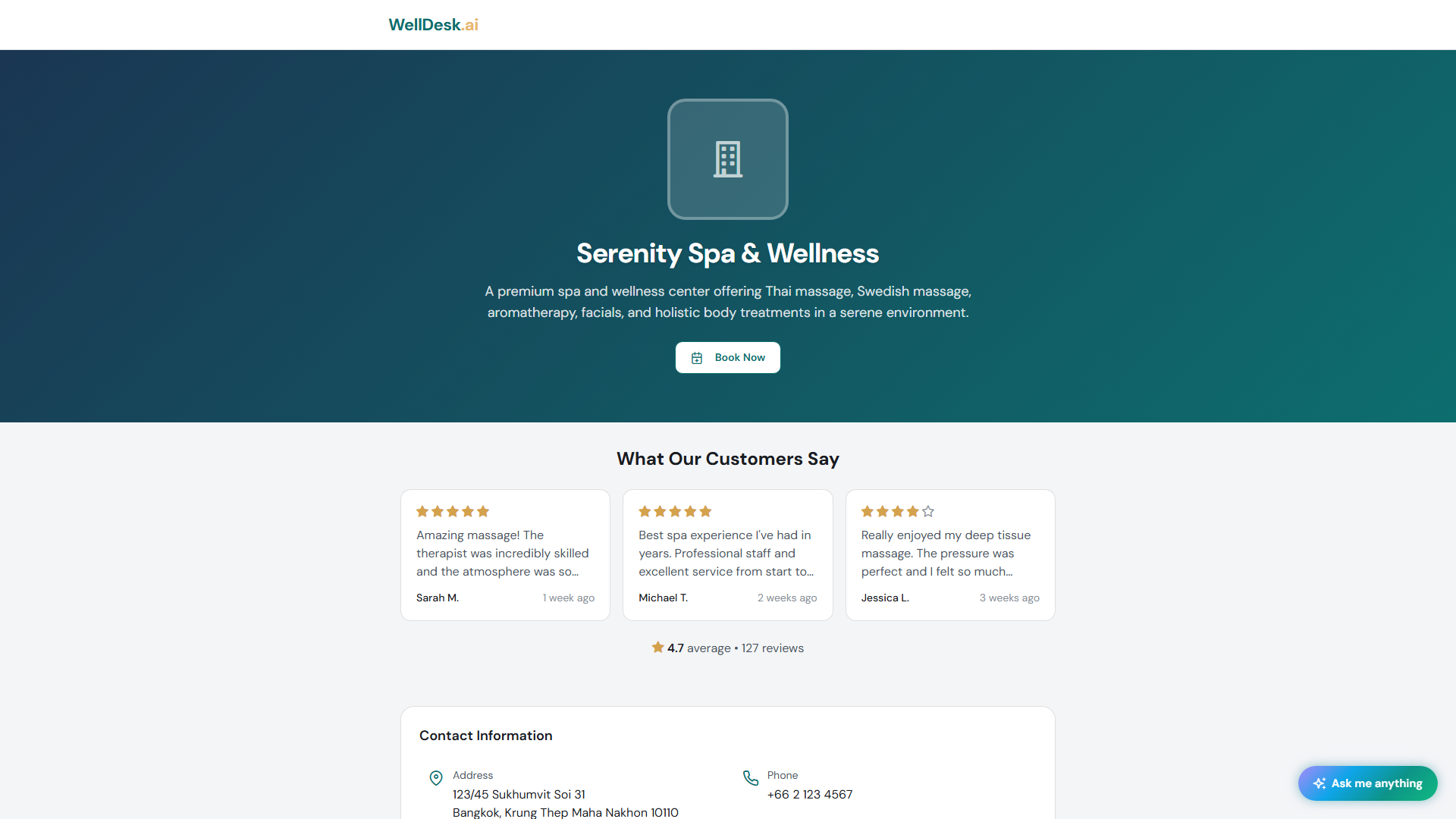
Where the settings live
Two places, and the split trips people up:
| What | Where |
|---|---|
| Name, address, phone, booking URL | Settings → Shop → Shop Details |
| Logo, cover image, tagline, about text, colours, fonts, section order | Online Presence → Theme Design |
If you are hunting for the logo upload on the settings page, that is why — the page content moved to Theme Design, and Shop Settings says so where the fields used to be.
Choosing a theme
Online Presence → Theme Gallery shows the available designs. Select Theme applies one; Customize Current Theme opens it for editing.
Try a couple before settling. Switching does not lose your content — the words and images carry across.
Making it yours
Theme Design has four tabs:
Theme
Which design you are using.
Style
- Color Scheme — the palette, with Color Overrides if you want your own exact colours.
- Font Style — some fonts are marked Pro only.
- Hero Pattern and Overlay darkness — texture behind your header, and how much the image is dimmed so text stays readable.
- Show Platform Branding — whether the page mentions WellDesk.
Match your physical brand if you have one. If you do not, pick a scheme and leave it alone — consistency reads as professional far more than the specific colour does.
Content
Your words and images:
- Logo — JPEG, PNG or WebP, up to 5 MB, square, 256×256 or larger.
- Cover / Hero image — the big photograph at the top.
- Tagline — one short phrase, shown prominently.
- About Your Business — a paragraph on who you are.
- About Highlights — a few short points: what you specialise in, years of experience, languages spoken.
Write the about text as you would speak it. “I’ve been treating back and shoulder tension in Gràcia for nine years, mostly people who sit at a desk all day” beats any amount of tranquil wellness journey.
Use your own photographs. A real picture of your actual room outperforms a stock image of a nicer room that is not yours.
Sections
Which blocks appear on the page and in what order — services, team, gallery, contact — plus their labels and titles. Footer Services picks up to five services for the footer; leave it empty and the first five show.
Reordering sections is a Pro feature; the tab tells you when something is upgrade-only.
Every language you offer
Content can be written per language. Set your languages under Settings → Shop → Regional, then write each field in each one. Visitors get their own language automatically.
Do not leave a language half-translated — a page that switches between two languages mid-scroll looks worse than one confident language.
Services and team appear automatically
You do not add these to the page. Services come from Services, with the descriptions and photos you gave them; the team block comes from Team → Members, with each person’s bio and photo.
So the way to improve those parts of your page is to improve them at the source. See Adding a Service and Managing Your Team.
Check it before you share it
Preview the page, then open it on your phone. Most customers will never see it on a desktop.