WellDesk sends booking emails for you — a confirmation when an appointment is made, a reminder before it happens, and alerts to whoever needs to know. This tab decides which of those go out.
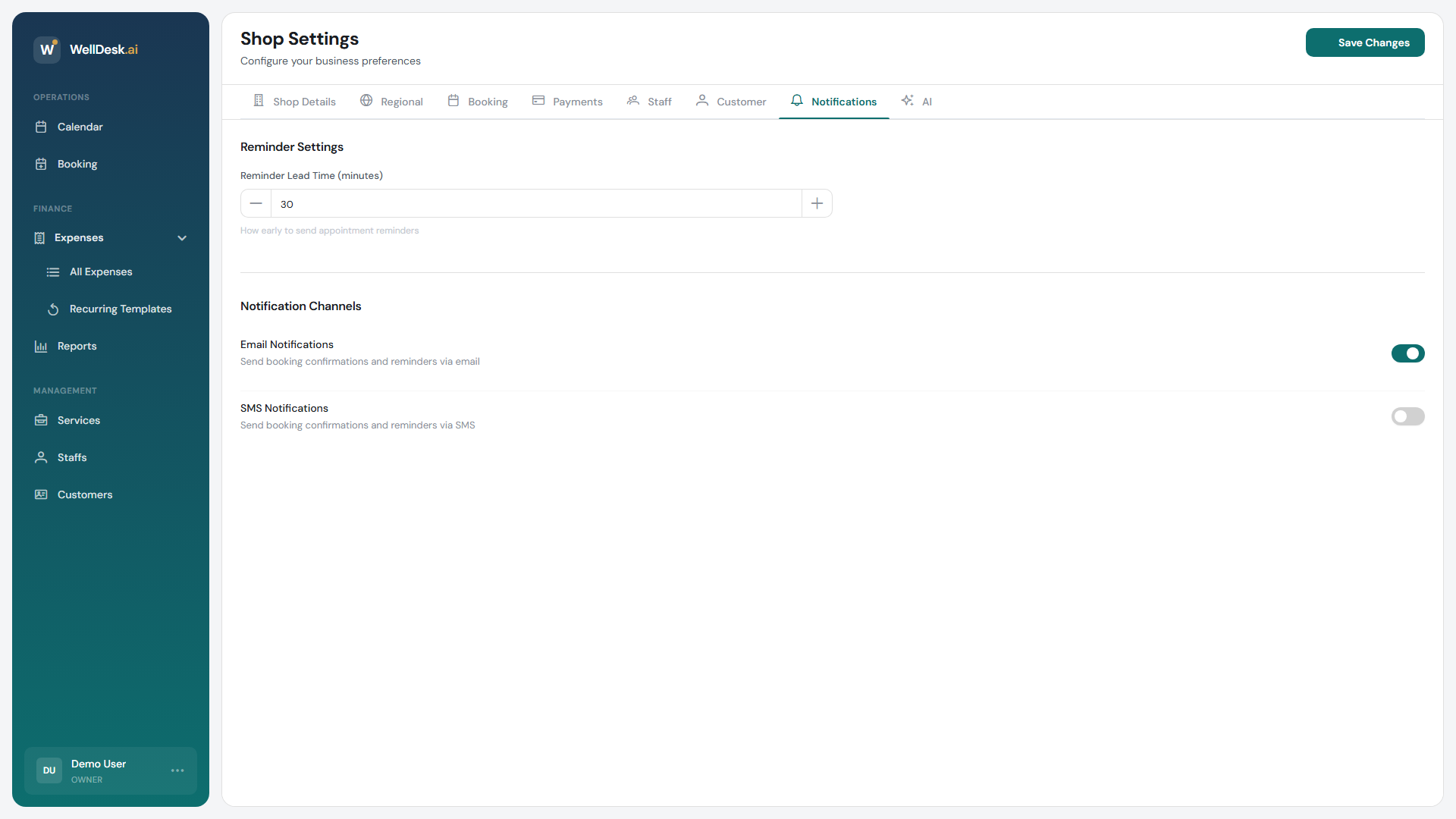
Opening the settings
- In the sidebar, go to Settings → Shop.
- Open the Notifications tab.
- Change what you need and click Save Changes.
Notification channels
| Setting | What it does |
|---|---|
| Email Notifications | Send booking confirmations and reminders by email. |
| SMS Notifications | Reserved for text messages. |
SMS is not sending yet. The toggle is on the page, but no text messages are delivered — there is no SMS provider connected behind it. Treat email as the only channel that reaches customers, and do not rely on SMS for anything.
Appointment reminders
Appointment Reminder Emails emails the customer before their appointment to reduce no-shows. Reminder Lead Time (minutes) sets how early it goes out — 1440 minutes is 24 hours, 120 is two hours.
There is one reminder per booking, at one lead time. You cannot set a 48-hour and a 2-hour reminder for the same appointment.
Around 24 hours is the usual choice: far enough ahead that someone can still move the appointment, close enough that they have not forgotten again by the time it arrives.
A reminder only reaches customers who gave you an email address. If you want reminders to work reliably, require an email on the Booking tab — see Booking Settings.
Telling your team about bookings
| Setting | What it does |
|---|---|
| Email staff about their bookings | Emails a team member whenever a booking of theirs is created or changed. |
| Email owners & admins about all bookings | Emails owners and admins whenever any booking is created or changed. |
For a solo shop, the owner alert is the one that matters — it is how you find out about an overnight online booking. For a larger team, leaving the owner alert on means an email for every booking anyone takes, which gets noisy fast.
These emails go to the address on each person’s account. There is no separate notification address to point at a shared reception inbox.
What sends automatically regardless
Booking confirmations to the customer are part of the booking flow, not an optional extra: when a booking is made with an email address on it, the customer is emailed. Calendar invites are also sent so the appointment lands in whatever calendar app they use.
Tips
- Keep reminders on. It is the single setting with the clearest effect on no-shows.
- Require an email address if reminders matter to you — no address, no reminder.
- Turn the owner alert off once you have a team, or it becomes the mail you stop reading.