Colleagues join your shop by invitation. They set their own password from the email, so you never handle their credentials.
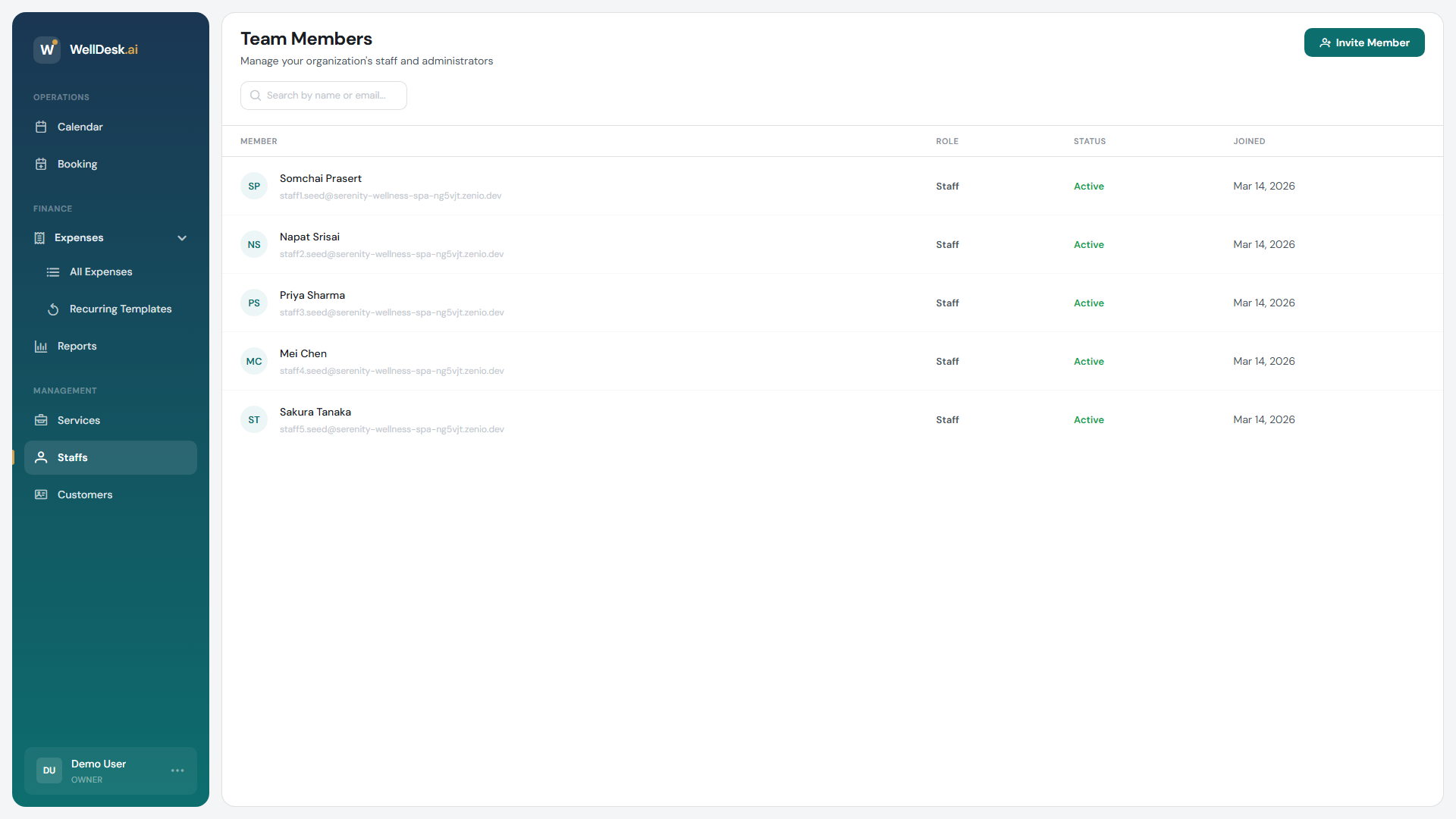
Sending an invitation
- Go to Team → Members in the sidebar.
- Click Invite Member.
- Enter their Email Address.
- Choose a Role — Administrator or Staff Member. See Roles and Permissions.
- Click Send Invitation.
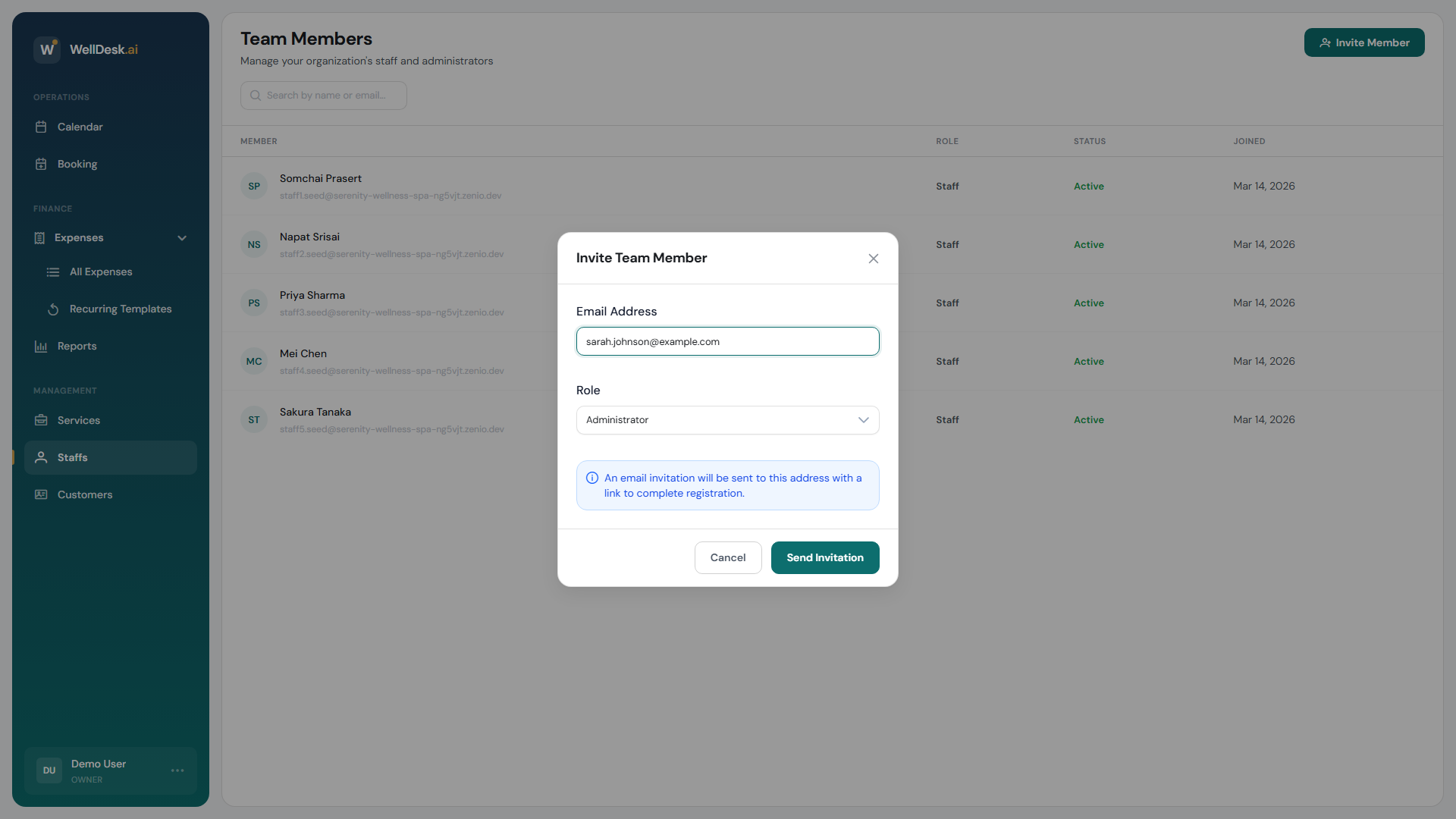
That is the whole form: an email address and a role. You do not enter their name — they fill that in themselves when they accept, and you can edit it afterwards.
While you wait
An invited person appears in the Members list straight away with the status Pending and a Pending Invitation label. Click the row to see Invitation Details, including when it was sent and when it expires.
Invitations are valid for 7 days. After that the link stops working and you send a new one.
If it has not arrived, ask them to check spam first — that is nearly always where it is.
To withdraw one, open the invitation and click Cancel Invitation. Use this if you sent it to the wrong address; correcting a typo means cancelling and inviting again.
Once they accept
They set a password, and their status changes from Pending to Active. They can log in immediately.
Setting them up
There is nothing you must do for someone to start taking bookings — a new member is bookable during your shop’s opening hours from the moment they join.
What is worth doing:
- Add their name and a bio. Open them from the Members list and edit. The bio appears on your public booking page, so a customer choosing a therapist has something to read.
- Upload a photo. Same dialog. Customers pick people they can see.
- Set their hours — only if they work less than the shop is open. See Schedules and Working Hours.
You do not assign services: anyone bookable can be booked for any treatment.
Tips
- Invite before their first day. Somebody logging in for the first time in front of a customer is nobody’s best moment.
- Send it to an address they actually read. A work address they have not set up yet is a wasted week.
- Use Staff Member unless there is a reason not to. An Administrator can see your financial reports.