Business Hours decide when customers can book you online. The Timezone decides what time every booking is shown at — to you, to your team and to your customers. Set both before you take your first booking.
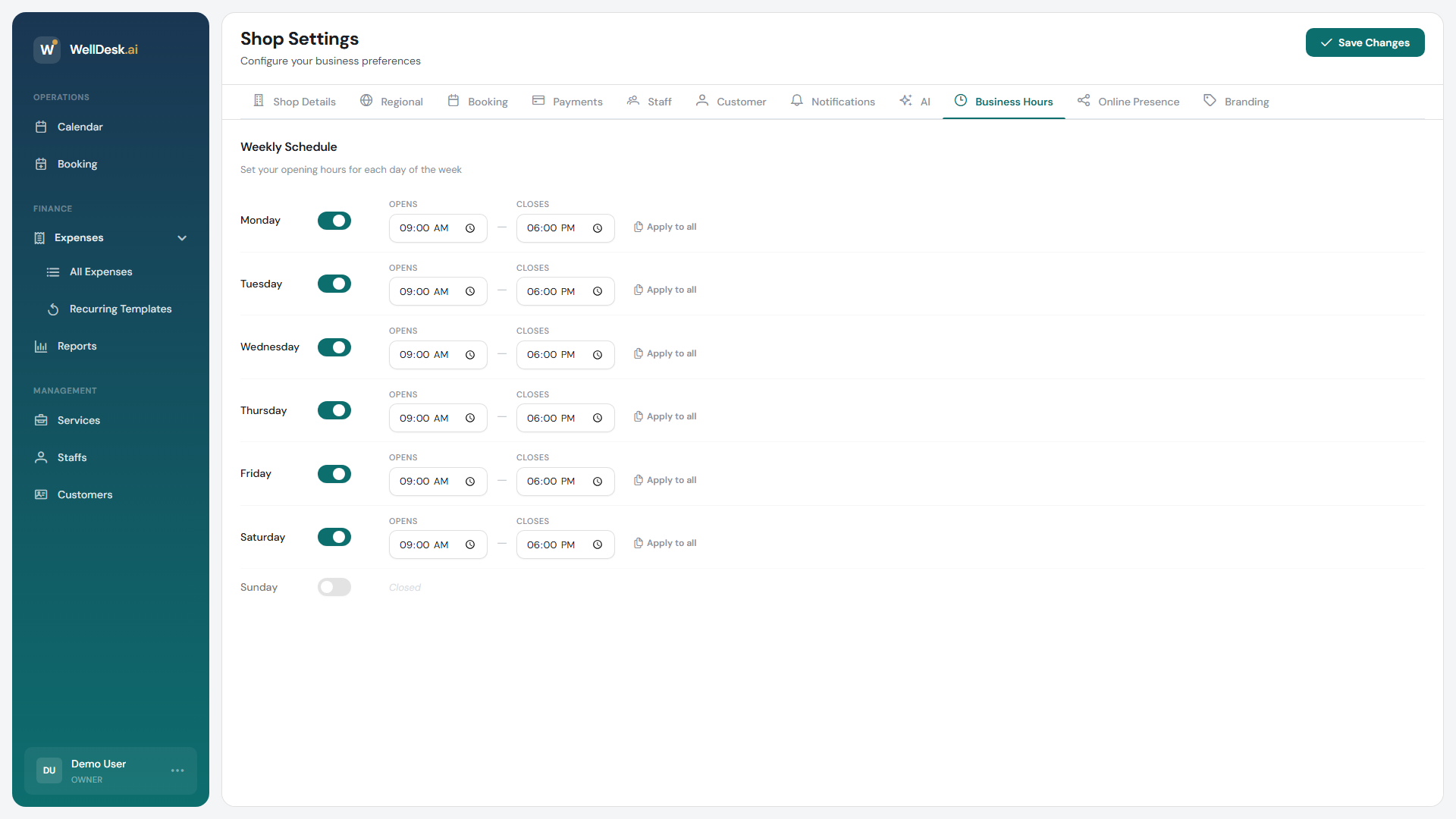
Opening the settings
- In the sidebar, go to Settings → Shop.
- Open the Business Hours tab.
Setting your timezone
The timezone lives on the Regional tab of the same page.
- Open the Regional tab.
- Click the Timezone dropdown and search for your zone (for example
Europe/MadridorAsia/Bangkok). - Click Save Changes.
Set this before you take bookings. Changing the timezone later shifts the times already-booked appointments are displayed at. If you must change it, do it when the calendar is empty or very quiet, and tell your team.
Setting your opening hours
Each day of the week has its own row under Weekly Schedule. A day is either closed, or has one or more time intervals when you are open.
- Switch on the days you open.
- For each open day, set Opens and Closes.
- Click Save Changes.
If most of your days are the same, set one day first and then use Apply to all to copy it across the week — you will be asked to confirm, because it replaces whatever the other days had. Adjust the days that differ afterwards.
Split shifts (closing over midday)
If you close in the middle of the day, do not try to describe it as one long day. Add a second interval instead, and the gap between them simply is not bookable.
- On the day you want to split, click Add interval.
- Set the Start and End of the second interval.
- Click Save Changes.
Example — a shop working a jornada partida:
| Day | Interval 1 | Interval 2 |
|---|---|---|
| Monday | Closed | — |
| Tuesday | 09:30–13:30 | 16:00–19:30 |
| Wednesday | 09:30–13:30 | 16:00–19:30 |
| Thursday | 09:30–13:30 | 16:00–19:30 |
| Friday | 09:30–13:30 | 16:00–19:30 |
| Saturday | 10:00–14:00 | — |
| Sunday | Closed | — |
Customers browsing your booking page on a Tuesday see slots in the morning and slots in the late afternoon, and nothing between 13:30 and 16:00.
You can add more than two intervals to a day if you need to. A few rules the form enforces:
- Every interval needs both a start and an end time.
- The end must be after the start.
- Intervals on the same day cannot overlap.
To remove an interval, click Remove interval next to it. Removing the only interval on a day leaves that day closed.
Individual working hours are separate
Business hours are the outer boundary for the whole shop. Individual working hours live on their own page — My Schedule if you work alone, Team → Schedule once you have colleagues — where each person gets a weekly pattern and one-off exceptions for a single date.
Anyone with no schedule of their own is bookable during all shop hours. If you work alone, or your team all works the shop’s hours, that is already correct and you never need that page — set your split shift here and leave it. See Schedules and Working Hours for when someone works less than the shop is open, and for taking a day off.
Closing for a holiday
WellDesk does not apply public holidays for you, and there is no separate holiday setting.
The way to close for a single day is a date exception on the schedule — set everyone (or just yourself, if you work alone) to Not working at all on that date. See Schedules and Working Hours.
Changing the week’s opening hours here also works, but you have to remember to change them back.
Tips
- Set hours you can actually cover. It is easier to add hours when you get busy than to turn away someone who booked a slot you cannot work.
- Use the second interval rather than a long single day. A shop that sets 09:30–19:30 to “keep it simple” is telling customers they can book at 14:30.
- Check your times after the clocks change. WellDesk follows the daylight-saving rules of the timezone you picked, so this normally takes care of itself — a quick look in spring and autumn costs nothing.