Moving from a spreadsheet or another system? Import your client list in one go rather than typing it in.
Preparing the file
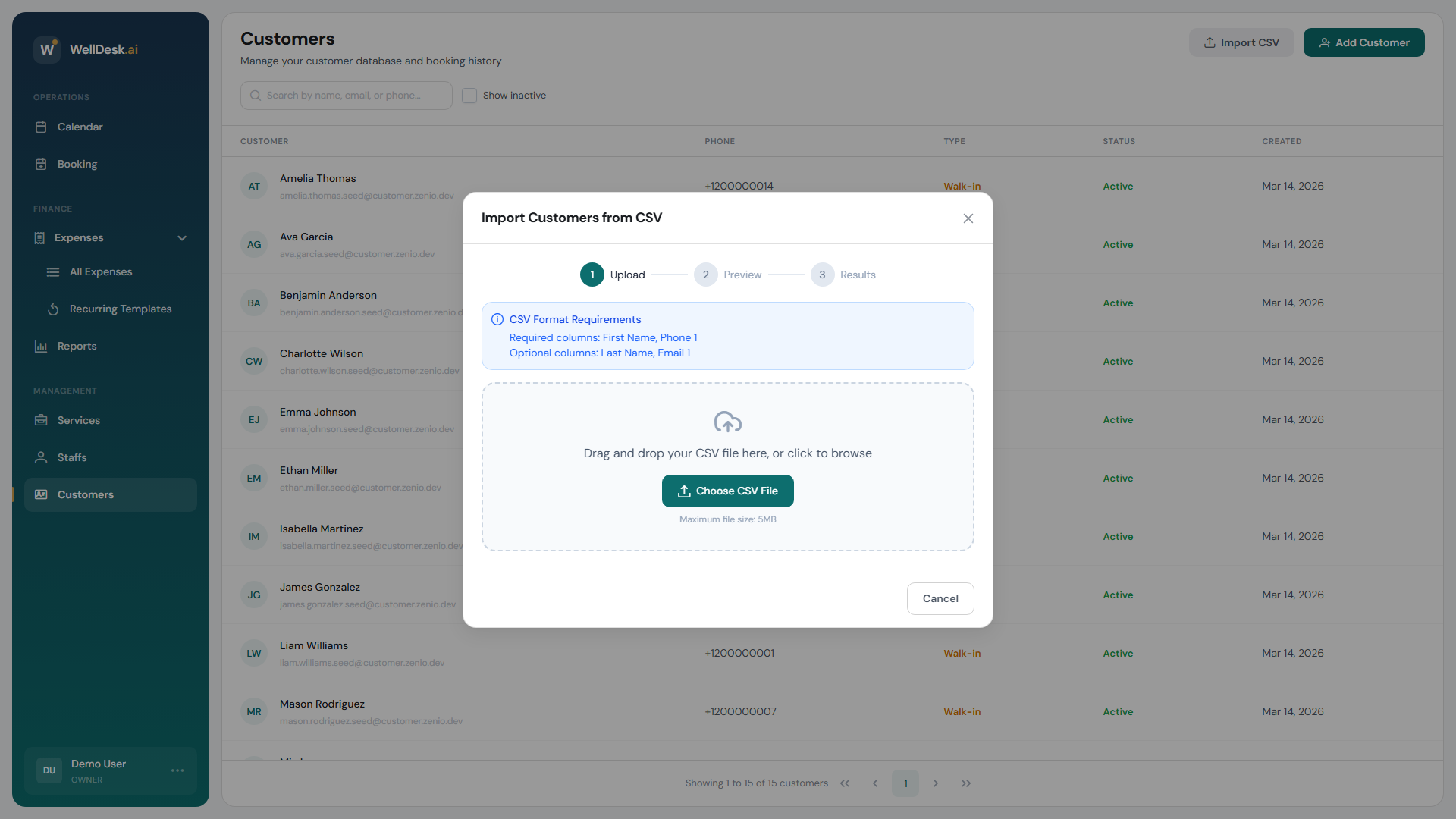
The importer expects specific column names — it does not ask you to map your own.
| Column | Required |
|---|---|
| First Name | Yes |
| Phone 1 | Yes |
| Last Name | No |
| Email 1 | No |
So the minimum workable file is a first name and a phone number per row. Rename your columns to match before you upload, and delete anything else.
The file must be a CSV, up to 5 MB.
Phone numbers are what identify a customer, so it is worth making them consistent before you import — one format throughout, with the country code if you have it.
Importing
The dialog runs in three steps: Upload, Preview, Results.
- Go to Customers and click Import CSV.
- Drag your file in, or Choose CSV File. WellDesk validates it immediately.
- Choose a Duplicate Handling Strategy (below).
- Review the preview: Total Rows, Valid, Errors, Duplicates, with the offending row, field, value and message listed for anything wrong.
- Click Import Customers.
Duplicate handling
A duplicate means a customer already in your shop with that phone number.
| Strategy | What happens |
|---|---|
| Skip duplicates | Existing customers are left alone; only new ones are created. |
| Update existing | Existing records are updated from the CSV. |
| Fail on duplicates | The import refuses to run while any duplicate exists. |
Skip duplicates is the safe default. Choose Update existing only when the spreadsheet is genuinely more current than WellDesk — it overwrites what is already there.
Fail on duplicates will not let you proceed at all if duplicates are present; the dialog tells you to change the strategy or fix the CSV.
Reading the results
The final step reports Created, Updated, Skipped and Failed, and lists failed rows with the reason.
Failed rows are usually a missing first name or phone. Fix those rows in the spreadsheet, save a file containing only them, and import again — successfully imported customers are not re-created if you use Skip duplicates.
What import does not bring across
Only customer records. Booking history, appointments, spend and notes from another system cannot be imported — those start fresh in WellDesk.
Tips
- Test with ten rows first. A small file proves your columns are right before you commit the whole list.
- Clean the phone column before anything else. It is the field the whole import hinges on.
- Keep the original spreadsheet. It is your undo.