Most customer records create themselves — someone books online and their details are saved. You add one by hand when a regular phones, or when you are entering people you already know.
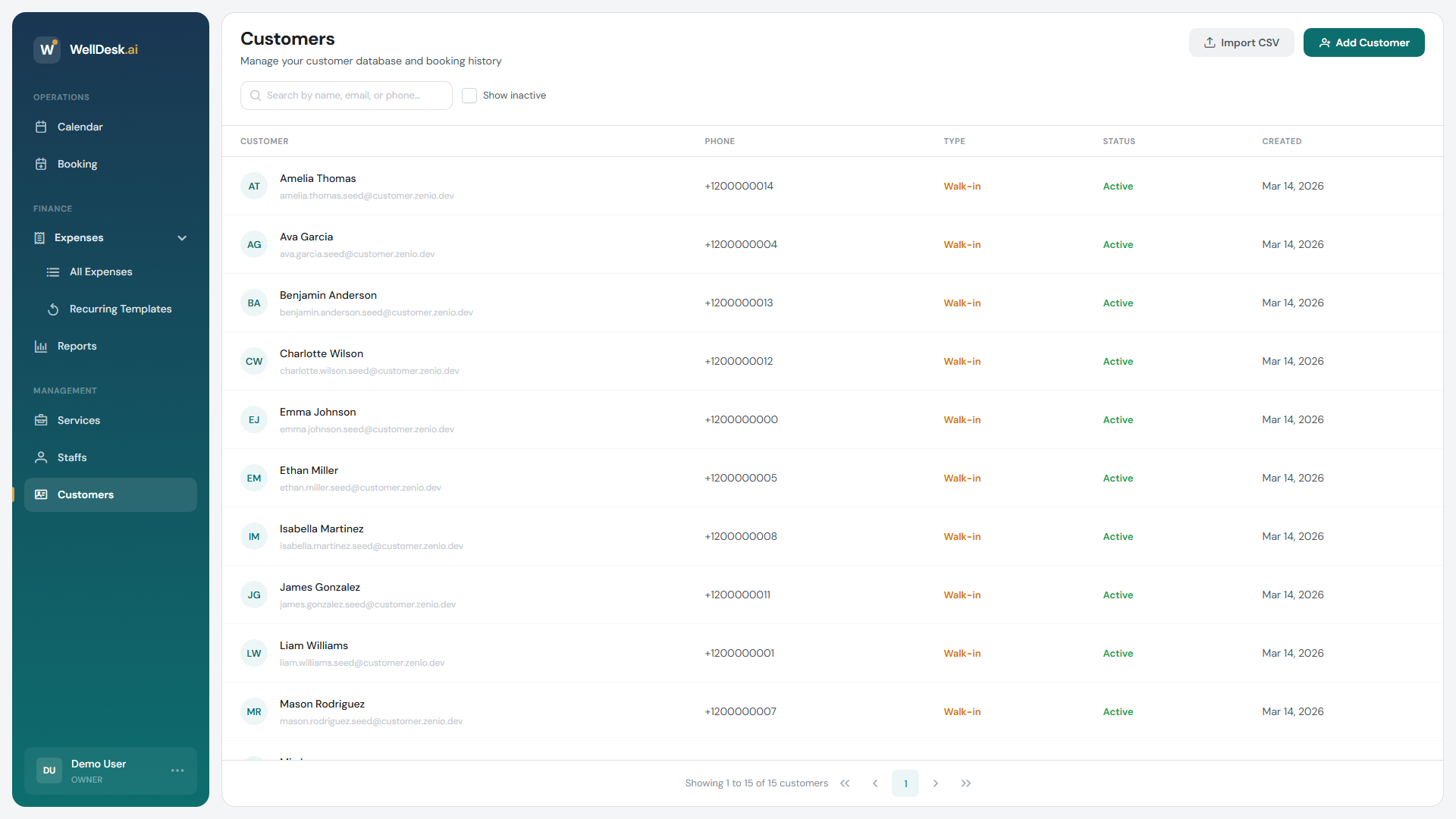
Registered and walk-in
Every customer is one of two types, shown as a badge in the list:
| Type | What it means |
|---|---|
| Registered | Has an email address and an account of their own. |
| Walk-in | Someone you recorded at the counter. No account, no login. |
Walk-in is not a lesser record — it holds their history and notes just the same. It simply means they have no login of their own.
Adding one by hand
- Go to Customers in the sidebar.
- Click Add Customer.
- Fill in the dialog and save.
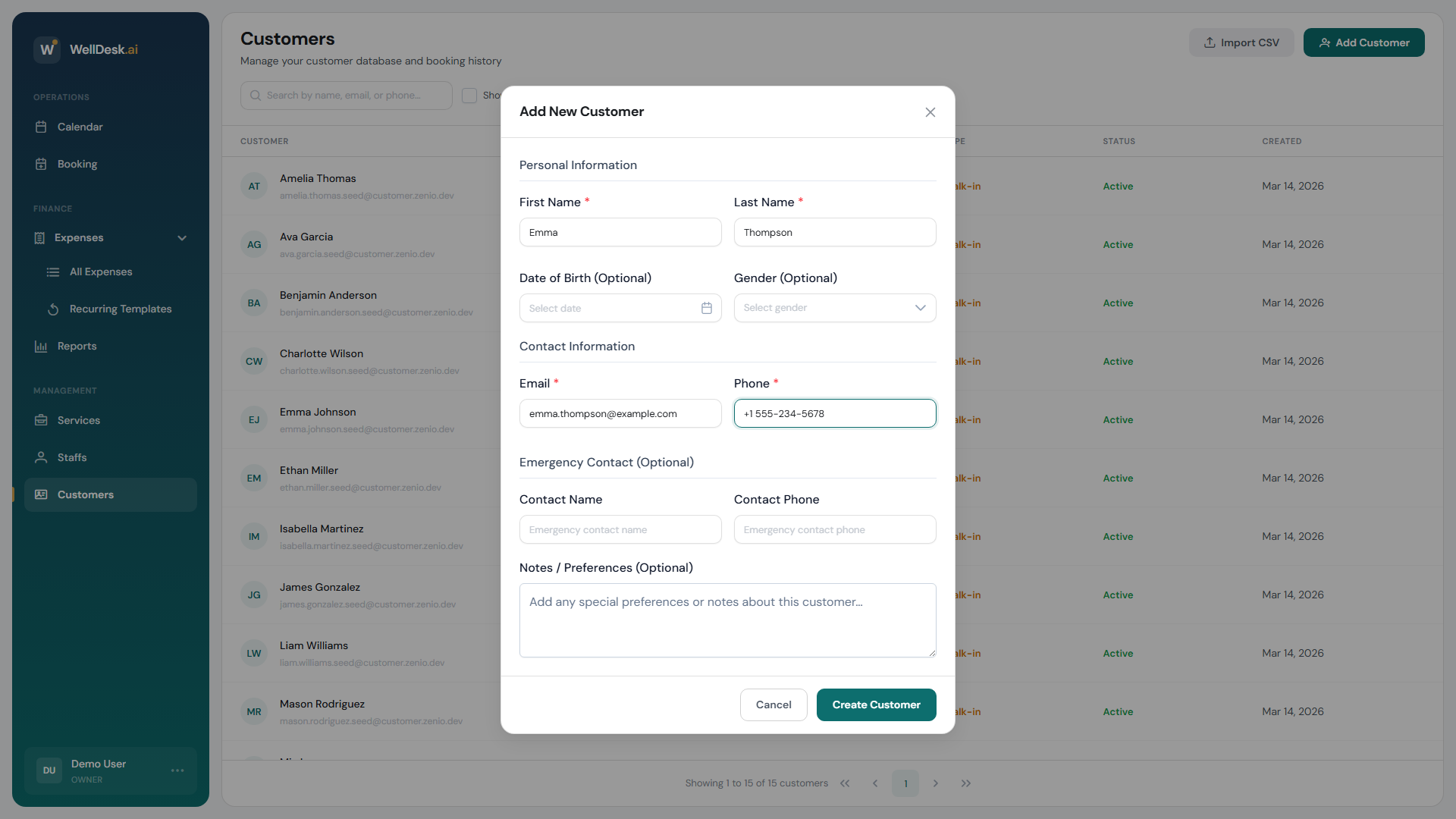
Personal Information
| Field | Required |
|---|---|
| First Name | Yes |
| Last Name | Yes |
| Date of Birth (Optional) | No |
| Gender (Optional) | No |
Contact Information — Email and Phone.
Emergency Contact (Optional) — a name and phone. Useful if you do treatments where it matters.
Service Notes (Optional) — how this person likes to be treated: “prefers a quiet room, books mornings”. This is the field that makes someone feel remembered, and it is worth filling in.
Duplicates are prevented, not just flagged
Two customers in the same shop cannot share a phone number. Enter one that already exists and WellDesk tells you whose it is and offers View existing — it will not create the second record. This is a hard rule, not a warning you can click past.
Email works differently, because an email can belong to someone who already has a WellDesk account at another shop. In that case you are offered Link instead, which connects your shop’s record to that person without exposing their personal details to you.
The upshot: search before you add, and if WellDesk says someone already exists, believe it.
Customers created for you
When someone books online, their record is created automatically with whatever they entered. The walk-in tablet does the same, and asks whether they are new or returning so a regular is matched to their existing record rather than duplicated.
Finding someone
Search by name or phone at the top of the Customers list. You can also filter by type — Registered or Walk-in — and tick Show inactive to include records you have deactivated.
Tips
- Take a phone number. It is what makes duplicate prevention work, and how you reach someone when you have to move an appointment.
- Write the service note the day you learn it, not the day you need it.
- Do not invent a second record to work around the duplicate rule. Open the existing customer instead — their history is the valuable part.