Most bookings arrive through your public page. This is how you take one yourself — over the phone, at the counter, or when a regular messages you.
Before you start
You need at least one service. See Adding a Service.
You do not need the customer on file first — you can enter them as you book.
Two ways in
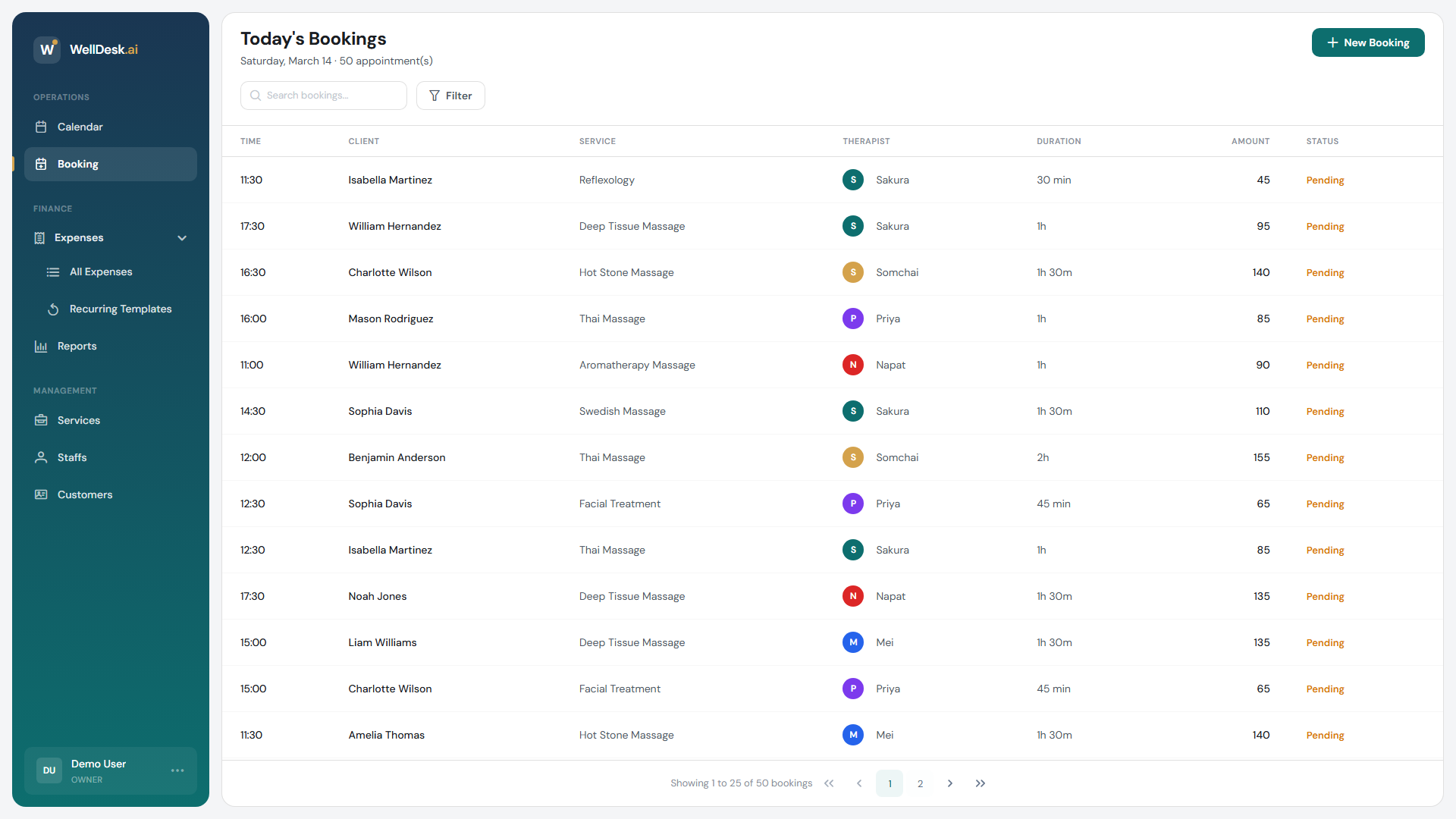
- From the Calendar — click New Booking, top right.
- From the Booking list — go to Booking in the sidebar and click New Booking.
Both open the same Create Booking dialog. Clicking an empty slot on the calendar grid does not start a booking — use the button and set the time in the dialog.
Filling in the booking
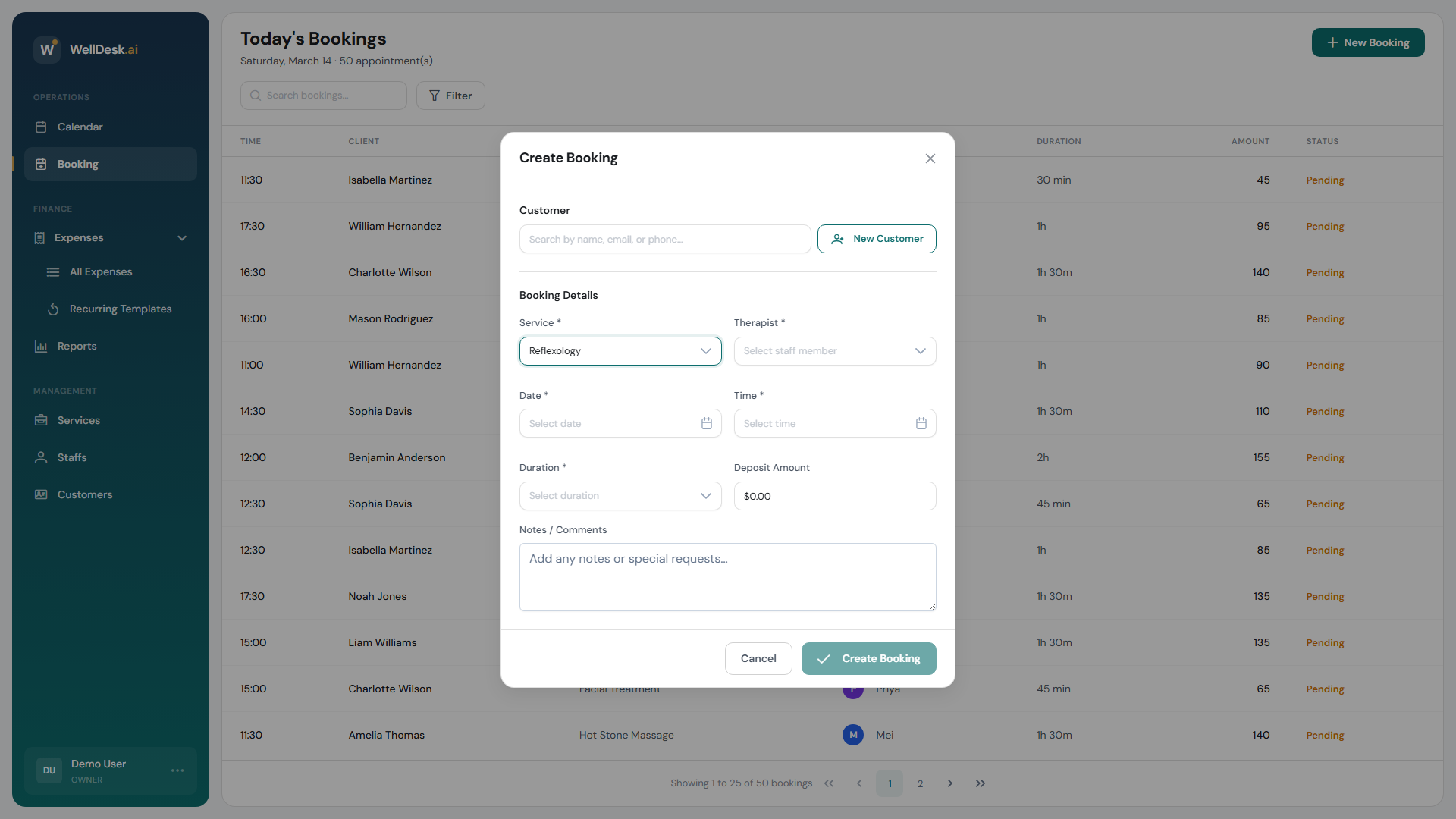
The customer
Three choices at the top of the dialog:
| Option | Use it for |
|---|---|
| Search Existing | Someone already on file. Search by name, and their record is linked so this visit joins their history. |
| New Customer | Someone new. Enter their name, and phone or email if you have them. |
| Walk-in Customer | Someone who does not need a record — a one-off you do not want cluttering your customer list. |
Prefer Search Existing for anyone who has been before. It is what keeps one person from becoming four records.
The appointment
- Select service — pick the treatment.
- Select duration — services with more than one pricing option let you choose here.
- Date & Time — when the appointment starts.
- Select staff member — who is performing it.
- Notes / Comments — internal, for your team. The customer never sees this.
Then click Create Booking.
Who you can pick, and when
Choose the date and time first: the staff list then shows who is genuinely free at that moment.
Anyone who cannot take it is greyed out with a short reason rather than hidden, so you can see that a therapist is off that day instead of wondering where they went. A booking outside someone’s working hours is refused — including when you are the one making it.
If nobody is available, the time is the problem, not the person. Try another slot, or check whether the shop is even open then — see Business Hours.
Booking something that already happened
Picking a past date is allowed. WellDesk warns you that it will be saved as a past booking, which is what you want when you are catching up on paperwork.
After you save
The appointment appears on the Calendar and in the Booking list with the status Pending — meaning upcoming, not awaiting approval. If the customer has an email address on the booking, they are emailed a confirmation and a calendar invite.
It stays Pending until you complete it, which is also when you record payment. See Managing Booking Status.
Tips
- Search before you create. Duplicate customer records are much easier to avoid than to tidy up.
- Put preferences in the notes. “Prefers no music”, “always books with Ana” — anyone on your team can read it before the appointment.
- Take the email if you can. No email means no confirmation and no reminder for that customer.