Many booking platforms, such as ClassPass with its CalendarSync, put each booking they sell into a Google calendar. WellDesk can read those calendars. Every platform booking then shows on your WellDesk calendar, blocks that time so nobody books it twice, and becomes a WellDesk booking by itself.
WellDesk only reads these calendars. It never writes to them, and it never emails the clients named in them.
Before you start
You need:
- Google Calendar connected in WellDesk. See Google Calendar Sync.
- A booking channel for the platform, with its services. See Booking Channels.
- Import switched on for your shop. If the channel page has no Calendars to read section, it isn’t on yet. Write to us and we’ll switch it on.
1. Share the platform’s calendars with WellDesk’s Google account
WellDesk can only read a calendar that the Google account it is connected with can see. The email of that account is on the channel page under Calendars to read, after From.
For each calendar the platform writes to:
- Open Google Calendar on a computer, signed in to the account that owns the calendar.
- Next to the calendar’s name, click the three dots and choose Settings and sharing.
- Under Share with specific people or groups, click Add people and groups.
- Enter the email WellDesk is connected with, and set the permission to at least See all event details.
- Click Send.
See all event details is enough, because WellDesk only reads.
ClassPass, for example, can link each of its “practitioners” to a different Google account. Share the calendar of each one.
The calendar appears on the channel page within a few minutes.
2. Pick the calendars on the channel
Open the channel under Settings → Shop → Booking → Booking channels. On a phone: Menu → Shop settings → Online booking → Booking channels.
Under Calendars to read, switch on each calendar that holds this platform’s bookings. A calendar that is off says Not read.
For each calendar you switch on, Bookings go to says who gets its bookings:
- Any free therapist, when the calendar doesn’t belong to one person. WellDesk picks whoever is free.
- A team member, when the calendar holds only that therapist’s bookings.
3. Add the words that are always in the event title
WellDesk tells a platform’s events apart by the words in their title. Open one of the platform’s events in Google Calendar and look for the words that are in every one of them. A ClassPass event, for example, looks like this:
Jane: Thai Massage 60 min (ClassPass Booking)
Under Words in the event title, click Add title word, type ClassPass Booking and click Add. If the platform writes its titles in more than one language, add each version.
4. Check the channel’s services
Under Services on this channel, each service needs the same name and length as in the event title, so WellDesk can match the event to it. For the event above, that’s a service named Thai Massage with a duration of 60 minutes.
Click Save Changes.
What happens next
WellDesk checks the calendars every few minutes, for events from yesterday up to 90 days ahead. All-day events and events marked Free in Google are skipped.
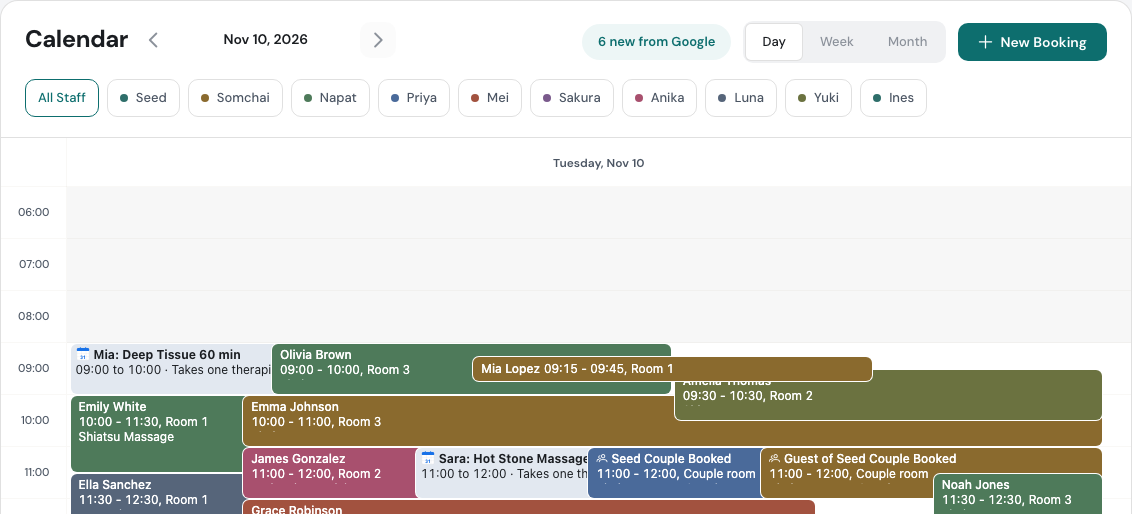
The events show on your calendar. Each one is marked Imported from Google and blocks the time: either the therapist the calendar goes to, or any one therapist. Online booking and New booking no longer offer that time.
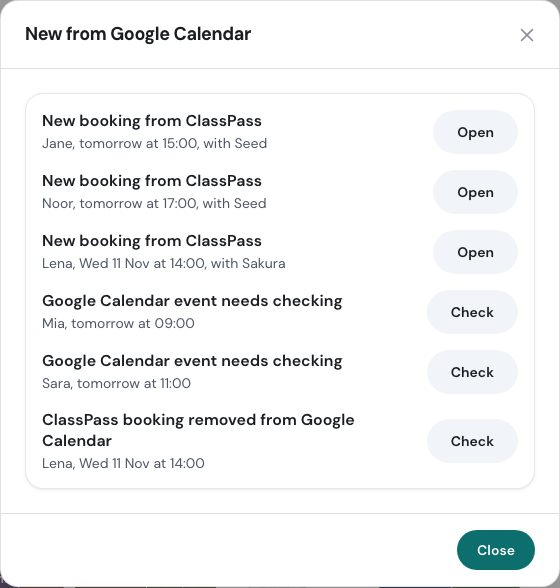
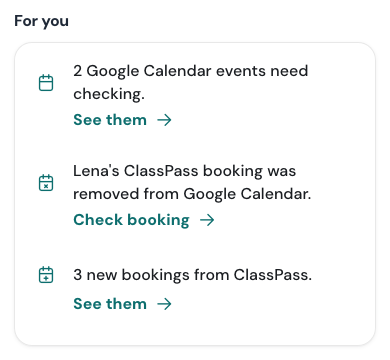
When the title has the channel’s words, names one of its services and a therapist is free, WellDesk makes the booking, with the client’s name from the title. The owner, admins and front desk see it on Home and get a push alert if they have push alerts on. On the calendar, a pill such as 2 new from Google lists what came in.
The client gets no email from WellDesk. They booked through the platform, and the platform has already told them.
If the event is moved in Google, the booking moves with it. If it is removed, the booking is cancelled. If you changed the booking yourself, or it was already completed, WellDesk leaves it as it is and asks you instead: the booking shows Removed from Google Calendar or Changed in Google Calendar, with Keep booking and Cancel booking. Cancelling sends the client no email either.
Events that need you
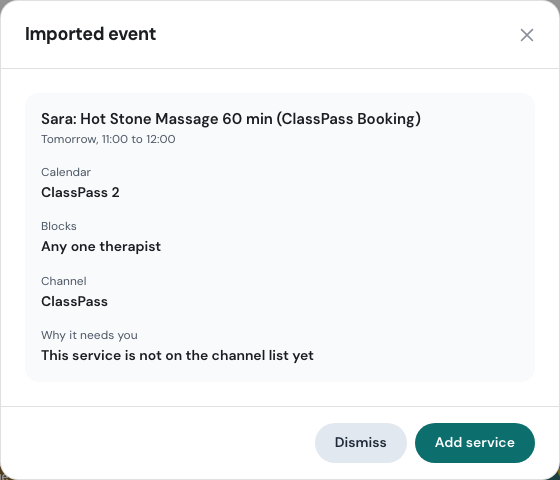
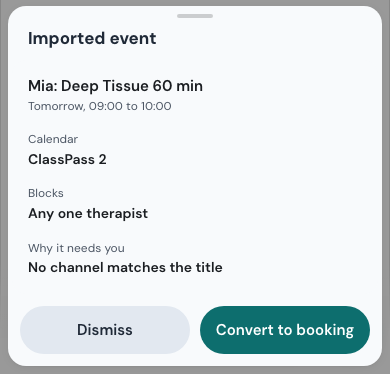
Some events can’t be booked by themselves. They stay on the calendar, and Home says A Google Calendar event needs checking, and the owner, admins and front desk get a push alert. Click the event to see Why it needs you:
| Reason | What to do |
|---|---|
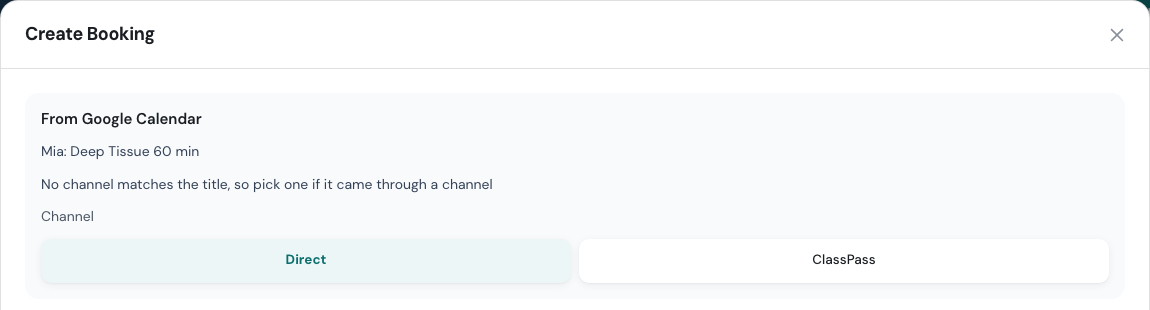
| No channel matches the title | Click Convert to booking and pick the channel under Channel, or Direct. If it should have matched, add the missing words to the channel too. |
| This service is not on the channel list yet | Click Add service. The new service is filled in from the event, and saving it also books the event. Front desk sees Convert to booking instead and picks a service by hand. |
| No therapist was free | Click Convert to booking and pick a therapist yourself. |
Convert to booking opens New booking with a From Google Calendar card at the top and everything WellDesk could read already filled in.
If an event isn’t a booking at all, click Dismiss. It stops blocking the time and doesn’t come back.
Letting events show without blocking
In the Booking channels section there’s a switch, Channel events block booking times. It’s on by default. Switch it off if you want imported events to show on the calendar but leave the time open for online booking and New booking.
Stopping
To stop reading one calendar, switch it off on the channel. Its events disappear from your calendar.
To stop altogether, disconnect Google Calendar under Settings → General. That also stops the shop calendar from syncing.
What is kept and what is deleted
WellDesk keeps only what it needs from each event: its title, start and end time, whether it’s busy or free, its status in Google, and Google’s identifiers for it. It doesn’t keep guest lists, organisers or event descriptions.
- Bookings made from events stay, like any other booking. They aren’t deleted when the event is removed or when you disconnect.
- Imported events are deleted 90 days after they end. Events from a calendar you switched off are deleted on the same schedule.
- Disconnecting deletes every imported event and your calendar choices straight away.
Event titles usually contain your client’s name. Keep health details and anything else private out of the titles of the calendars you import.
Tips
- Test it with one booking. After setting up, make a test booking on the platform and check that it appears in WellDesk a few minutes later.
- Copy service names exactly. Most events that need checking are a service whose name or length doesn’t match the title.
- Keep blocking the slots on the platform. WellDesk doesn’t tell the platform when you’re full, so a slot booked in WellDesk can still be sold there.