The Shop Details tab holds who you are and how customers reach you.
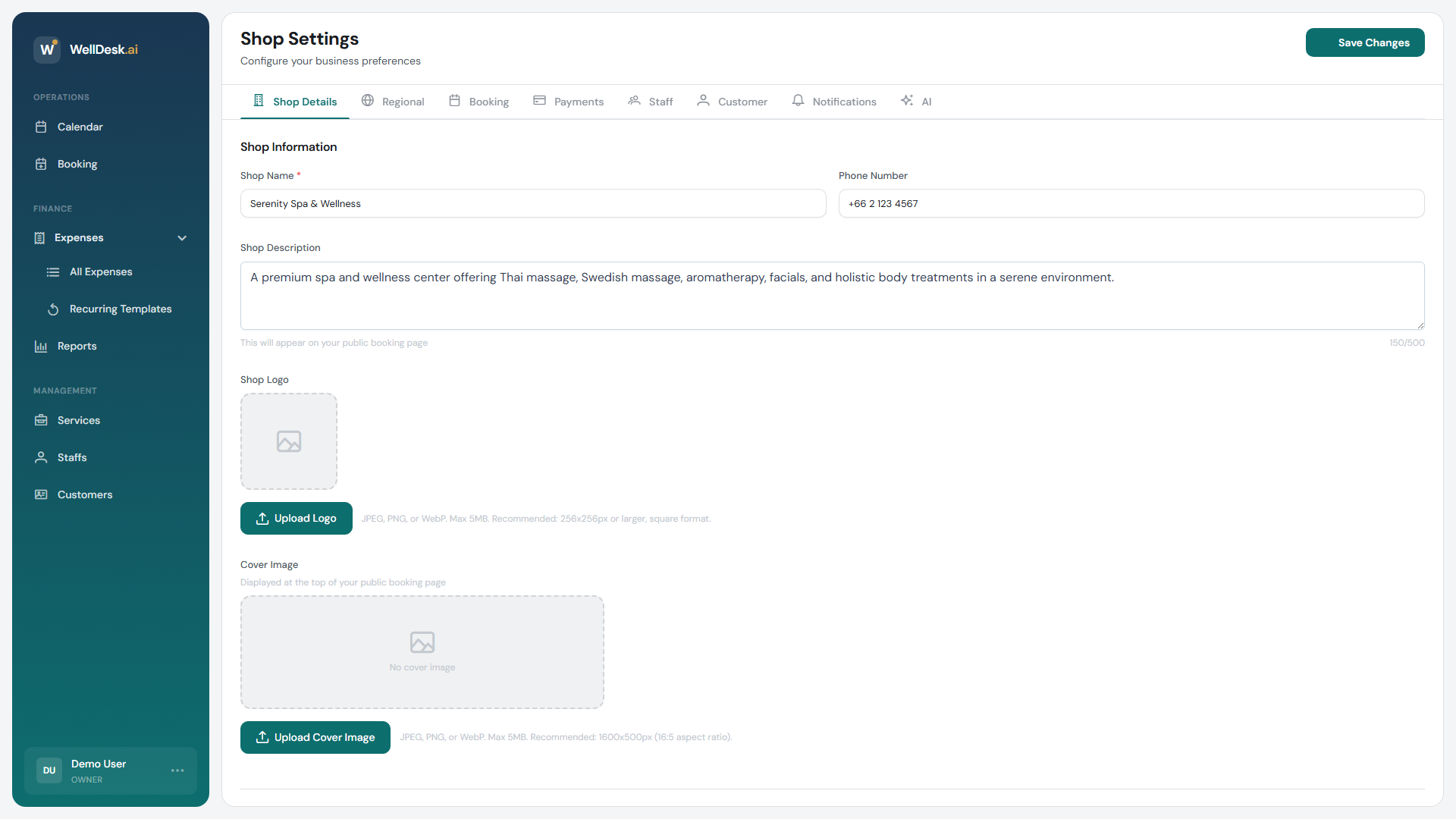
Opening the settings
- In the sidebar, go to Settings → Shop.
- You start on Shop Details.
- Change what you need and click Save Changes.
Your details
| Field | Where it shows |
|---|---|
| Shop Name | Your booking page, and every email to customers |
| Shop Description | Your booking page |
| Phone Number | Your booking page, so customers can call |
| Business Address | Address lines, City, State / Province, Postal Code, Country |
Fill in the address properly even if customers rarely post you anything: it is what tells someone whether you are near them, and it feeds how you appear in local searches.
Your booking web address
Online Booking URL is where your public page lives, built from the URL Slug:
https://your-shop-name.welldesk.aiLowercase letters, numbers and hyphens only, starting and ending with a letter or number.
Only the Owner can change the slug. When you save, your booking page moves to the new link and the old one stops working — so anyone holding it needs the new one: bookmarks, your Instagram bio, printed QR codes. Your page may also lose its place in Google results for a while, until the new address is indexed. Nothing else changes: your bookings, customers and settings stay exactly as they are. Send the new link to customers who saved the old one.
Where the page content went
Logo, cover image, tagline, about text and highlights are not on this tab. They moved to Online Presence → Theme Design, and this page tells you so where they used to be.
See Customising Your Shop Page.
Tips
- Use your trading name, exactly as it appears on your door and your Instagram. Customers should not have to wonder whether they are in the right place.
- Keep the phone number current. It is often the only way a customer can reach you when something changes on the day.
- Set the address once, properly — including country, which affects formatting elsewhere.