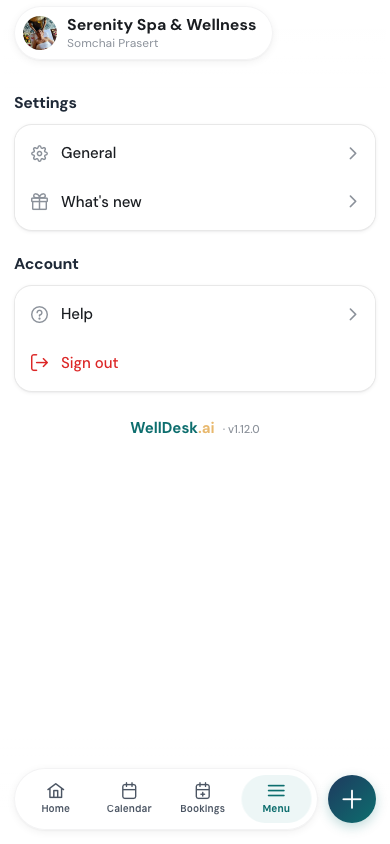
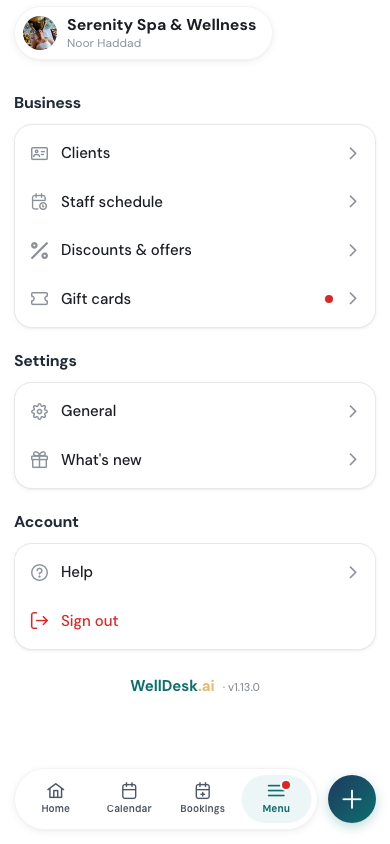
On a phone, Menu is the last tab in the bar at the bottom. It takes the place of the sidebar you see on a computer. Each row opens a full screen. Tap × at its top to come back to the Menu.
Your shop’s name and your own name are at the top, so you can check which shop you’re signed in to.
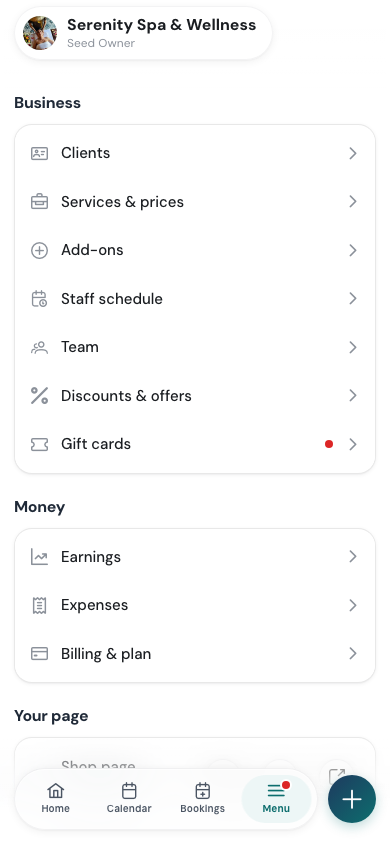
What’s in the Menu
The rows are grouped the same way for everyone. Which rows you get depends on your role (see Who sees what).
Business
| Row | What it opens |
|---|---|
| Clients | Your client list. See Adding Clients and Client Records. |
| Services & prices | Your treatments, their lengths and prices. See Adding a Service. |
| Add-ons | Extras clients can add to a treatment. See Add-ons. |
| Staff schedule | Days off and different hours for one date. See Schedules and Working Hours. |
| Team | The people in your shop. See Managing Your Team. |
| Discounts & offers | Computer only for now. See Discounts and Promotions. |
| Gift cards | Gift cards and requests. A red dot means a request nobody has opened yet. See Adding and Managing Gift Cards. |
Money
| Row | What it opens |
|---|---|
| Earnings | What the shop earned, by period, therapist and treatment, and the report for your accountant. See Earnings and Commission and Exporting Earnings. |
| Expenses | Computer only for now. See Tracking Expenses. |
| Billing & plan | Computer only for now. |
Your page
Shop page shows your booking link, with three buttons next to it:
- the QR code button shows your booking QR code full screen, for a client to scan from your phone,
- the share button opens Share your shop page, with a link for each place you post it (any place, your Google listing, Apple Maps), each with Copy,
- the open button opens your shop page in a new tab.
| Row | What it opens |
|---|---|
| QR codes | Your QR codes. See QR Codes. |
| Theme & design | Computer only for now. See Customising Your Shop Page. |
| Search visibility | Computer only for now. |
Settings
| Row | What it opens |
|---|---|
| Shop settings | The shop’s settings, as a list of sections (see below). |
| General | Your own settings: name, language, notifications, Google Calendar. See General Settings. |
| Activity log | Computer only for now. |
| What’s new | The latest changes to WellDesk. A red dot means there’s something you haven’t seen. |
Account
Help and Sign out. Help isn’t on phones yet; this help center works in any browser, at welldesk.ai/docs.
Shop settings on a phone
On a computer, Shop Settings is one page with tabs. On a phone, Menu → Shop settings is a list of sections, each with a one-line summary of how it’s set, such as your address or your opening hours. Tap a section to change it.
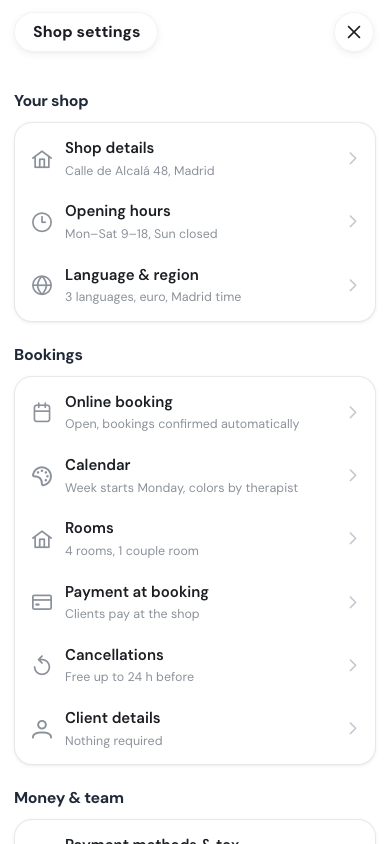
| Group | Sections |
|---|---|
| Your shop | Shop details, Opening hours, Language & region |
| Bookings | Online booking, Calendar, Rooms, Payment at booking, Cancellations, Client details |
| Money & team | Payment methods & tax, Gift cards, Team rules, Notifications |
| Your page | Google & social links, Confirmation photo, Announcement bar, and two switches: “Powered by WellDesk” badge and WellDesk can set up my page |
| On a computer | Legal pages |
In a one-person shop, Team rules and Rooms don’t show.
The settings are the same as on a computer, only split into smaller screens. Each settings page in this help center gives the phone path next to the computer one, for example Menu → Shop settings → Opening hours. See Shop Information to start.
Who sees what
- Owners see every row.
- Admins see every row except Billing & plan.
- Staff see General, What’s new, Help and Sign out.
- Front desk team members also get a Business section with Clients, Staff schedule, Discounts & offers and Gift cards.