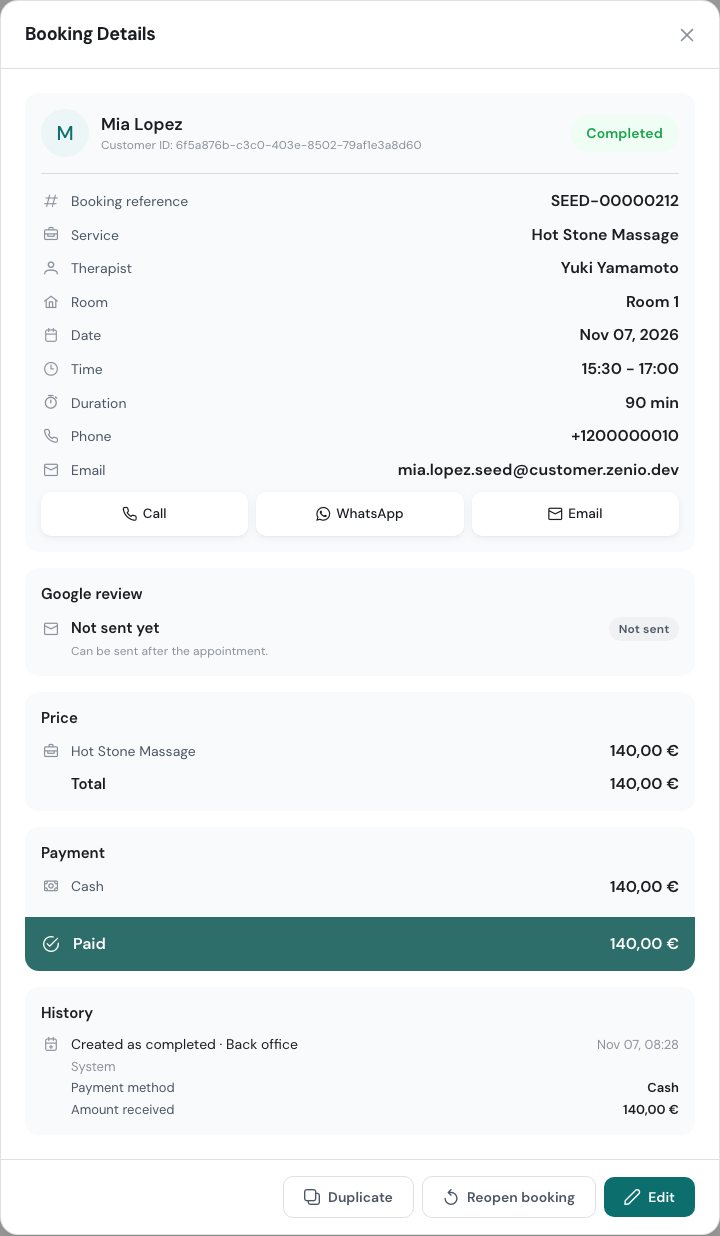
Completing a booking says the visit happened and records how the client paid, in one step. It’s what makes the booking count in your revenue and your team’s commission, so do it when the client pays.
Anyone on the team can complete a pending booking, including a colleague’s. The commission still goes to the booking’s therapist.
Completing a booking
- Open the booking.
- On a computer, click the arrow next to Pending and choose Complete Booking. On a phone, tap Complete Booking at the bottom of the booking.
- Fill in the Complete Booking form (see below).
- Click Complete Booking.
The booking moves to Completed and Booking Details opens again, now showing how it was paid.
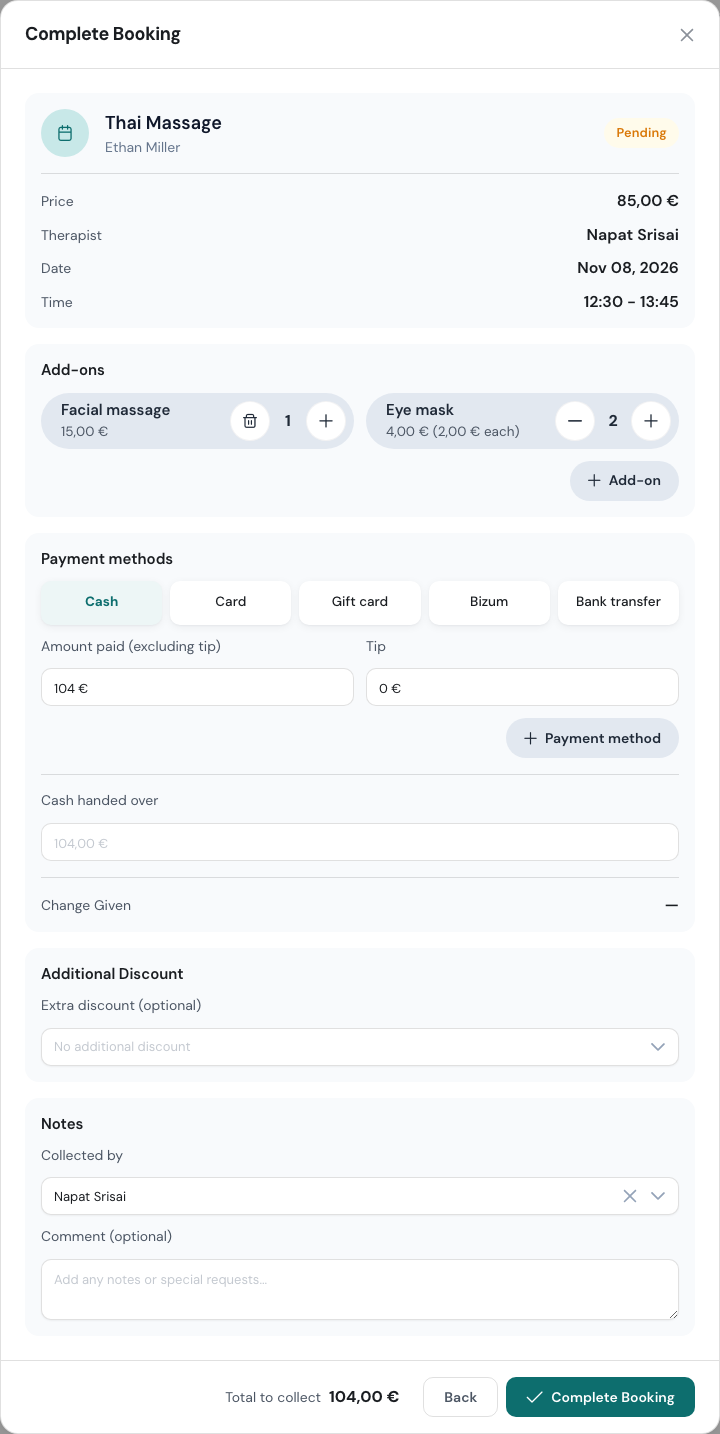
The Complete Booking form
Add-ons
Anything extra the client had, such as hot stones or a longer foot massage, goes here: click + Add-on and pick it from your shop’s add-ons. Add-ons chosen when the booking was made are already listed. Change the number with + and −, or remove one with the bin. Add-ons count in revenue and commission like the service price.
Payment methods
Pick how the client paid: Cash, Card or Gift card, plus any payment methods your shop has added. Membership shows too if you’ve turned on Membership Payments under Settings → Shop → Payments.
- Amount paid (excluding tip) starts on the amount due. Change it if the client paid something else.
- Tip is entered on its own, so it’s never mixed up with the price.
- For cash, type the Cash handed over and WellDesk works out the Change Given.
If the client paid part by card and part in cash, click + Payment method, then pick every method they used and enter the amount for each. A tip can be entered on each one. Reports count each method separately.
If the amount paid is less than the amount due, WellDesk says how much isn’t covered and saves the booking as paid with what you entered. If it’s more, it asks you to put the difference in Tip, or add it as an add-on.
Additional Discount
Extra discount (optional) applies one of your discounts at the counter. Only discounts that apply to this service are listed.
Notes
Collected by is the person who took the money. It starts on the booking’s therapist. Comment (optional) is a note about the payment.
At the bottom, Total to collect shows the amount plus tips.
Things that change the form
A deposit was taken. The form shows the deposit already collected and the balance due, and the amount starts on the balance. The client doesn’t pay the deposit twice.
The booking has no service yet. A booking made with Just a duration can’t be completed until its service is set, because the price and commission come from it. The form asks you to pick the service and length first. Someone with the Staff role can only set it on their own booking.
Nothing was paid. You can complete a booking with 0 € paid on any payment method. WellDesk asks first: revenue and commission still count the full price. To give a session away for free, add a discount instead. A membership session can be saved with nothing received, because the client prepaid.
The booking hasn’t started yet. WellDesk asks “This booking hasn’t started yet. Complete it anyway?”. Click Complete anyway if the client is paying early.
It’s a couple booking. A couple pays once for both people, and you can enter a tip for each therapist.
On a phone
Completing takes its own full screen, with the same parts. To take a gift card, you can scan the card’s QR code with the phone’s camera instead of typing the code.
Reopening a completed booking
If a booking was completed by mistake, an owner, an admin or a Front desk member can open it and click Reopen booking. It works on a colleague’s booking too. WellDesk asks “Reopen this booking? Its payment record will be removed.” Once confirmed, the booking is Pending again and you can change it or complete it again.
Correcting a completed booking
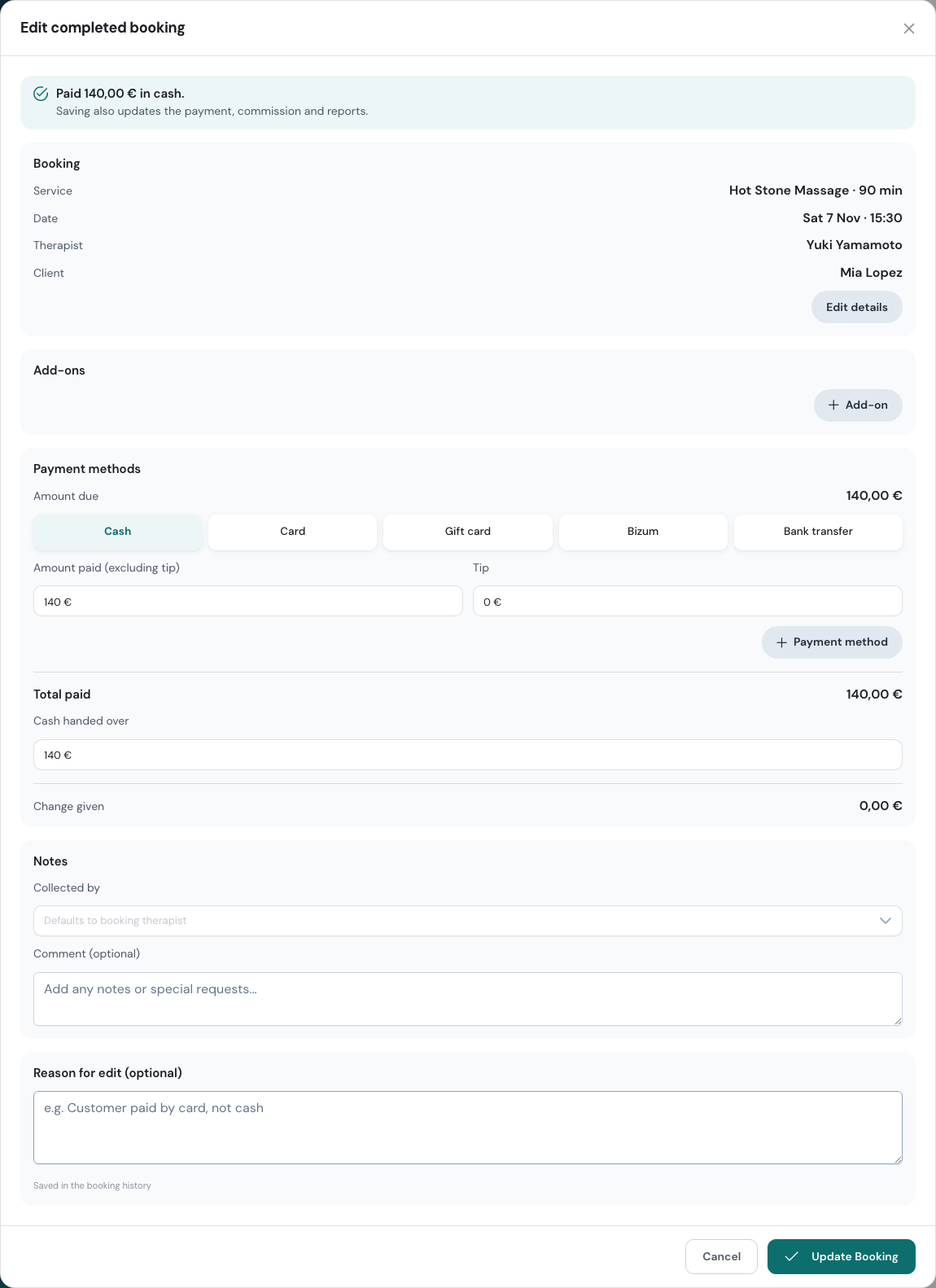
To fix a mistake without reopening, an owner, an admin or a Front desk member can click Edit on a completed booking, a colleague’s included. It isn’t offered on a couple booking. Edit completed booking opens with what was paid at the top, and a reminder that saving also updates the payment, commission and reports.
You can change:
- the service, date, time or therapist, with Edit details,
- the add-ons,
- the payment method, amount paid, tip and cash handed over,
- who collected the money.
If the right therapist was busy at that time, Edit details also offers Swap with a busy therapist: the two of them trade bookings, and “Commission and tips go with each massage.” See Swapping with a busy therapist.
Write a Reason for edit (optional), for example “Customer paid by card, not cash”. It’s saved in the booking’s history. Then click Update Booking. Your reports change to match.