Everything about getting into your account.
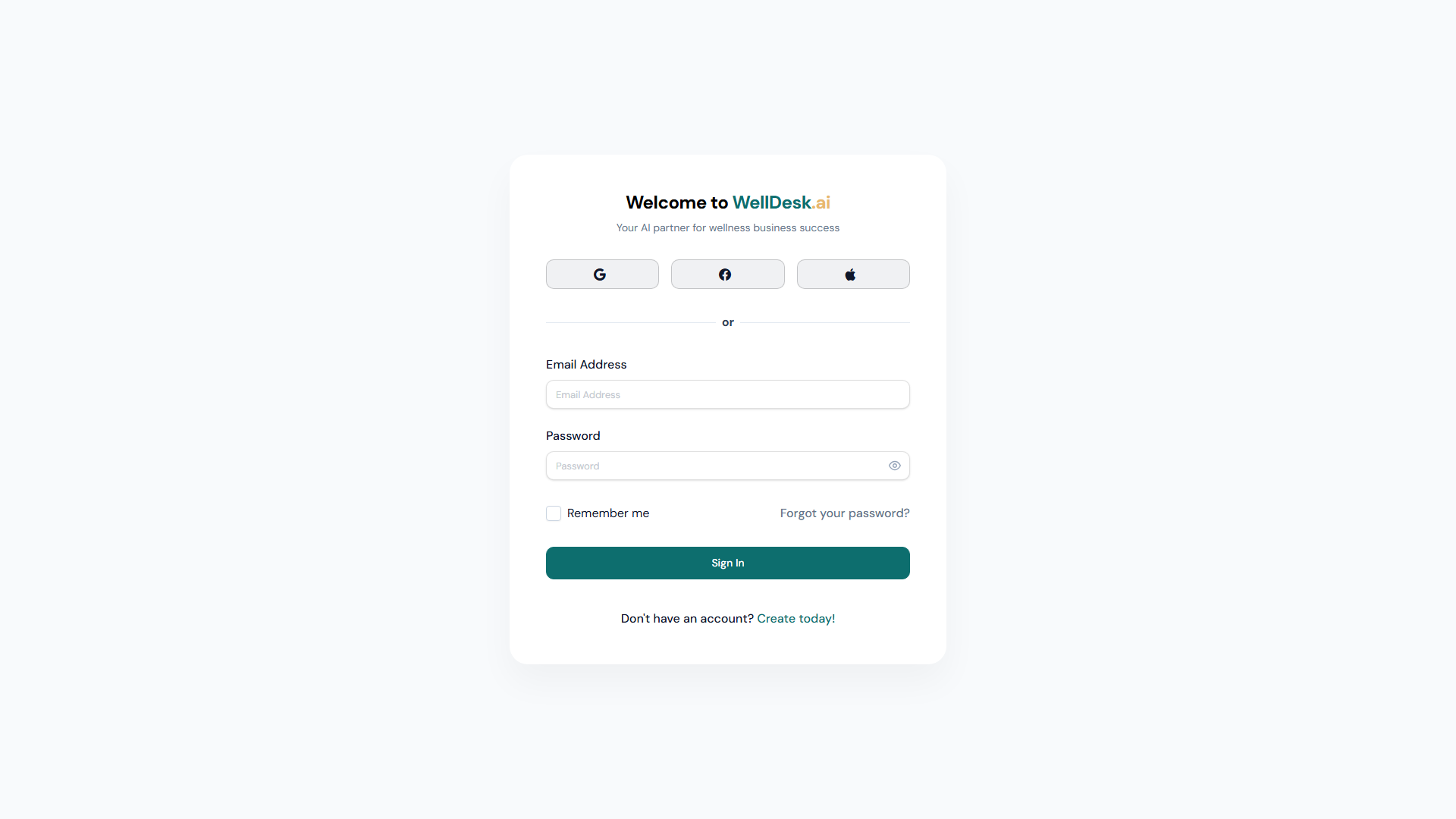
Signing in
- Go to your WellDesk login page.
- Enter your Email Address and Password.
- Click Sign In.
Remember me keeps you signed in on that device. Fine on your own phone or the computer behind your counter; not on anything shared or public.
If you have just registered and cannot get in, you probably have not verified your email yet — that has to happen first. See Creating Your Account.
Forgotten password
- Click Forgot your password? on the login page.
- Enter your email address and click Send Reset Link.
- Open the email and follow the link.
- Enter a New Password — at least 8 characters — and confirm it.
- Click Update Password.
Reset links expire after 30 minutes. If yours has, request another; the screen offers Request a new link.
For privacy, WellDesk always says a link is on its way, whether or not an account exists for that address. So if nothing arrives, check spam, then check you used the right address.
Changing a password you know
There is no self-service password change in the shop dashboard. An Owner or Administrator sets a password from Team → Members — open the person, fill in New Password, save.
To change your own, either use the forgotten-password flow above, or ask an Administrator.
Security
- Use a unique password and store it in a password manager.
- One account each. Shared logins make the activity log and commission reports meaningless.
- Deactivate people when they leave rather than changing a shared password. See Managing Your Team.
There is no two-factor authentication yet. Your password is the only thing protecting the account, which is a good reason for it to be a strong and unique one.