WellDesk has a layout made for touch. You don’t install anything or switch it on: open WellDesk in your phone’s browser, log in, and you get it.
It isn’t only for phones. A tablet, held either way, gets the same layout, and so does a computer browser window made narrower than about half a screen. A full-size window on a computer gets the sidebar layout that the rest of this help center describes.
Your bookings, clients and settings are the same on every device. Something you change on your phone is there when you open WellDesk on the computer.
The bar at the bottom
Four tabs sit in a bar at the bottom of the screen:
| Tab | What’s there |
|---|---|
| Home | Today at a glance: the next free times, today’s bookings and, for owners and admins, earnings. See Home on a Phone. |
| Calendar | Your bookings in Day, Week or Month view. See Using the Calendar. |
| Bookings | Every booking as a list you can search and filter. See The Bookings tab below. |
| Menu | Everything else: clients, services, earnings, your shop page and settings. See The Menu. |
WellDesk opens on Home. Everyone gets all four tabs, whatever their role. What’s inside them depends on the role: staff don’t see earnings, and their Menu is shorter. See Roles and Permissions.
The + button
The round + button next to the bar is for adding things. Tap it and choose:
- New booking: pick a client, treatment and time. See Creating a Booking.
- New client: add someone to your client list. See Adding Clients.
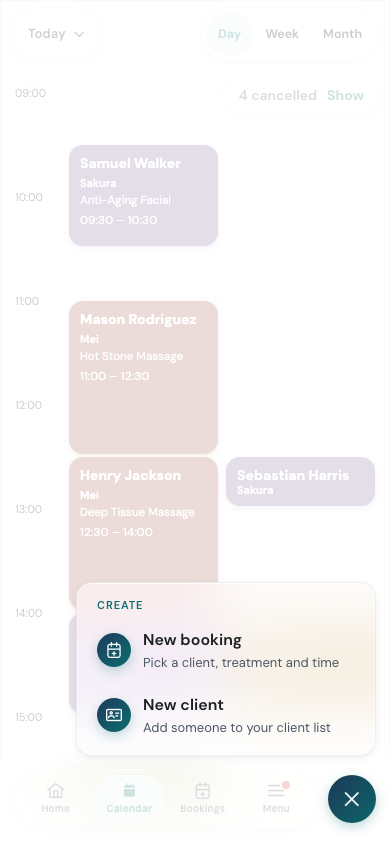
Tap × to close it without choosing.
Full screens and sheets
Most things open over the screen you’re on rather than replacing it.
- Full screens fill the phone: a booking, the New booking form, a client, Earnings, Services and prices, Shop settings and the other pages you reach from Menu. The bar at the bottom is hidden while one is open. Tap × at the top to go back to where you were.
- Sheets slide up from the bottom for a short choice, such as filters or picking a time. Tap outside the sheet, or swipe it down by its top edge, to close it.
The Bookings tab
Bookings lists your bookings day by day, starting from today. Each day shows how many bookings it has, and each booking shows the client, therapist, treatment, length and price. Finished ones are tagged Done. Tap a booking to open it.
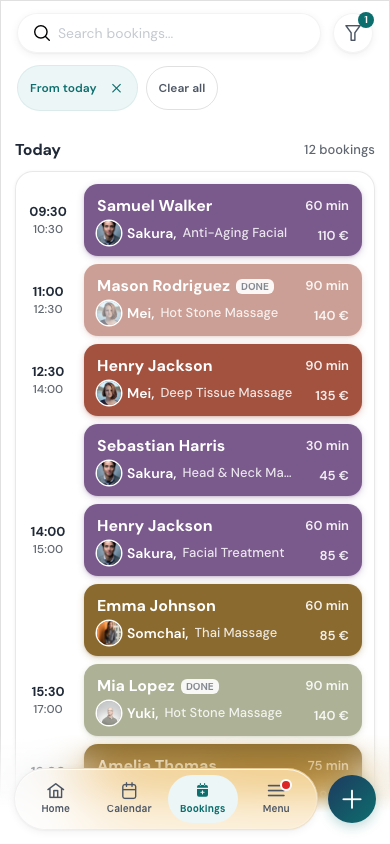
- Search: type in Search bookings… at the top, for example a client’s name. Tap × in the box to clear it.
- Filter: tap the funnel button next to the search box. In Filter bookings, choose a Status (All, Upcoming, Done or Cancelled), a Therapist (or Anyone), and the dates From and To. Tap Show bookings to apply, or Clear to start again.
- Remove a filter: the filters you’ve set show as chips under the search box. Tap the × on one to remove it, or Clear all to remove them all. The list starts with From today on, so remove that chip to see past bookings.
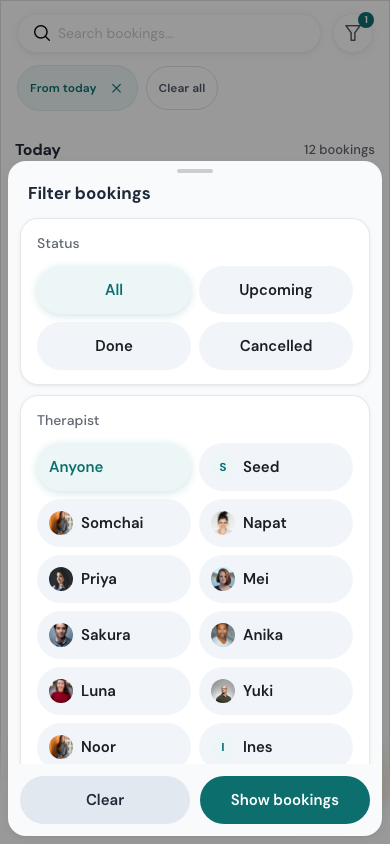
A one-person shop has no Therapist choice, as there’s only one.
Cancelled bookings in a day are folded away under a line such as 2 cancelled. Tap Show to see them and Hide to fold them again.
The phone calendar has no team member filter, so the Bookings tab is the place to see one person’s bookings: filter by Therapist.
What’s only on a computer
Almost everything works on a phone. A few pages are still computer-only. On a phone, their rows in Menu say isn’t ready for phones yet — open it on a computer for now:
- Discounts & offers (you can still apply a discount when you complete a booking on a phone)
- Expenses, including recurring expenses
- Billing & plan
- Theme & design and Search visibility for your shop page
- Activity log
A few things inside pages that do work on a phone also need a computer:
- Weekly working hours. On a phone, Menu → Staff schedule adds days off and different hours for one date. See Schedules and Working Hours.
- Legal pages, under On a computer at the bottom of Menu → Shop settings. Tap the row to get a link you can copy and open on your computer.
- Importing clients from a file. See Importing Clients.
- Writing the health form and accepting its data processing agreement. See Setting Up the Health Form.
Booking alerts on a phone
WellDesk can send a notification to your phone when a booking comes in, moves or is cancelled. On an iPhone or iPad this only works once WellDesk is on your Home Screen. See Adding WellDesk to Your Home Screen.