Home is the first tab on a phone and the screen WellDesk opens on. Check it between clients to see when you’re next free and who’s coming in.
Home is on phones and tablets only. On a computer, WellDesk opens on the Calendar.
There’s nothing to set up. Home fills in by itself as bookings come in. To load the latest, pull the screen down.
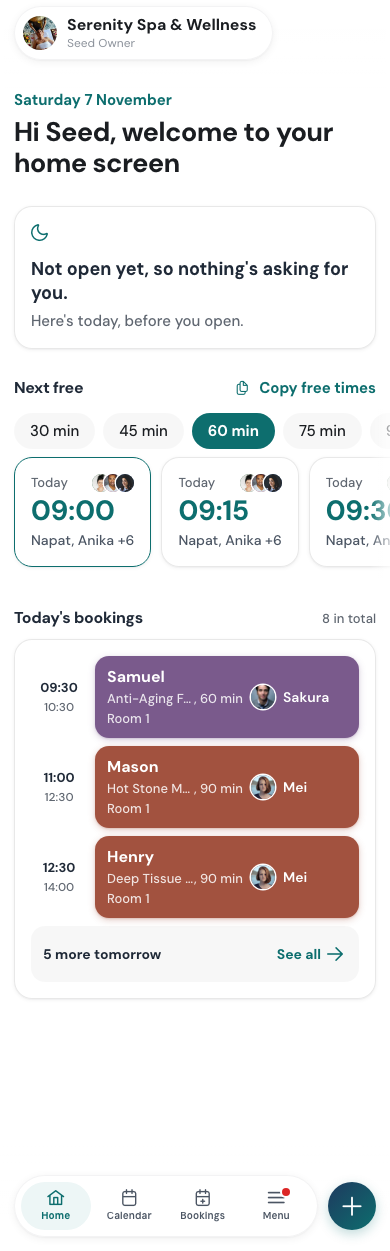
Next free
Next free shows the first times you can still take a booking, over the next 7 days.
- Pick a length from the row of buttons: 30 min, 45 min, 60 min and so on.
- Each card shows the day (Today, Tomorrow or a date) and the time. In a shop with a team, it also shows who is free then, or Everyone.
- Tap a time to open New booking with that day, time and length filled in, and the first free therapist picked. Add the client and treatment and save. See Creating a Booking.
Sending free times to a client
When a client asks “when can you fit me in?”, tap Copy free times. WellDesk copies the times on screen as one line, starting Free:, ready to paste into WhatsApp or any other chat. Pick the length first, so the times fit the treatment they asked about.
A staff member sees their own free times, not the whole team’s.
Today’s bookings
Today’s bookings lists today’s clients in time order, with the treatment, length, therapist and room. The count at the top says how many there are in total. Tap a booking to open it, for example to complete it. See Completing a Booking.
As the day goes on:
- the booking under way is marked Now,
- finished bookings fold into a line such as 3 done earlier today. Tap Show to see them,
- on a long day, the later bookings fold into a line such as 4 more later today. Tap Show all to see them,
- at the end of the list, a line can say when the rest of the day is free, for example Free from 16:00. Owners and admins get Share my page next to it, to fill the gap.
Owners and admins see the whole shop’s day. A staff member sees their own bookings.
Before opening and after closing
Before you open, Home says nothing needs you yet and lists today’s bookings so you can look ahead. In the evening it switches to Tomorrow’s bookings, so you don’t have to check in the morning, and Today in short sums up the day: how many sessions and new clients you had. Owners and admins also see what the day earned.
For you
For you holds short messages about things that need you, each with a button that takes you there. For example:
- a booking from the last few days that was never completed, so it isn’t in your earnings yet (Sort it now),
- new bookings that came in through your shop page,
- a new gift card request (See the request). See Gift Card Requests,
- a client who opened your Google review link (See your reviews).
When nothing needs you, the section says so, or doesn’t show at all. Now and then Home also marks a milestone, such as your first online booking.
Your earnings
Owners and admins see Your earnings for Today, This week and This month, each compared with what’s booked or with the period before. Earnings at the top right opens the full Earnings page. See Earnings and Commission.
Below it, Last 6 weeks shows what you earned and the hours booked in each week, with the best week marked. Only completed bookings count, so a note tells you when some of today’s sessions aren’t counted yet.
Staff don’t see earnings on Home.
Team this week
In a shop with two or more team members, owners and admins also see Team this week: each person’s hours, what they earned and how much of their working time is booked (for example 80% booked). See full report opens Earnings by therapist.
A new shop
Until your first bookings arrive, Home shows a short welcome and a Share my page button that lets you send your booking link to clients. Tap Got it to put the welcome away.