General Settings control the account-wide preferences that affect how WellDesk behaves for your whole team. These include language, date and time formats, and notification preferences.
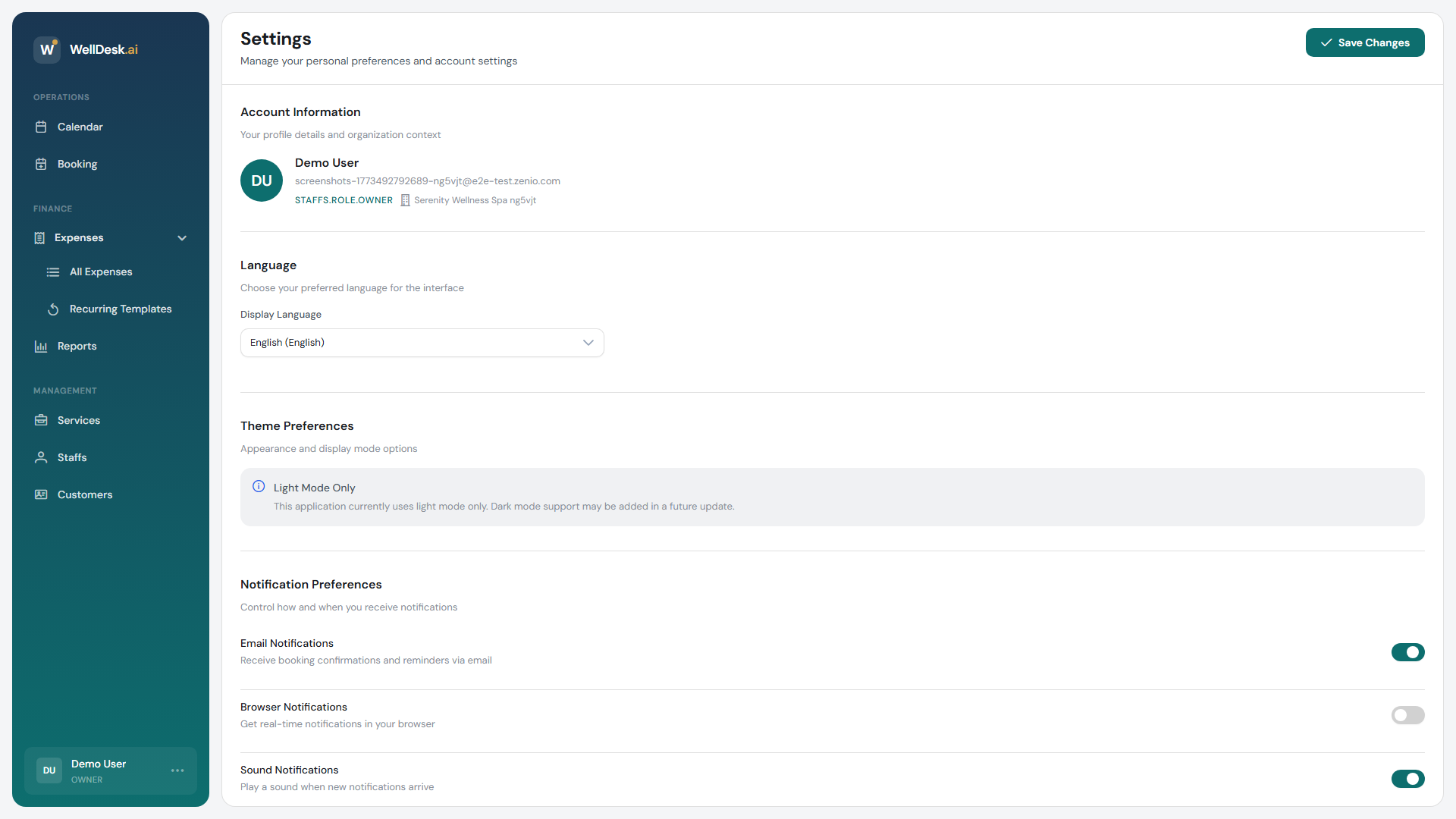
Accessing General Settings
- Click your business name or avatar in the top right corner.
- Select Settings from the dropdown menu.
- The General tab is selected by default.
Language
Select the interface language for WellDesk. This affects all text within the admin area — menus, buttons, labels, and system messages.
Currently supported languages:
- English (default)
- German (Deutsch)
- Spanish (Español)
- Thai (ภาษาไทย)
- Chinese Simplified (简体中文)
- Chinese Traditional (繁體中文)
Note: Changing the language here affects the WellDesk admin interface for all users on your account. Your public booking page language is controlled separately in Online Booking → Settings → Locale.
Date and time format
Choose how dates and times are displayed throughout WellDesk:
| Option | Example |
|---|---|
| Date format | DD/MM/YYYY, MM/DD/YYYY, YYYY-MM-DD |
| Time format | 12-hour (9:00 AM) or 24-hour (09:00) |
| First day of week | Monday or Sunday (affects calendar display) |
Select your preferred formats and click Save Changes.
Notification preferences
Configure which email notifications WellDesk sends to Owners and Admins:
| Notification | Description |
|---|---|
| New online booking | Alert when a client books online |
| Booking cancellation | Alert when a booking is cancelled |
| New client registration | Alert when a client creates an account on your booking page |
| Daily summary | Morning email with the day’s upcoming appointments |
Toggle each notification type on or off. You can also set a notification email address separate from your login email — useful if you want booking alerts to go to a shared team inbox.
Staff notification settings
Individual staff members can configure their own notification preferences after logging in:
- My upcoming appointments — daily or hourly reminders of their schedule
- New booking assigned to me — when a booking is created for them
- Booking changes — when a booking on their schedule is modified or cancelled
Currency
Set the currency used throughout WellDesk for service prices, expenses, and reports.
- In General Settings, find the Currency field.
- Select your currency from the dropdown.
- Click Save Changes.
Warning: Changing the currency does not convert existing prices — it only changes the currency symbol displayed. Update your service prices and expense records manually after changing currency.
Tips and best practices
- Set the first day of week to match your region — this avoids confusion when reading the calendar in week view.
- Enable daily summary emails — a morning overview of the day’s appointments helps owners and managers plan staffing.
- Set a shared notification email if you have a reception team — a shared inbox means no booking notification is missed if one person is away.