Customer Settings control how WellDesk creates and stores client records — from walk-in handling to the data fields collected during booking. A well-configured customer profile makes it easier to deliver personalised service and maintain accurate records.
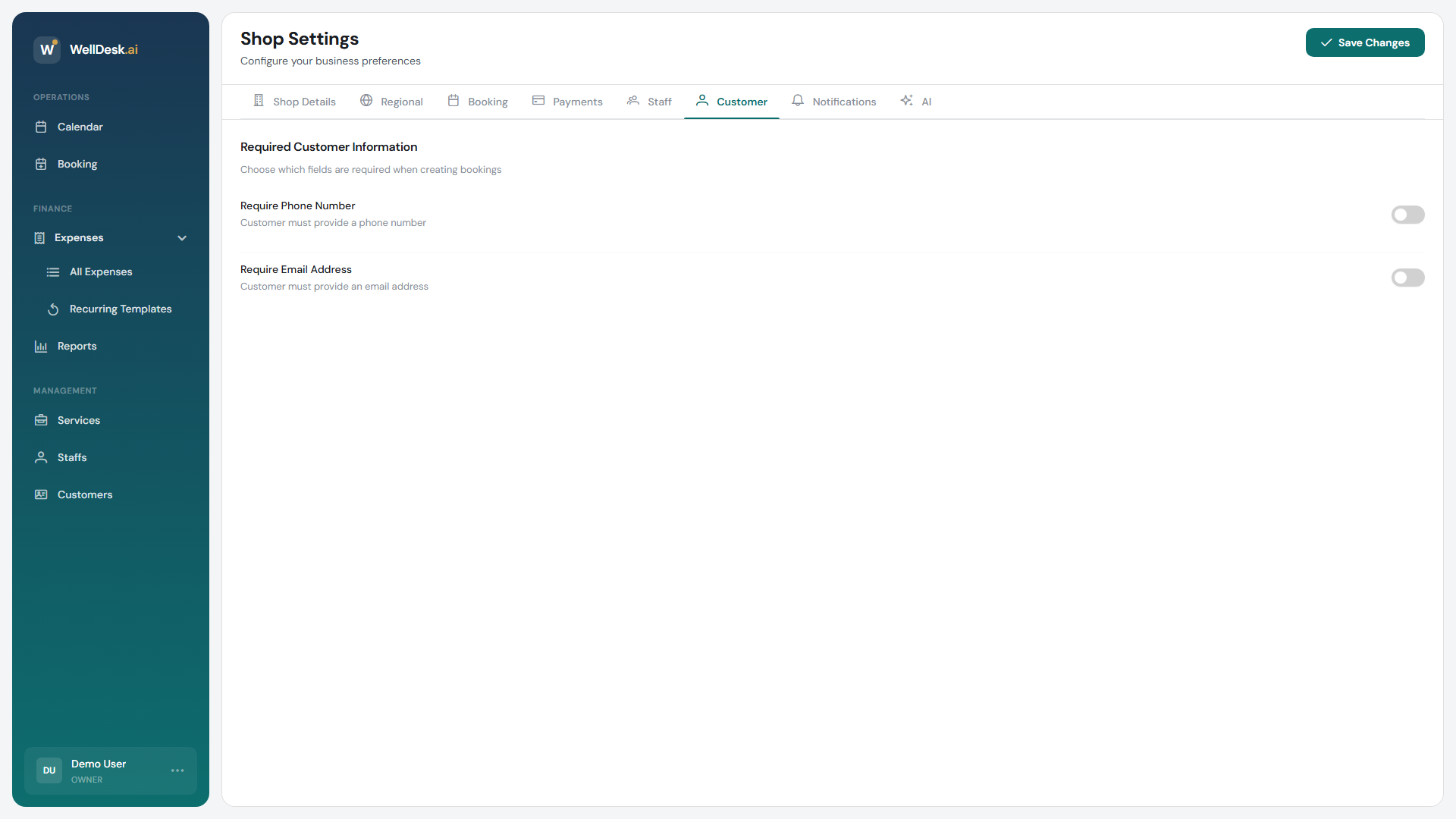
Accessing Customer Settings
- Go to Settings in the main navigation.
- Click the Customer tab.
Walk-in customer handling
Walk-in customers are clients who arrive without a prior booking. WellDesk offers two ways to handle them:
| Option | Behaviour |
|---|---|
| Create a new customer profile | A new client record is created for every walk-in. Use this if you want to track all visitors and build a complete client database. |
| Use a shared walk-in customer | All walk-ins are recorded against a single generic “Walk-In Customer” profile. Use this if you handle high walk-in volume and don’t need to track individuals. |
Choose the option that matches your business model. You can switch at any time — existing records are not affected.
Customer data fields
Configure which fields are shown and required when a client books online or when staff create a customer profile manually.
| Field | Options |
|---|---|
| Phone number | Hidden / Optional / Required |
| Date of birth | Hidden / Optional / Required |
| Gender | Hidden / Optional / Required |
| Address | Hidden / Optional / Required |
| Notes / allergies | Hidden / Optional / Required |
| Marketing consent | Hidden / Optional / Required |
Set sensitive fields (such as date of birth or address) to Required only if your services genuinely need them — excessive data collection creates friction at booking and raises data privacy obligations.
Note: Email address and first name are always required for online bookings and cannot be hidden.
Default customer notes
Add a default note template that is pre-filled in the Notes field of every new customer profile. This is useful if you have a standard set of intake questions or reminders for staff.
Example:
“Check for allergies before treatment. Ask about previous visits.”
Staff can edit or clear the default note on a per-client basis. The template only populates when a new profile is first created.
Marketing consent
If you send promotional emails or SMS messages to clients, you must collect their consent. Enable the Marketing consent field so clients can opt in during booking.
When a client opts in, their profile is marked with the consent date. Use this flag to filter your client list when sending campaigns.
Important: Data collection and consent requirements vary by country. Consult your local data protection guidelines to ensure your configuration is compliant.
Tips and best practices
- Request only what you need — fewer required fields means fewer abandoned bookings. Add fields as your need for data matures.
- Use the shared walk-in profile for high-volume counters — hair salons and nail bars with heavy walk-in traffic benefit from not creating a new profile for every anonymous visit.
- Capture marketing consent from day one — retrofitting consent collection is difficult. Enable it now so your client list is ready for email campaigns when you need them.