Staff Settings define the defaults WellDesk applies when you add a new team member. Rather than configuring commission and scheduling rules from scratch for every staff member, set sensible defaults here and adjust individually where needed.
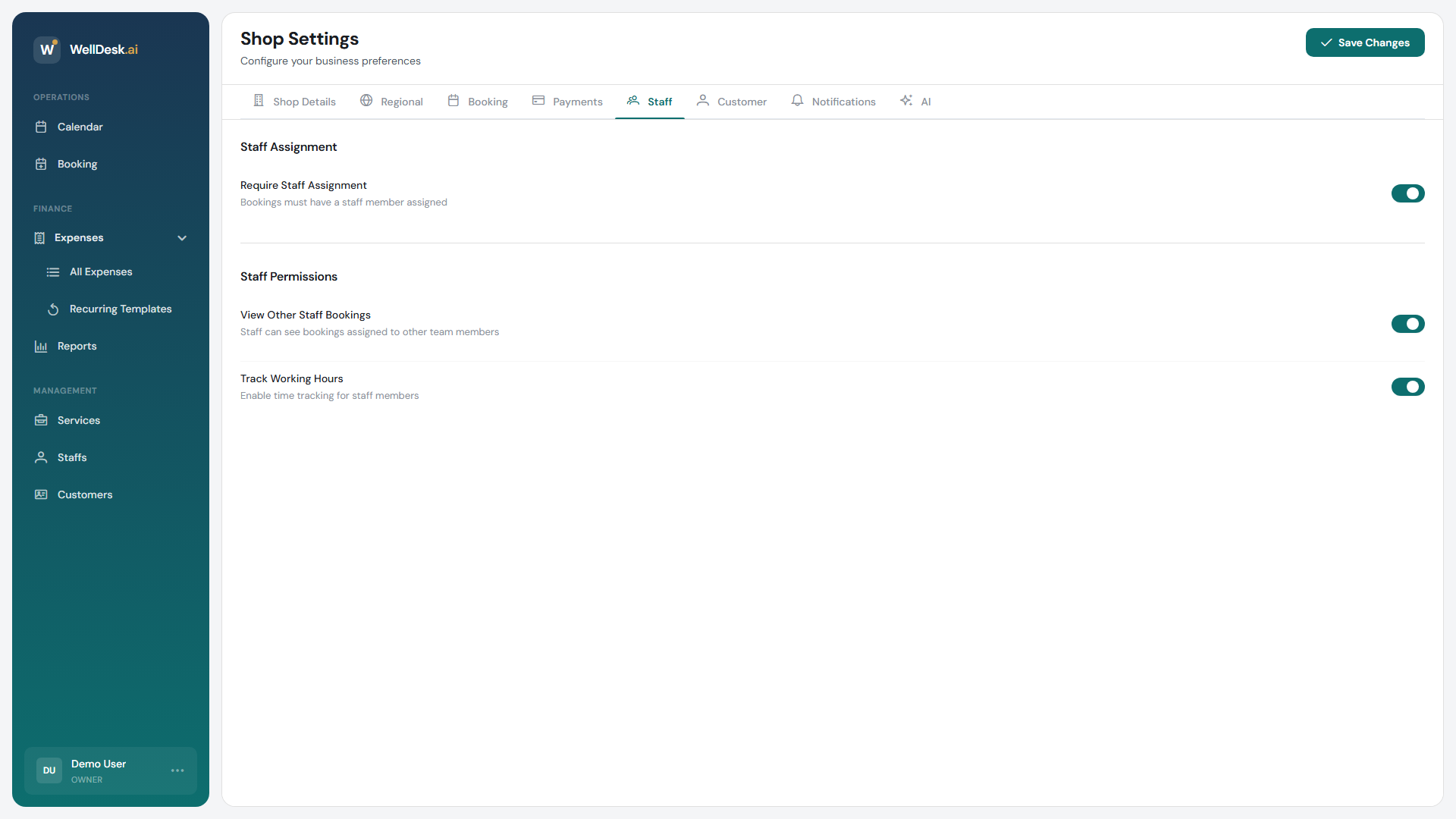
Accessing Staff Settings
- Go to Settings in the main navigation.
- Click the Staff tab.
Default commission type
Choose the commission model that applies to new staff members by default:
| Type | How it works |
|---|---|
| No commission | Staff earn a fixed wage; no commission is tracked in WellDesk. |
| Percentage of service | Staff earn a percentage of the revenue from each service they perform. |
| Fixed amount per service | Staff earn a flat fee for each service they perform, regardless of price. |
Select the model that matches how most of your staff are paid. Individual staff members can be set to a different model in Staff → [Staff Member] → Commission.
Default commission rate
Enter the default rate that applies when Percentage of service or Fixed amount per service is selected:
- For percentage-based commission, enter a value between 0 and 100 (e.g.
40for 40%). - For fixed amount commission, enter the amount in your configured currency (e.g.
15for £15 per service).
This default is applied automatically when a new staff member is created. You can override it per staff member.
Scheduling defaults
These settings define the standard scheduling behaviour for new staff:
| Setting | Description |
|---|---|
| Default working hours | The hours new staff are available by default. Set to match your typical shift pattern. |
| Allow online booking | Whether new staff are visible and bookable on your public booking page by default. |
| Buffer time | Per-staff buffer time (in minutes) applied after their appointments. Inherits the global booking buffer if left blank. |
Tip: If most of your staff work the same hours, set those hours as the default to save time when onboarding. You can always narrow or extend hours for individual staff members.
Applying defaults to existing staff
Changing Staff Settings defaults only affects new staff members added after the change. Existing staff retain their current settings.
To update commission or scheduling settings for existing staff, navigate to Staff → [Staff Member] and adjust individually. You can also bulk-update commission settings from the Staff list page using the Edit action.
Tips and best practices
- Set the most common commission model as default — even if a few staff have different arrangements, defaulting to the majority model reduces manual configuration when hiring.
- Review defaults when changing your pay structure — if you move from no-commission to percentage-based pay, update the default so all new hires are configured correctly from day one.
- Disable online booking by default if you assign bookings manually — staff added during a setup phase won’t appear on the public page until you’re ready.