Shop Information is the business profile at the heart of WellDesk. It feeds your public booking page, client confirmation emails, receipts, and the AI chat assistant. Keeping it accurate and up to date is essential.
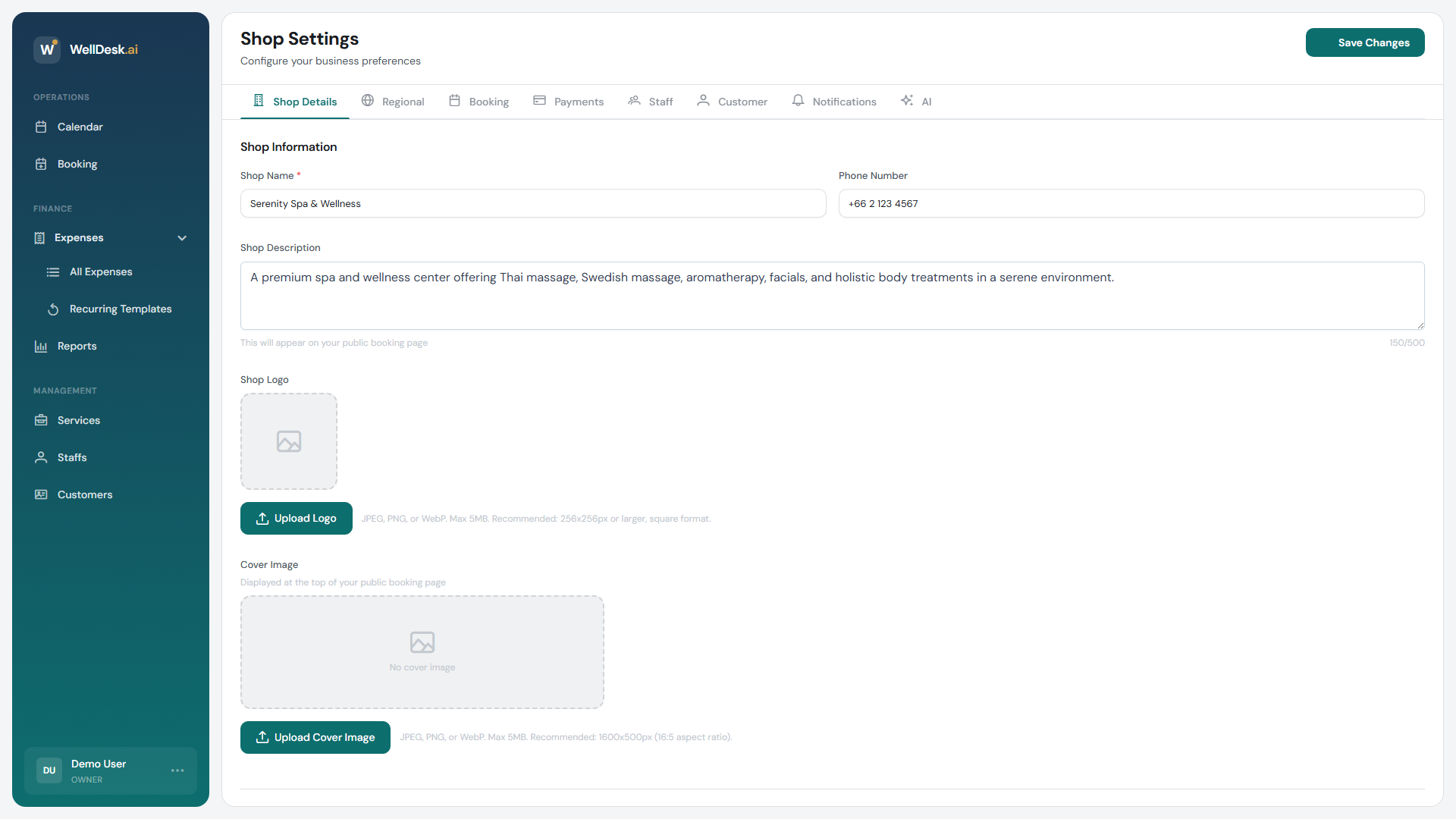
Accessing Shop Information
- Go to Settings in the main navigation.
- Click the Shop Information tab.
Business identity
| Field | Where it appears | Notes |
|---|---|---|
| Shop Name | Booking page, emails, receipts | Use your official trading name |
| Description | Booking page hero section | 2–4 sentences about your business |
| Logo | Booking page, emails | PNG or SVG, min 200×200 px |
| Website | Booking page footer | Your main website URL |
Updating your logo
- In the Brand section, click Change Logo.
- Upload a PNG or SVG file.
- Adjust the crop using the image editor.
- Click Save.
The new logo appears on your booking page and in future client emails immediately.
Contact details
| Field | Where it appears |
|---|---|
| Phone Number | Booking page, email footer |
| Email Address | Booking page, client reply address |
| Address Line 1 & 2 | Booking page, receipts, confirmation emails |
| City | Booking page, receipts |
| Postcode / ZIP | Booking page, receipts |
| Country | Used for tax and formatting |
Click Save Changes after updating contact details. All future emails and receipts use the updated information — existing sent emails are not affected.
Social media links
Add your social media profiles so they appear as icons in the footer of your public booking page:
- TikTok
- Twitter / X
Enter the full URL for each profile (e.g. https://instagram.com/yoursphandle). Leave blank to hide that icon.
Tax information
If your business is VAT-registered or subject to local sales tax:
- In the Tax section, toggle I am VAT/Tax registered.
- Enter your Tax Number (e.g. VAT registration number).
- Set the Tax Rate as a percentage.
- Choose whether prices on the booking page are shown inclusive or exclusive of tax.
Tax information appears on client receipts and PDF invoices.
Danger zone
The bottom of Shop Information contains the Danger Zone — actions that are difficult or impossible to reverse:
- Change your booking URL slug — changes your public booking link. Any links you’ve previously shared will break.
- Delete your account — permanently deletes all data. This action is irreversible and requires typing your business name to confirm.
These actions are available to the Owner role only.
Tips and best practices
- Proofread your description — spelling errors on the booking page undermine client confidence.
- Use a business email address — client replies and enquiries come to your configured email. A professional address looks more credible.
- Update your address before moving premises — clients booking after a move need the correct address for directions and GPS navigation.