Commission Reports show you exactly how much each staff member has earned based on the bookings they’ve completed. Use them to calculate payroll, reward top performers, or give individual staff members a breakdown of their own earnings.
Prerequisites
- Commission rates configured for each staff member (see Managing Your Team)
- Bookings marked as Completed for the period you want to report on
Generating a commission report
- Go to Finances → Reports in the main navigation.
- Select the Commission tab.
- Set the Date Range for the report period (e.g. 1 March – 31 March).
- Optionally filter by Staff Member to show one person’s results.
- Click Generate Report.
Understanding the report
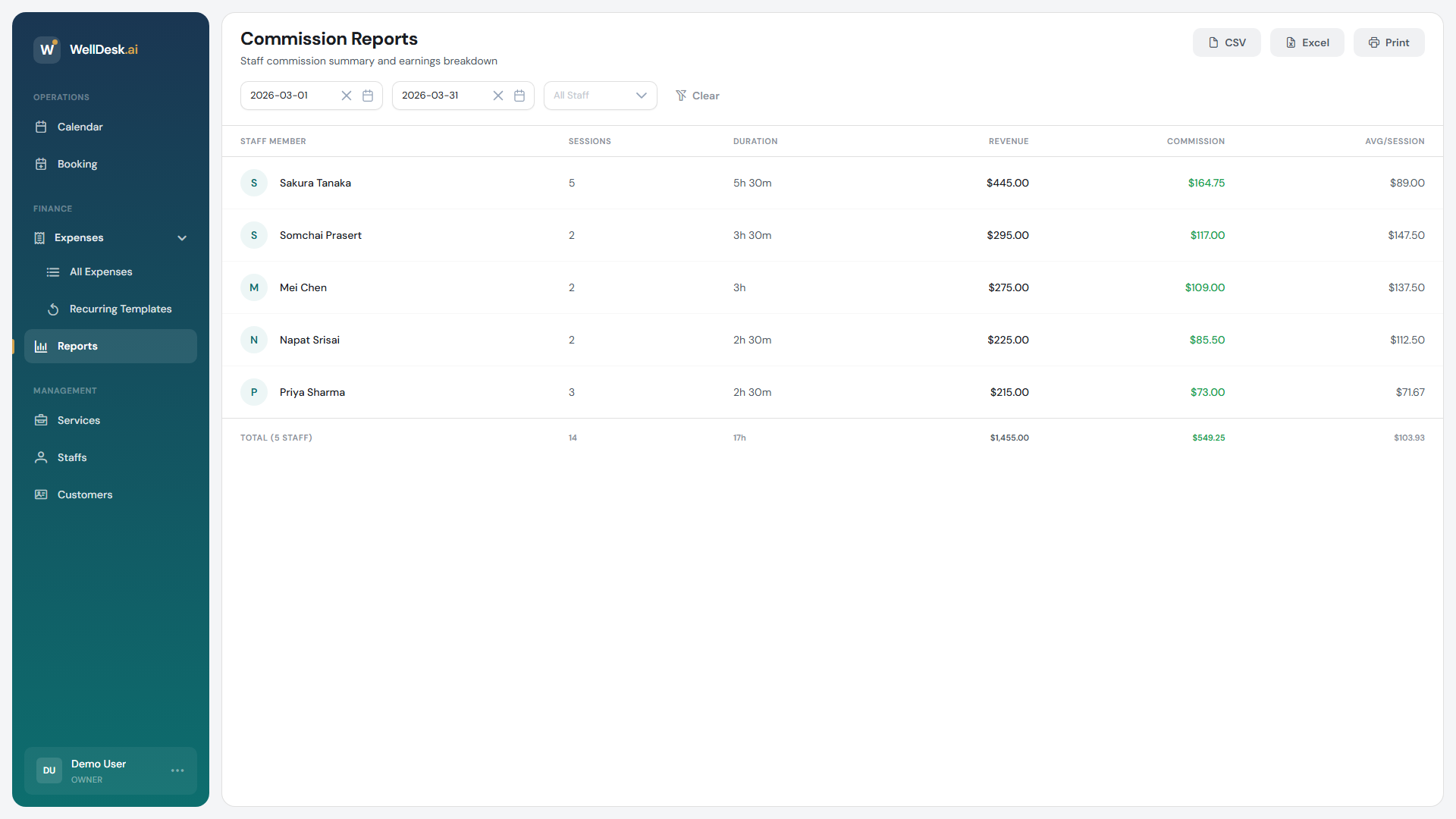
The commission report displays:
| Column | Description |
|---|---|
| Staff Member | Name of the therapist or practitioner |
| Bookings Completed | Total completed appointments in the period |
| Total Revenue | Sum of all completed booking values for this staff member |
| Commission Rate | Their configured commission percentage or fixed amount |
| Commission Earned | The calculated commission amount |
At the bottom, a Totals row shows the combined figures for all staff in the report.
Commission calculation example
If a therapist completes 20 bookings totalling €1,800 in a month, and their commission rate is 40%:
- Commission Earned = €1,800 × 40% = €720
If they have a fixed commission (e.g. €20 per booking):
- Commission Earned = 20 bookings × €20 = €400
Viewing an individual staff member’s breakdown
Click any staff member’s name in the report to expand a detailed list of every completed booking that contributed to their commission — including the service, date, client, and booking value.
Staff access: Staff members with the Staff role can view their own commission report by going to My Reports → My Commission. They see only their own data, not other staff members’.
Exporting the report
- After generating the report, click Export.
- Choose CSV (for use in payroll software or Excel) or PDF (for printing or sharing).
The PDF export is formatted for easy sharing with staff — it includes the period, their name, and a breakdown of bookings.
Commission rates and types
Commission rates are configured per staff member in their profile. WellDesk supports two commission types:
| Type | Description |
|---|---|
| Percentage | A percentage of the booking value (e.g. 35%) |
| Fixed per booking | A set amount per completed appointment (e.g. €25) |
To update a staff member’s commission rate, go to Staff → [Staff Member] → Edit → Commission Rate.
Important: Changing a commission rate only affects future completed bookings. Historical reports use the rate that was in effect at the time.
Tips and best practices
- Run commission reports at the end of each pay period — weekly or monthly, depending on how you pay your team.
- Always verify bookings are marked Completed before generating the report — Pending or Confirmed bookings are excluded.
- Use the date range filters consistently — if you pay weekly, always use Monday–Sunday to avoid missing or double-counting bookings.
- Share individual exports with staff — giving each therapist their own breakdown promotes transparency and trust.
FAQ
Are cancelled or no-show bookings included in commission? No. Only Completed bookings are included in commission calculations.
Can I adjust the commission earned for a specific booking? Not directly. To handle exceptions, adjust the booking value or contact WellDesk support for guidance on manual adjustments.