Regional Settings let you tailor WellDesk to your local market — ensuring that times, currencies, and numbers look exactly as your team and clients expect them to.
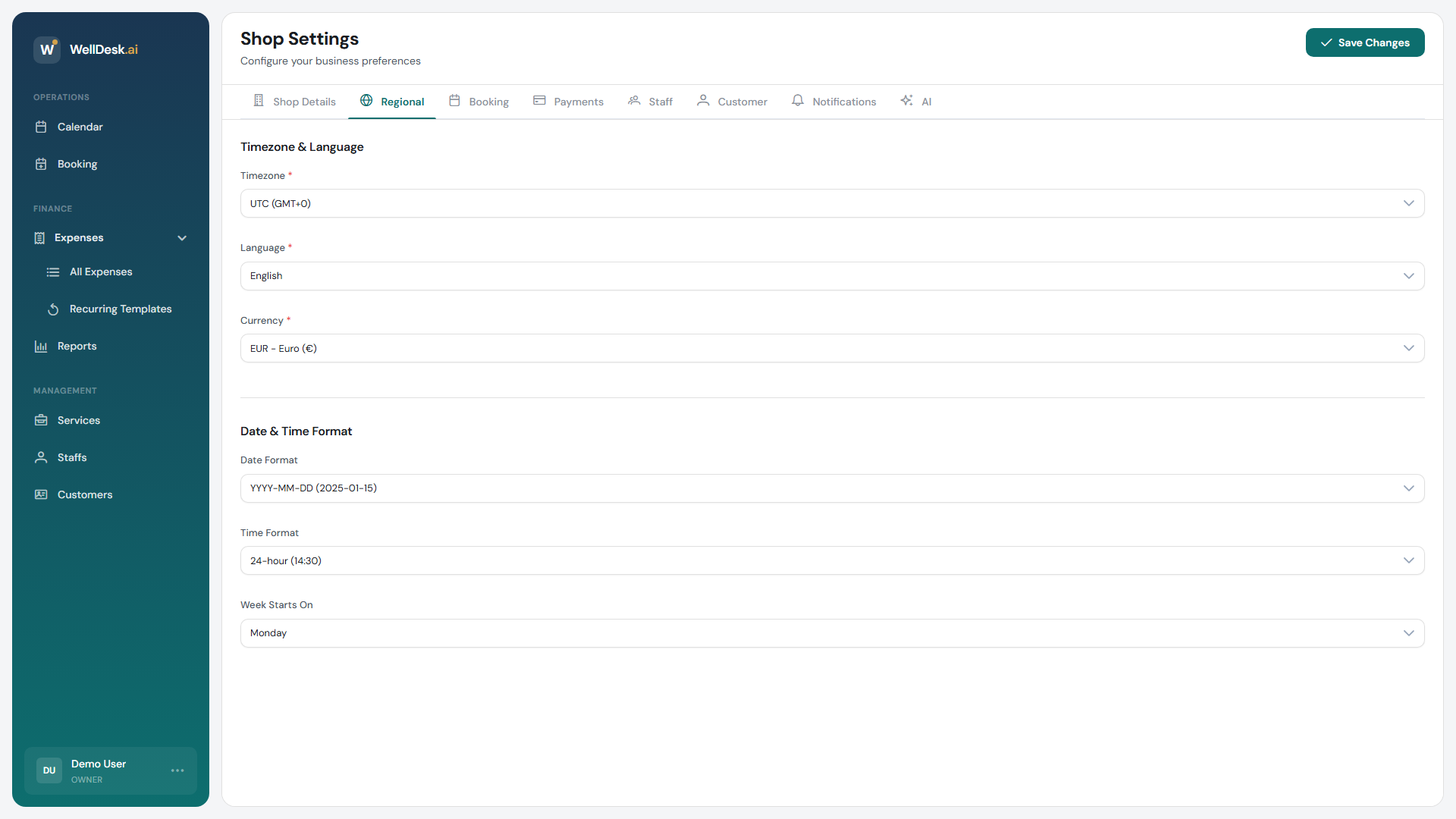
Accessing Regional Settings
- Go to Settings in the main navigation.
- Click the Regional tab.
Timezone
Your timezone controls how all timestamps are recorded and displayed across the calendar, reports, and client communications.
- In the Timezone field, search for or scroll to your city or region (e.g. “Europe/London”, “America/New_York”, “Asia/Bangkok”).
- Click Save Changes.
Important: Set your timezone before taking your first booking. Changing it after bookings exist can shift displayed times and create confusion for staff and clients. If a change is necessary, do it during a quiet period and notify your team.
WellDesk automatically adjusts for daylight saving time when you select a timezone that observes it.
Currency
The currency setting controls the symbol and formatting used throughout WellDesk — on service prices, invoices, payment records, and reports.
- Select your currency from the Currency dropdown.
- Click Save Changes.
Warning: Changing currency only changes the display symbol — it does not convert existing prices. After changing currency, review and update your service prices, packages, and expense records manually.
Date format
Choose how dates appear across the calendar, booking confirmations, and reports:
| Format | Example |
|---|---|
| DD/MM/YYYY | 14/03/2026 |
| MM/DD/YYYY | 03/14/2026 |
| YYYY-MM-DD | 2026-03-14 |
Select your preferred format and click Save Changes. The format applies to the admin interface and all system-generated documents.
Number format
Control how decimal and thousands separators appear in prices and reports:
| Format | Example |
|---|---|
| 1,000.00 | Comma thousands, period decimal (common in US, UK) |
| 1.000,00 | Period thousands, comma decimal (common in Europe) |
Choosing the correct number format avoids ambiguity in financial reports and client invoices.
Tips and best practices
- Match currency to your bank account currency — discrepancies between WellDesk and your bank statement make reconciliation harder.
- Verify date format with your team — if staff in different regions use WellDesk, agree on a single format to avoid misread appointment dates.
- Check number format when exporting reports — some accounting tools expect a specific separator style for correct import.