Adding your team to WellDesk takes less than a minute. Staff members receive an email invitation and create their own password — they never need to contact you for login credentials.
Prerequisites
- Owner or Admin role
- The email address of the person you’re inviting
Sending an invitation
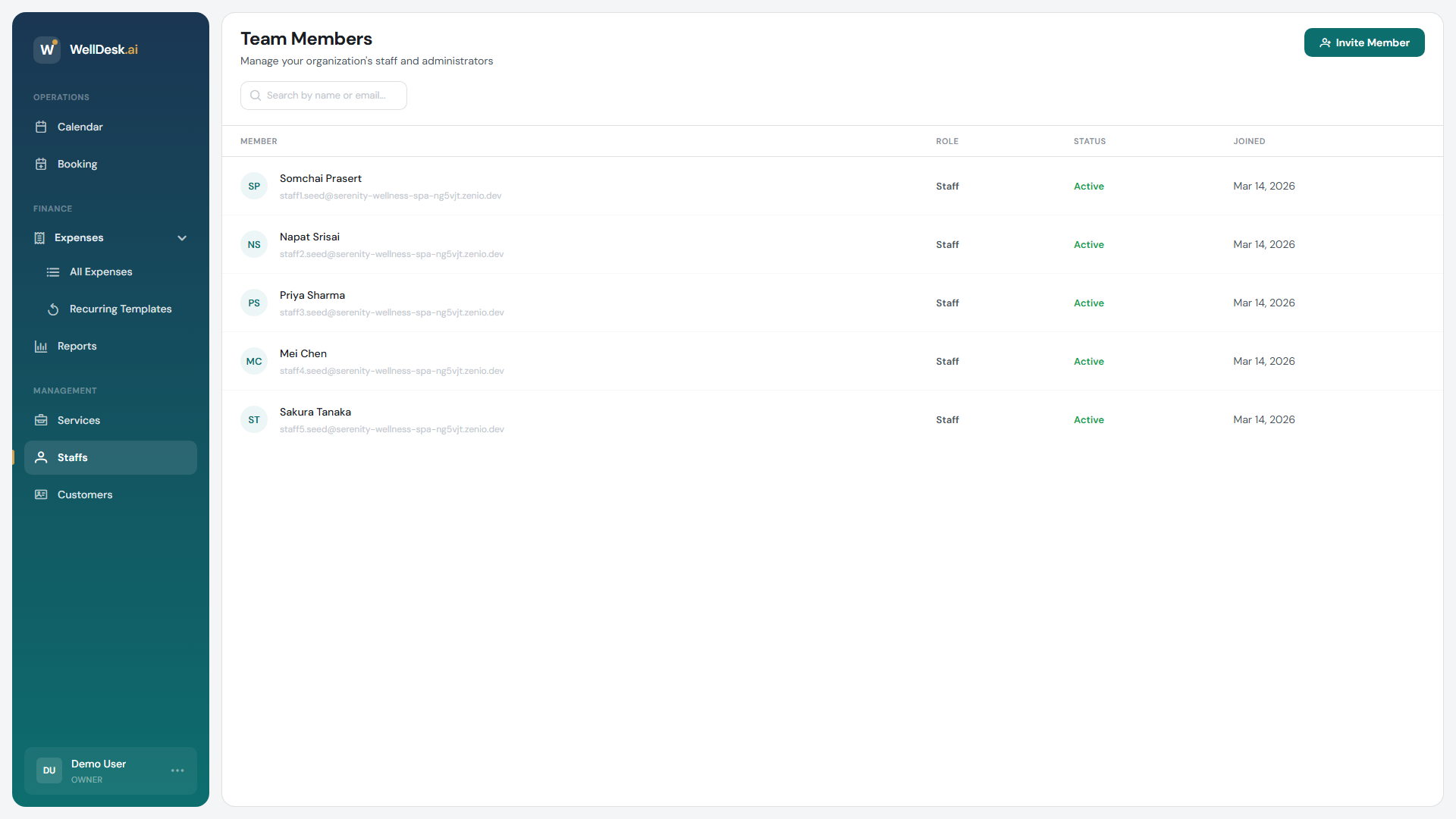
- Go to Staff in the main navigation.
- Click + Invite Staff Member in the top right corner.
- The invitation dialog opens.
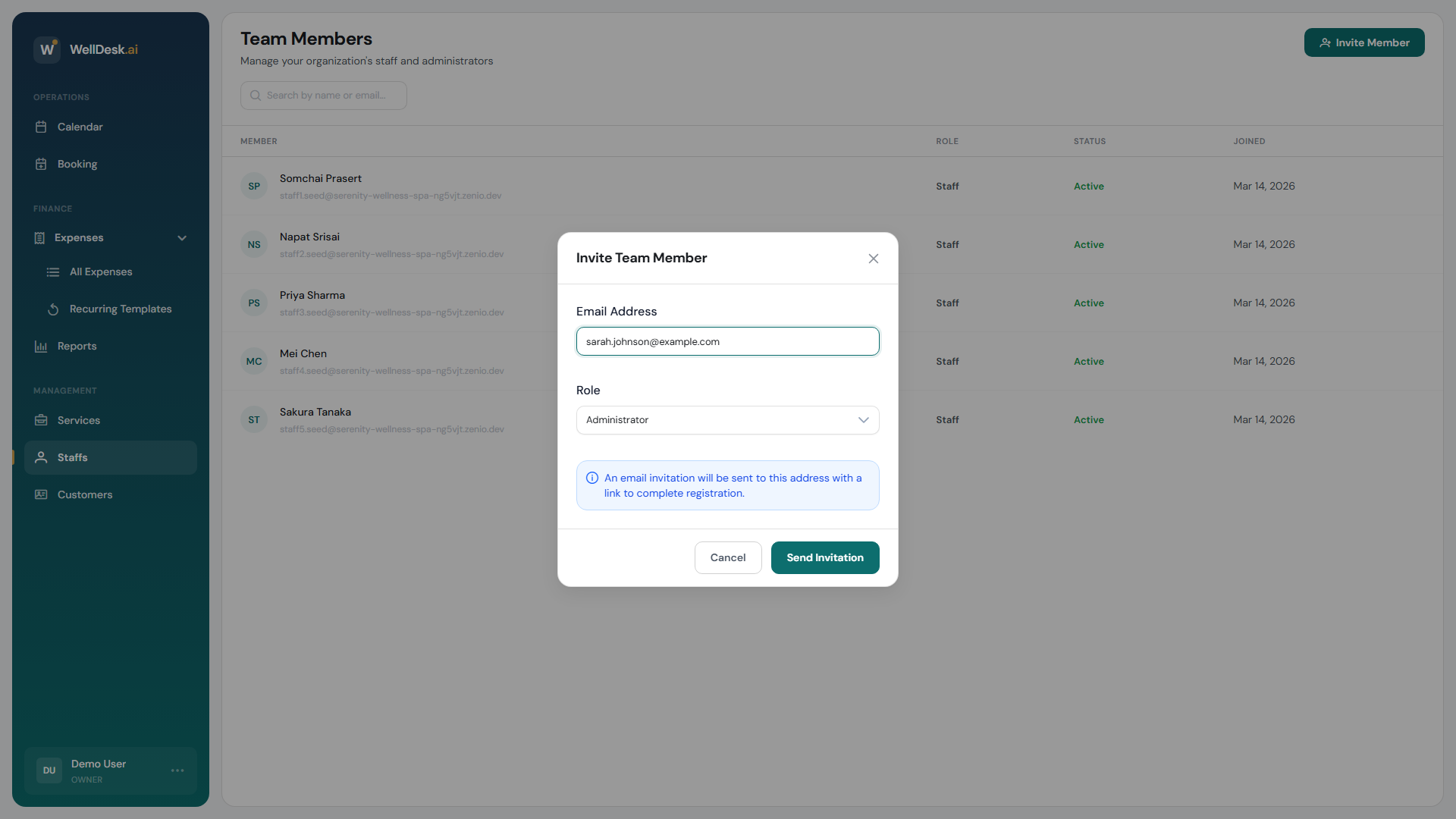
- Enter the following details:
| Field | Description |
|---|---|
| First Name | Staff member’s first name |
| Last Name | Staff member’s last name |
| Email Address | Where the invitation will be sent |
| Role | Admin or Staff (see Roles and Permissions) |
- Click Send Invitation.
An invitation email is immediately sent to the address you entered. The email contains a link to set a password and access WellDesk.
Tracking pending invitations
Invited staff appear in the Staff table with a Pending badge until they accept the invitation and set their password. You can see all pending invitations by filtering the Staff table by Status: Pending.
If a staff member hasn’t received the email:
- Ask them to check their spam or junk folder.
- If still not found, click Resend Invitation on their staff record.
Invitation links expire after 72 hours. After expiry, you’ll need to resend the invitation.
After the staff member accepts
Once the staff member clicks the link and sets their password:
- Their status changes from Pending to Active in the Staff table.
- They can log in at welldesk.ai with their email and password.
- They’ll see their appointments on the Calendar and can manage their schedule based on their role.
Setting up the staff member’s profile
After the invite is accepted, complete the staff member’s profile:
- Click their name in the Staff table to open their profile.
- Add their photo (shown on the public booking page).
- Set their working hours.
- Assign the services they can perform.
- Set their commission rate if you track earnings.
Tips and best practices
- Send invitations before the staff member’s first day — give them time to log in, explore, and set up their profile.
- Use their work email if possible — personal emails sometimes have stricter spam filters that may block the invitation.
- Assign services immediately after setup — a staff member without assigned services won’t appear as an option when creating bookings.