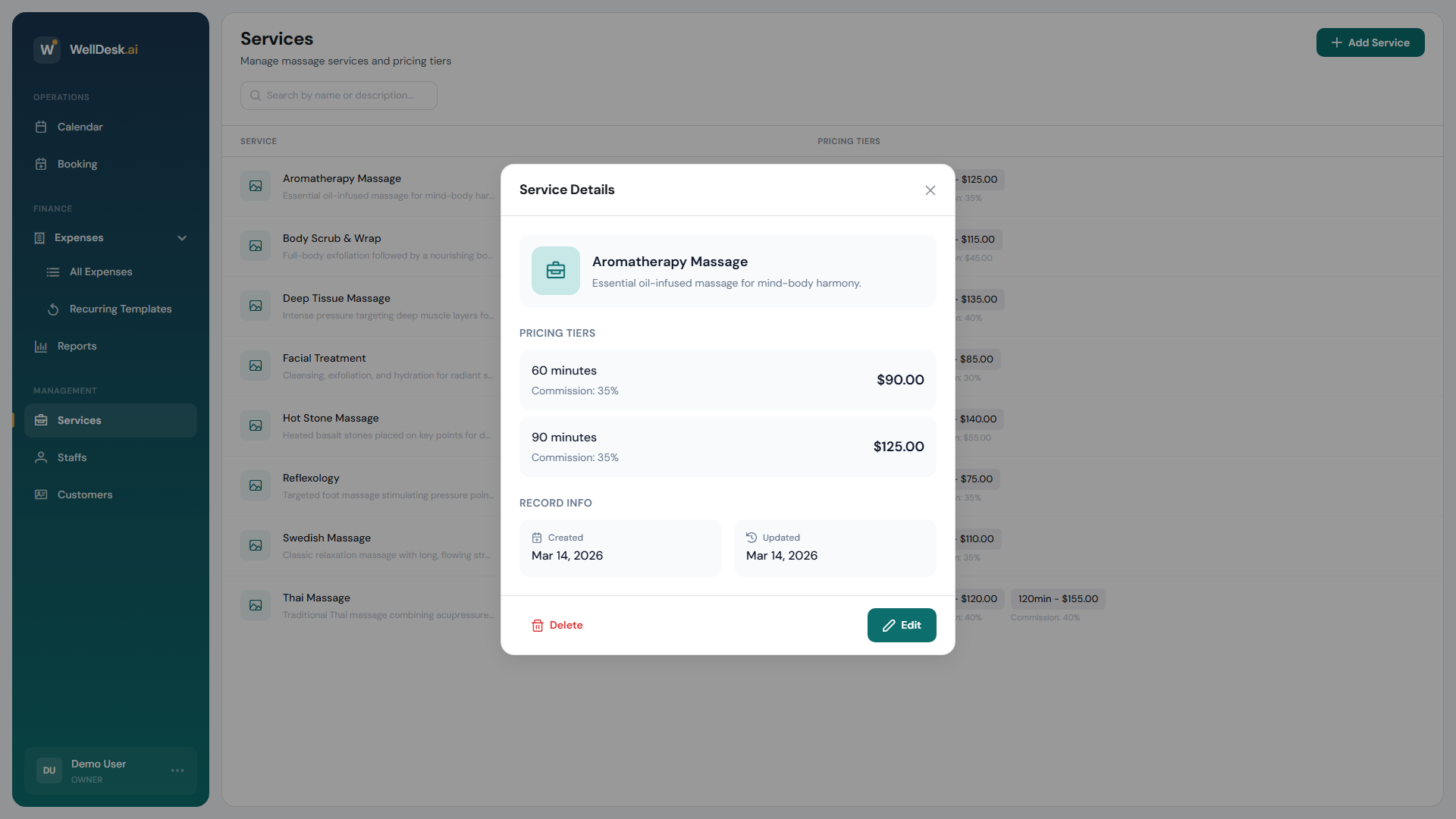
Pricing tiers let you offer the same service at different durations and price points. For example, a massage service might have a 30-minute option at €45 and a 60-minute option at €80. Each tier appears as a separate selection when clients book online.
When to use pricing tiers
- Flexible appointment lengths — offer 30, 60, and 90-minute versions of the same treatment
- Junior/Senior pricing — different prices for therapists with different experience levels
- Group vs. individual — same service but different capacity or price
Adding pricing tiers to a service
For a new service
When creating a new service (see Adding a Service), the pricing section is part of the creation dialog:
- In the Pricing section, click + Add Tier.
- Enter the Duration (in minutes) and Price.
- Optionally add a Tier Label (e.g. “30 min”, “Express”, “Premium”).
- Repeat for each pricing tier you want to offer.
For an existing service
- Go to Services and click the service you want to edit.
- In the service detail dialog, scroll to the Pricing Tiers section.
- Click + Add Tier.
- Enter the duration and price.
- Click Save Changes.
Pricing tier fields
| Field | Required | Description |
|---|---|---|
| Label | Optional | Short display name shown on the booking page (e.g. “Express 30 min”) |
| Duration | Required | Length of the appointment in minutes |
| Price | Required | The price clients pay, in your configured currency |
| Deposit | Optional | A fixed amount or percentage required to secure the booking |
Setting a deposit
Deposits reduce no-shows by requiring clients to pay upfront.
- In a pricing tier, toggle Require Deposit.
- Choose Fixed amount or Percentage of total price.
- Enter the deposit value.
- Click Save Changes.
Clients who book online must pay the deposit via the integrated payment gateway before their booking is confirmed.
Note: Payment gateway integration must be configured in Settings → Payments before deposits can be collected online.
Reordering and deleting tiers
- Drag pricing tiers by the handle icon to reorder them. The first tier is the default selected option when a client opens your booking page.
- To delete a tier, click the trash icon next to it. You cannot delete a tier if there are active future bookings using it.
Tips and best practices
- Keep tier labels short and clear — “30 min · €45” is immediately understandable; “Option A” is not.
- Start with the most popular duration as the first tier — clients often choose whichever option is pre-selected.
- Use deposits for longer services — a deposit on a 90-minute treatment protects you more than one on a 30-minute express booking.
- Review pricing regularly — WellDesk makes it easy to update prices across all tiers at once if your rates change.
FAQ
Can I have different staff charge different prices for the same service? Not currently through pricing tiers. As a workaround, create two separate services (e.g. “Facial — Junior” and “Facial — Senior”) and assign the appropriate staff to each.
Do pricing tiers affect commission calculations? Yes. Commission reports calculate earnings based on the price of the tier that was booked.