Every client in WellDesk has a customer record that stores their contact details, booking history, and notes. You can create customer records manually for walk-in clients or over-the-phone bookings, or let WellDesk create them automatically when clients book online.
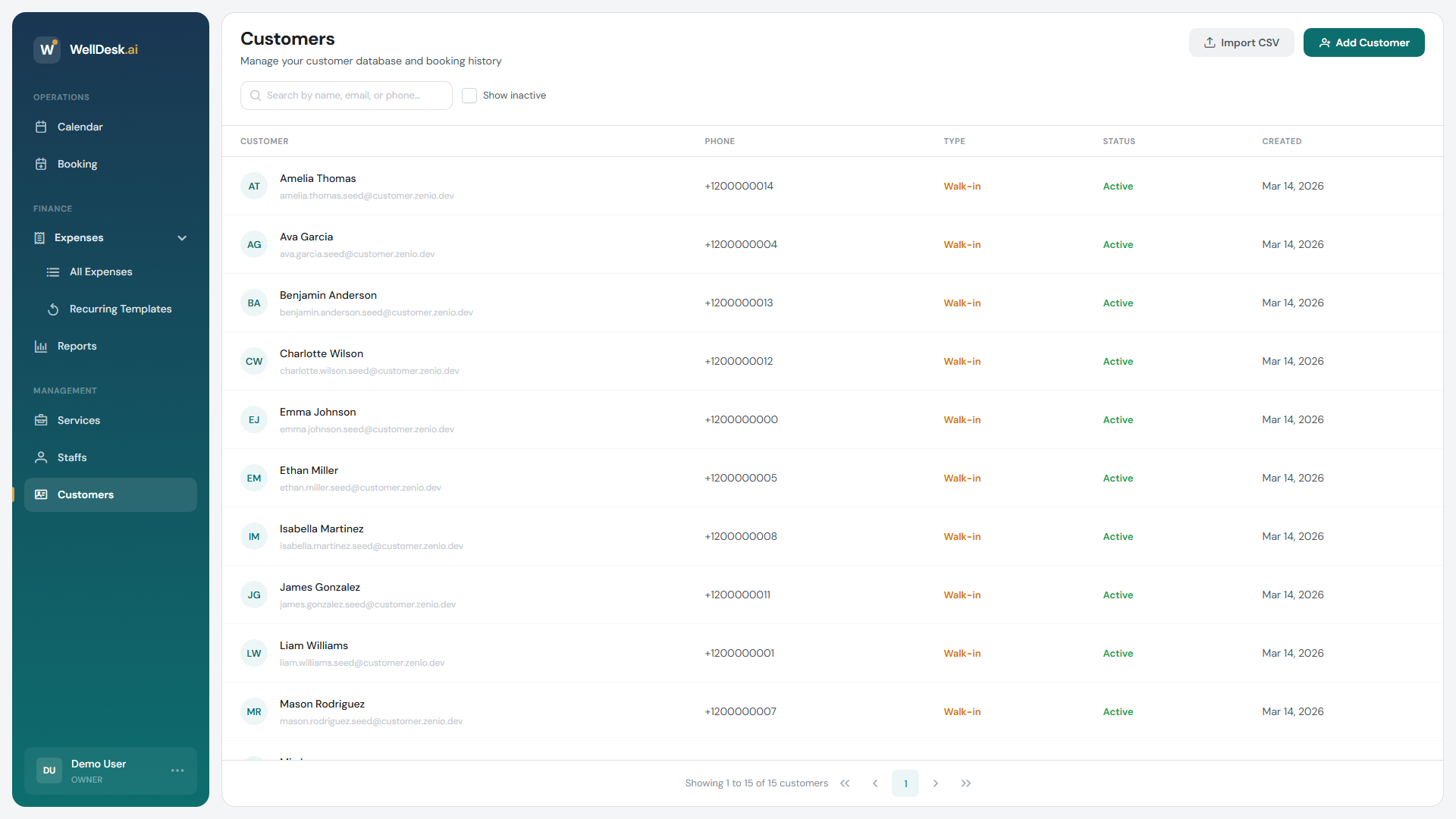
Creating a customer manually
- Navigate to Customers in the main navigation.
- Click + Add Customer in the top right corner.
- The customer creation dialog opens.
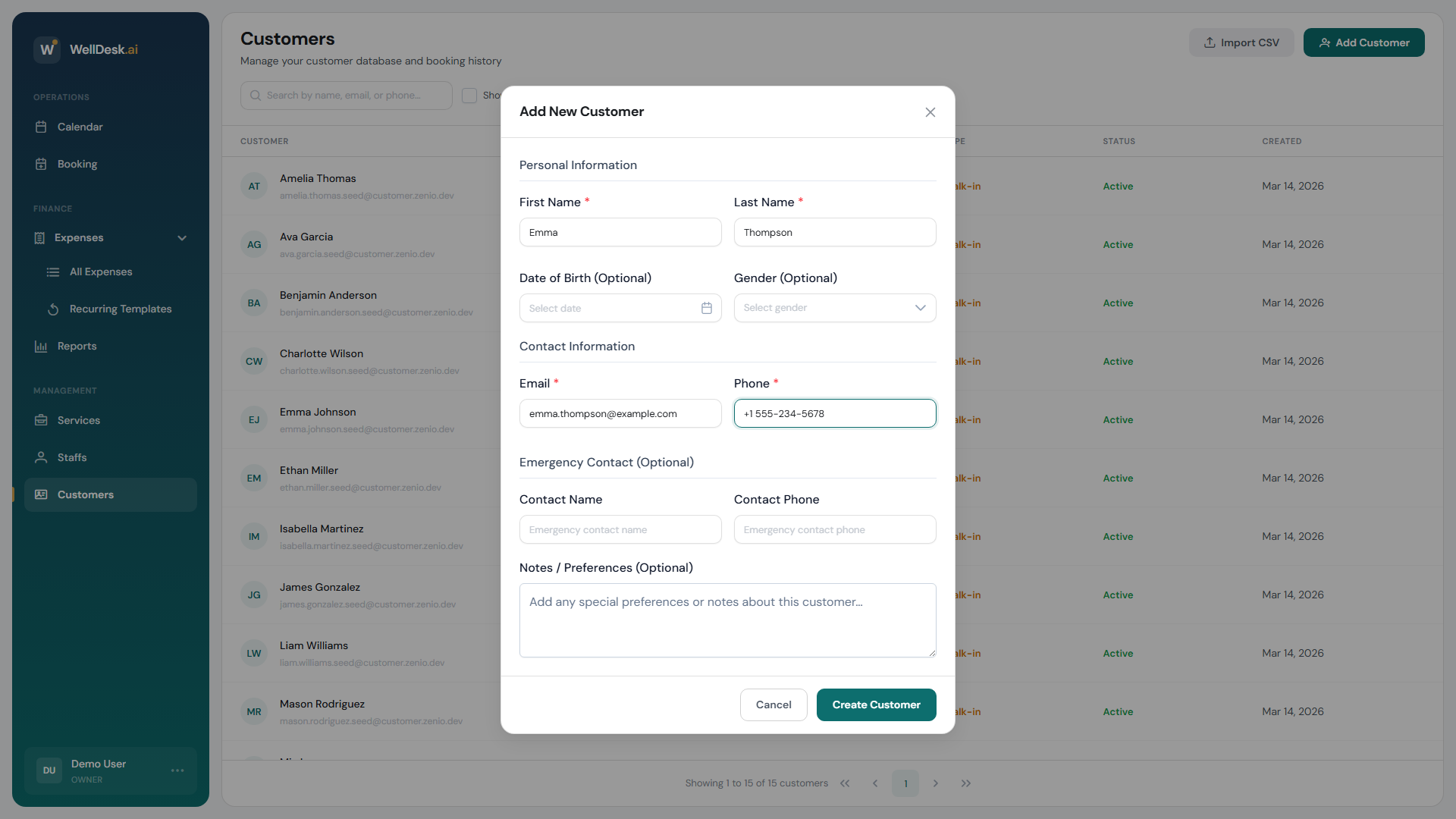
- Fill in the customer’s details:
| Field | Required | Description |
|---|---|---|
| First Name | Yes | Client’s first name |
| Last Name | Yes | Client’s last name |
| Email Address | No | Used for booking confirmations and reminders |
| Phone Number | No | For direct contact and SMS reminders (if enabled) |
| Date of Birth | No | Used for birthday promotions |
| Notes | No | Internal notes visible to all staff (allergies, preferences, special requirements) |
| Tags | No | Custom labels for segmenting your client base (e.g. “VIP”, “New Client”) |
- Click Save Customer.
Customers created automatically
When a client books through your public booking page, WellDesk automatically creates a customer record using the details they provided during checkout. You don’t need to do anything — the record is ready when you next open Customers.
Duplicate records (same name and email) are detected and flagged for your review.
Finding a customer record
Use the Search bar at the top of the Customers table to search by name, email, or phone number. You can also filter the table by:
- Tags — show only VIP clients, or clients with a specific label
- Last visit — find clients who haven’t booked in 90+ days
- Total bookings — identify your most frequent visitors
Adding notes to a customer
Client notes are one of the most powerful features in WellDesk. They help your team deliver personalised service without needing to ask clients the same questions repeatedly.
To add or edit a note:
- Open the customer record by clicking their name.
- Scroll to the Notes section.
- Type your note and click Save.
Notes are visible to all staff members (Owner, Admin, and Staff roles).
Best practice: Document allergies, product preferences, and health considerations. A note like “Allergic to lavender — use unscented products only” prevents incidents and builds client trust.
Tips and best practices
- Always search before creating — check if the client already has a record before adding a new one to avoid duplicates.
- Capture an email address — clients without an email won’t receive booking confirmations or reminders.
- Use tags consistently — agree on a set of tags with your team and stick to them. Tags are most useful when they’re predictable.