If you’re moving to WellDesk from another platform or spreadsheet, you can import your entire client list in one go using a CSV file. This saves you hours of manual data entry and ensures your client history travels with you.
Prerequisites
- Owner or Admin role
- A CSV file containing your client data
- At a minimum, a column for First Name and either Email or Phone Number
Preparing your CSV file
Your CSV should have headers in the first row. WellDesk accepts these columns (column names are flexible — you’ll map them in the next step):
| Column | Required | Notes |
|---|---|---|
| First Name | Yes | |
| Last Name | No | Recommended |
| No* | At least email or phone required | |
| Phone | No* | At least email or phone required |
| Date of Birth | No | Format: YYYY-MM-DD or DD/MM/YYYY |
| Notes | No | Imported as internal client notes |
| Tags | No | Multiple tags separated by semicolons |
Tips for a clean CSV:
- Remove any completely blank rows.
- Ensure phone numbers are in a consistent format (e.g. +44 7700 900000 or 07700900000 — both work).
- Check for duplicate entries before importing.
Importing your file
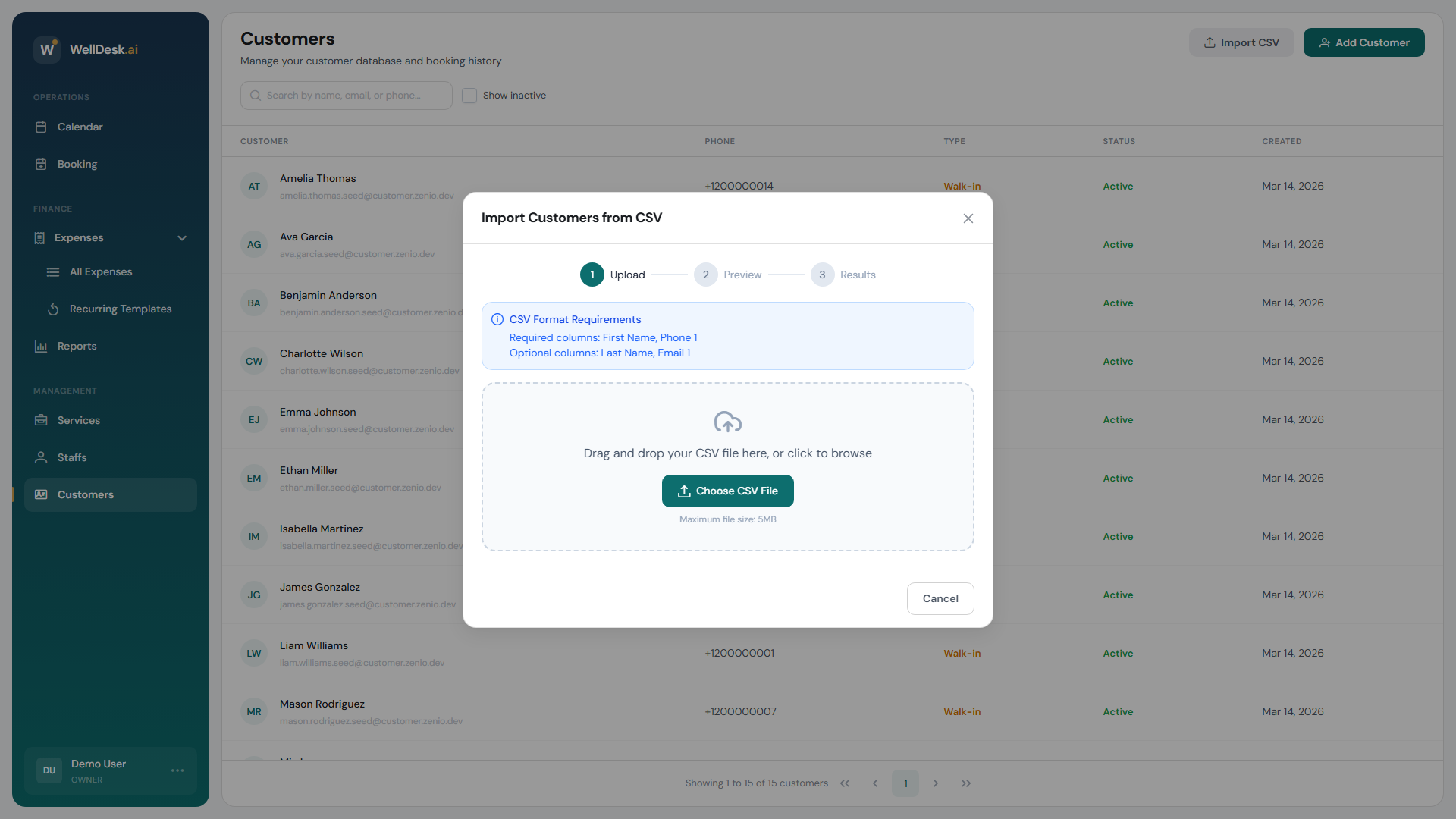
- Go to Customers in the main navigation.
- Click Import in the top right corner.
- Click Upload CSV and select your file, or drag and drop it onto the upload area.
- WellDesk reads the file and displays a column mapping screen.
Mapping columns
On the mapping screen, match each column in your CSV to the corresponding WellDesk field. For example:
- “Client Name” → First Name
- “Mobile” → Phone
Columns you don’t want to import can be set to Skip this column.
- Click Preview Import to see a sample of how your records will look.
- Review the preview and check for any formatting issues.
- Click Start Import.
Handling duplicates
WellDesk detects potential duplicates based on matching email addresses. When duplicates are found, you can choose:
- Skip — do not import the duplicate record
- Merge — update the existing record with any new information from the CSV
- Import as new — create a new record (may create duplicates)
For most imports, Merge is the safest choice — it updates your existing clients with any new contact information without losing data.
Reviewing the import results
After import, WellDesk shows a summary:
- Imported successfully — new records created
- Merged — existing records updated
- Skipped — duplicates you chose to skip
- Errors — rows that couldn’t be imported (usually due to missing required fields)
You can download an error report to see exactly which rows failed and why, then fix the CSV and re-import just the failed rows.
Tips and best practices
- Start with a small test file — import 10–20 records first to verify your column mapping is correct, then import the rest.
- Back up your existing data — export your current Customers list before a large import so you can restore it if something goes wrong.
- Clean the data first — a few minutes spent removing duplicates and fixing formatting in your spreadsheet saves time correcting import errors.
FAQ
How many customers can I import at once? Up to 5,000 records per CSV file. For larger lists, split your file and import in batches.
Can I update existing records via CSV? Yes — use the Merge option when WellDesk detects duplicates. Fields in the CSV overwrite the matching field in WellDesk if the CSV value is not empty.
Will importing create bookings or just client records? Only client records are created. Booking history from another system cannot be imported via CSV.