A customer record in WellDesk is your complete picture of a client — their contact details, booking history, spend, notes, and more. This article explains how to read and use customer records effectively.
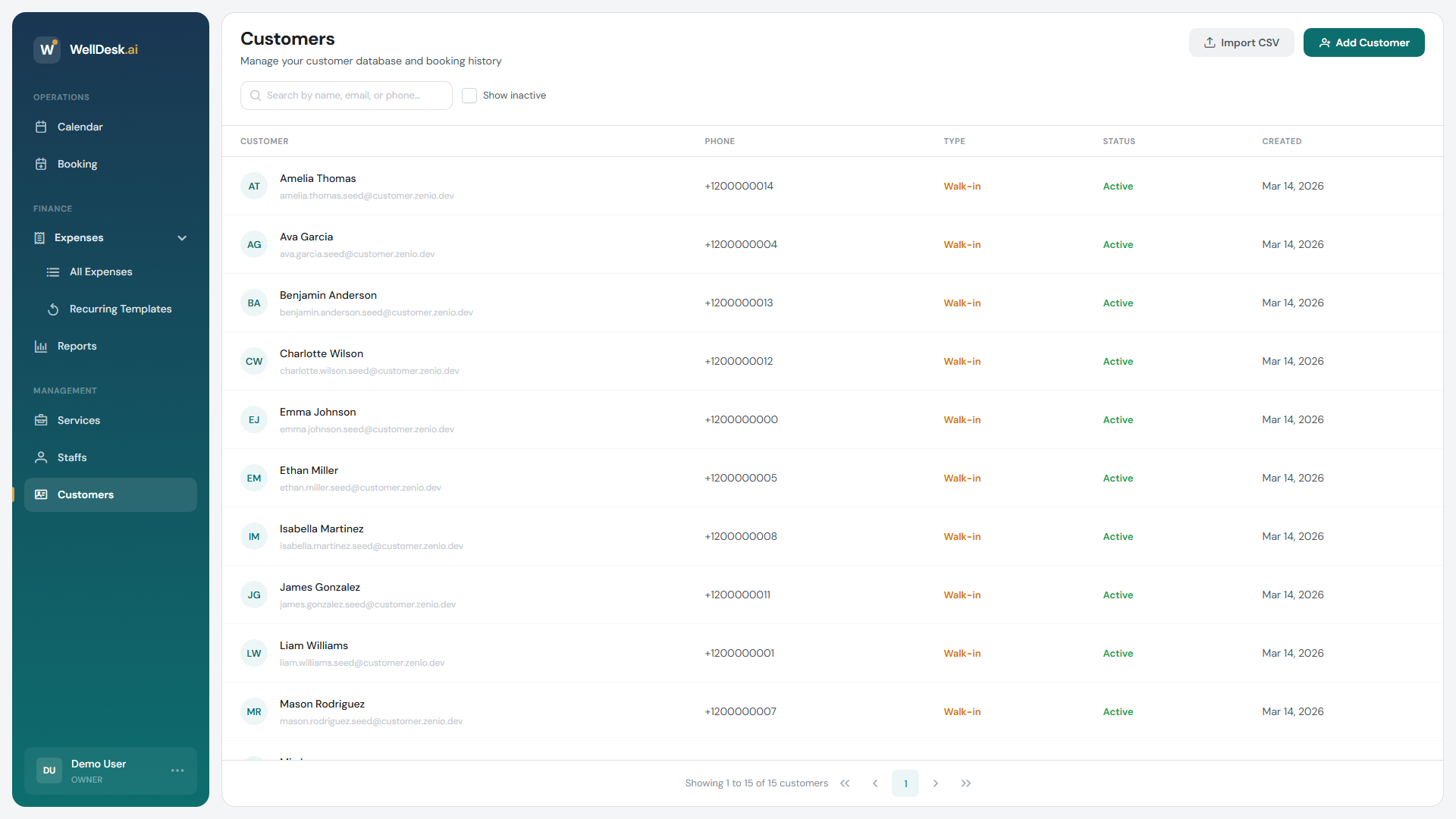
Opening a customer record
- Go to Customers in the main navigation.
- Search for the client by name, email, or phone number.
- Click their name or row to open the full record.
The customer record is organised into tabs:
Overview tab
The Overview tab shows key information at a glance:
- Contact details — email, phone, date of birth
- Tags — labels assigned to this client
- Statistics — total bookings, total spend, average booking value, last visit date
- Notes — internal notes from your team
Bookings tab
A chronological list of every appointment this client has had with your business. You can see:
- Date and time
- Service booked
- Staff member who performed the service
- Booking status (Completed, Cancelled, No-show)
- Amount paid
Click any booking to open its full detail.
Notes tab
All internal notes for this client, with timestamps and the staff member who added each note. Notes are never visible to the client.
Editing customer details
Owner and Admin roles can edit any customer detail:
- Open the customer record.
- Click Edit in the top right corner (or click directly on the field you want to change in some sections).
- Update the details.
- Click Save Changes.
Staff role: Staff members can view customer records and add notes, but cannot edit contact details (name, email, phone).
Adding and editing notes
Notes are the best way to pass on important client information between team members:
- Open the customer record.
- Go to the Notes tab.
- Click + Add Note.
- Type your note and click Save.
To edit an existing note, click the pencil icon next to it. You can only edit your own notes.
Examples of useful notes:
- “Prefers no music during treatment”
- “Latex allergy — check gloves before any treatment”
- “Birthday in May — send voucher offer”
- “Referred by Jane Smith”
Merging duplicate records
If a client appears twice in your system (common after CSV imports), you can merge the two records:
- Open one of the duplicate records.
- Click Actions → Merge with another record.
- Search for and select the duplicate.
- Review which data will be kept from each record.
- Click Merge Records.
Bookings from both records are preserved and combined under the merged record.
Archiving a customer
If a client no longer visits and you want to remove them from active lists:
- Open the customer record.
- Click Actions → Archive Customer.
Archived customers don’t appear in the main Customers table but their records and booking history are preserved. You can restore an archived customer by filtering for Archived and clicking Restore.
Tips and best practices
- Review a client’s record before their appointment — knowing their history, preferences, and any notes lets you give a personalised welcome.
- Update notes immediately after a session — details are freshest right after the appointment.
- Use the statistics section for loyalty insights — clients with high spend and frequent visits are prime candidates for loyalty offers.