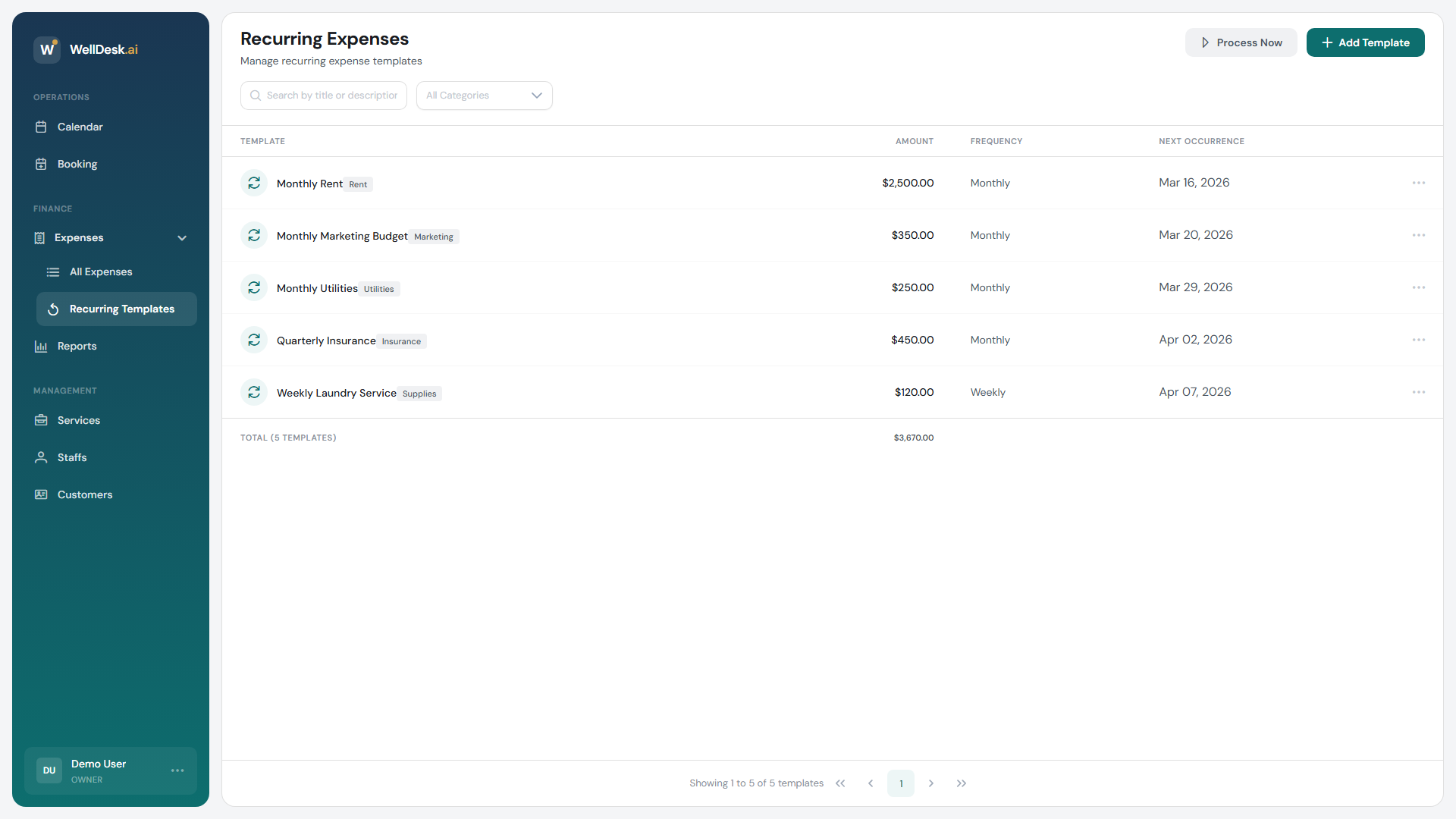
Recurring Expenses save you from manually entering the same costs every month. Once set up, WellDesk automatically creates expense entries on a schedule — daily, weekly, monthly, or yearly — so your records stay current without extra effort.
What expenses suit a recurring setup?
| Expense type | Typical frequency |
|---|---|
| Rent / premises lease | Monthly |
| Broadband and utilities | Monthly |
| Software subscriptions | Monthly or yearly |
| Insurance | Monthly or yearly |
| Equipment maintenance contract | Quarterly or yearly |
| Loan repayments | Monthly |
One-off or variable expenses (like product restocks or equipment repairs) are better tracked individually — see Tracking Expenses.
Creating a recurring expense template
- Go to Finances → Expenses.
- Click Recurring in the tab bar to switch to the Recurring Expenses view.
- Click + New Recurring Expense.
- Fill in the template:
| Field | Description |
|---|---|
| Description | The expense name (e.g. “Monthly rent — Studio 4”) |
| Amount | The fixed cost per occurrence |
| Category | Expense category |
| Frequency | Daily, Weekly, Monthly, Quarterly, or Yearly |
| Start Date | When the first expense should be created |
| End Date | Optional — leave blank for indefinite recurrence |
| Supplier | Who the payment goes to |
| Notes | Any internal reference (account number, contract reference) |
- Click Save Recurring Expense.
WellDesk immediately creates the first expense entry and schedules future entries based on your chosen frequency.
How auto-generation works
At the start of each period (e.g. the 1st of each month for a monthly expense), WellDesk automatically creates a new expense entry. The entry uses the template’s description, amount, and category.
You’ll see a notification in WellDesk when new recurring expenses are generated.
Note: Auto-generated expenses are created in Draft status. Review and confirm them in the Expenses table each period — this gives you a chance to update the amount if costs have changed.
Editing a recurring expense
To change the amount, frequency, or other details:
- Go to Finances → Expenses → Recurring tab.
- Click the recurring expense you want to edit.
- Make your changes and click Save Changes.
You can choose to apply the change from the next occurrence only or retroactively update all past draft entries.
Pausing or stopping a recurring expense
To temporarily stop generating entries (e.g. during a business closure):
- Open the recurring expense.
- Click Pause.
To resume, open it again and click Resume.
To stop the recurring expense permanently:
- Open the recurring expense.
- Click Actions → End Recurring Expense.
- Enter the end date.
- Confirm.
Previously generated expense entries are not deleted — only future auto-generation stops.
Tips and best practices
- Review your recurring expenses quarterly — costs change. A SaaS subscription that was €20/month when you set it up may now cost €35.
- Set an end date if the expense is temporary — for a time-limited lease or loan, setting an end date means you won’t forget to stop the recurring entry.
- Use clear, specific descriptions — “Rent” is fine, but “Rent — 42 High Street, Studio 2A” is better for multi-location businesses.
FAQ
What happens to recurring expenses if I cancel my WellDesk subscription? Your data is retained for 30 days after cancellation. Recurring expense generation stops immediately when your subscription ends.
Can I set different amounts for different months? Not within a single recurring template. For variable amounts, edit the auto-generated expense entry after it’s created each period, or track these manually.