The Expenses section in WellDesk helps you track what your business spends alongside what it earns. Recording expenses regularly means fewer surprises at tax time and a clearer view of your true profitability.
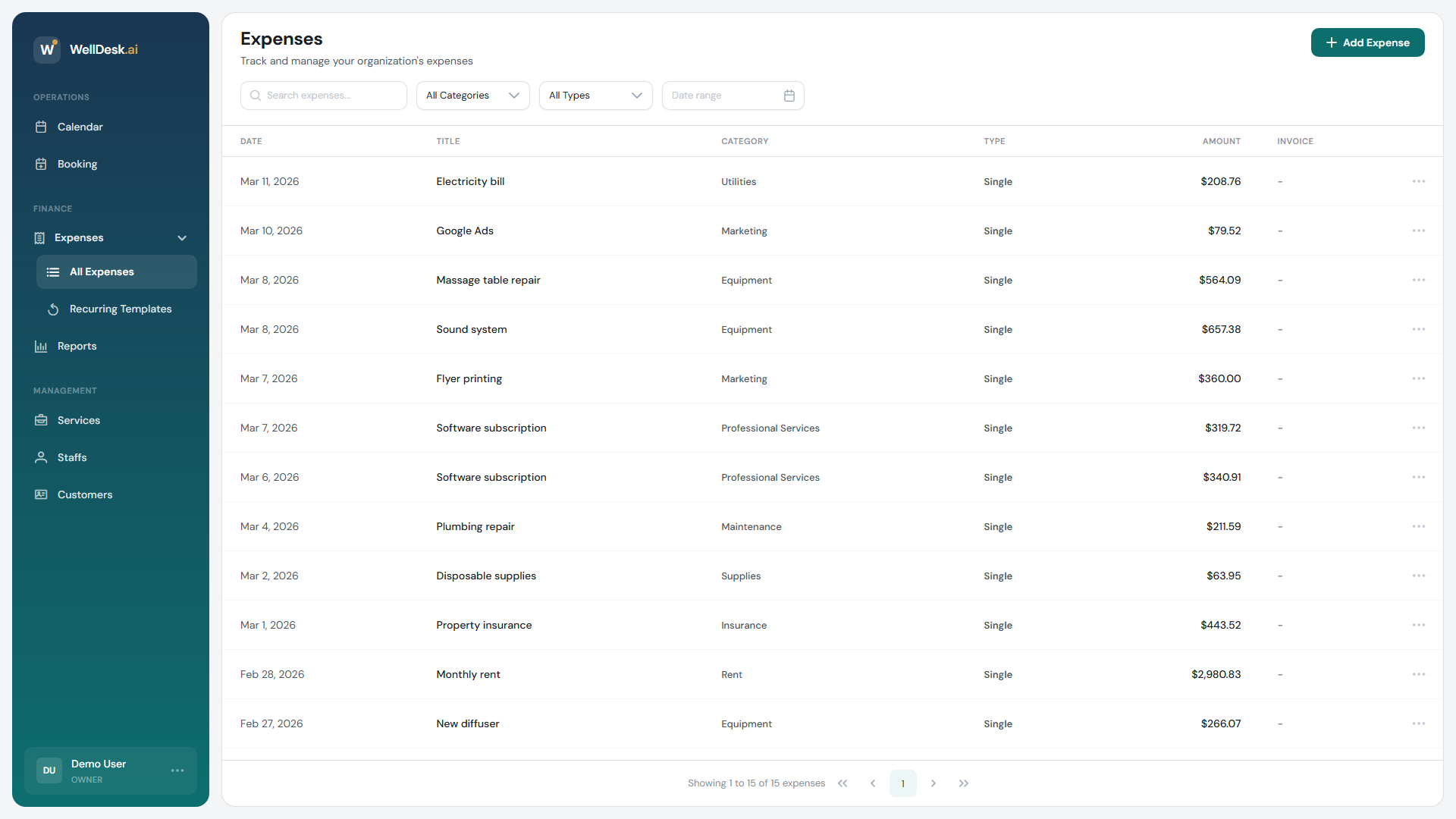
Types of expenses you can track
WellDesk expense categories include:
- Products and supplies — massage oils, skincare products, cleaning products
- Equipment — machinery, tools, salon furniture
- Utilities — electricity, water, broadband
- Rent — premises costs
- Staff costs — salaries, commissions paid out
- Marketing — social media ads, printed materials, photography
- Software — subscriptions and tools
- Other — anything that doesn’t fit a standard category
Creating an expense
- Go to Finances → Expenses in the main navigation.
- Click + Add Expense in the top right corner.
- The expense creation dialog opens.
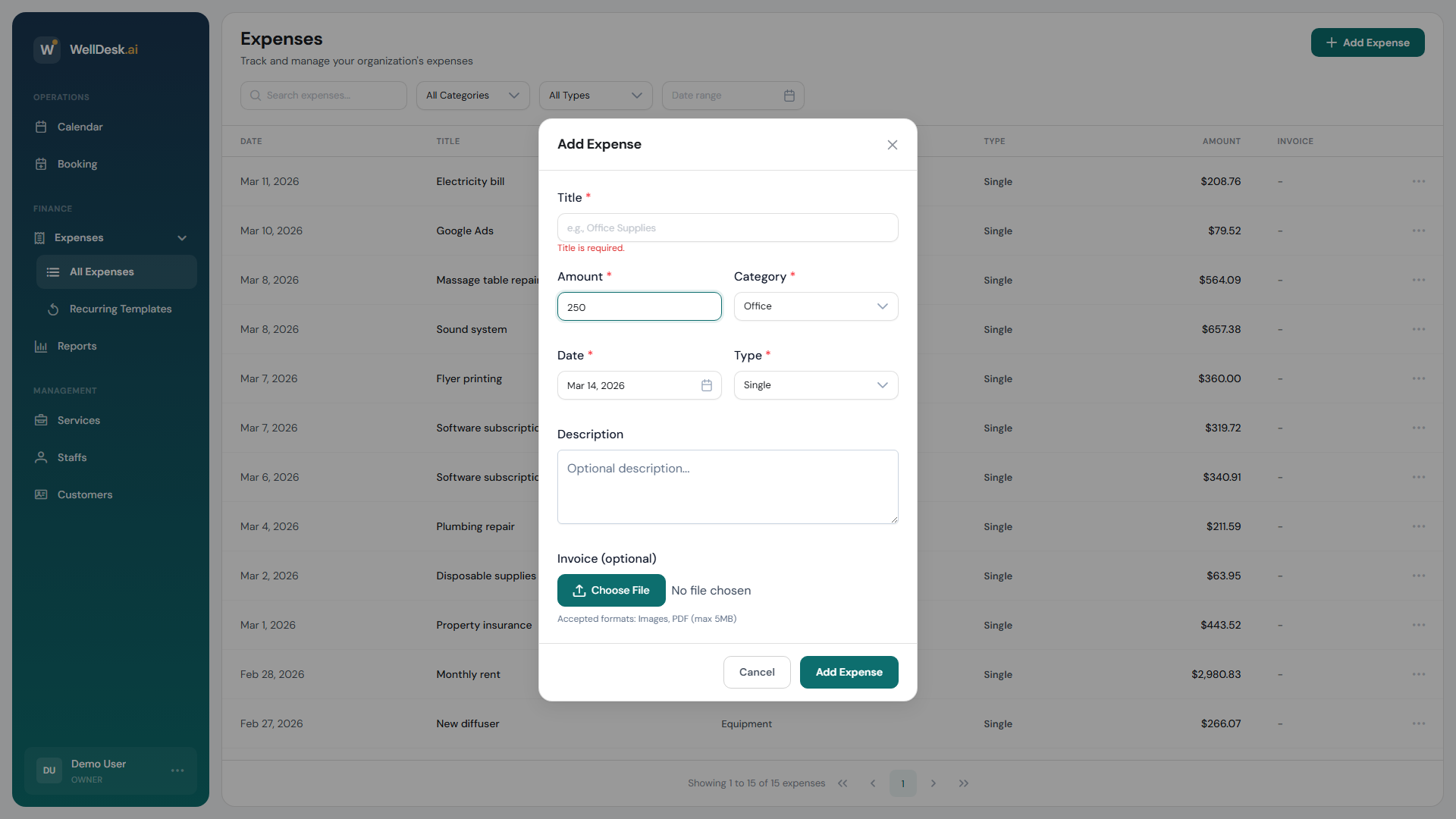
- Fill in the expense details:
| Field | Required | Description |
|---|---|---|
| Description | Yes | What was purchased (e.g. “Rose hip massage oil — 5L”) |
| Amount | Yes | The cost, in your configured currency |
| Date | Yes | When the expense was incurred |
| Category | Yes | Select from the category list |
| Supplier | No | Who you purchased from |
| Notes | No | Any additional context (invoice number, reference) |
| Receipt | No | Upload a photo or PDF of the receipt |
- Click Save Expense.
Viewing and filtering expenses
The Expenses table shows all your recorded expenses. Use the filters to narrow the view:
- Date range — view a specific month, quarter, or custom period
- Category — see spending by type
- Amount range — filter by cost
The table shows the total spend for the filtered period at the top.
Attaching receipts
Uploading receipt images to expenses is strongly recommended. It keeps your records audit-ready without needing a separate filing system.
To attach a receipt:
- Open an existing expense by clicking it in the table.
- In the Receipt section, click Upload Receipt.
- Select a JPG, PNG, or PDF file (max 10 MB).
- Click Save.
Exporting expenses
Export your expense data for accounting purposes:
- Apply any date range or category filters you need.
- Click Export → CSV or Export → PDF.
The export includes all visible columns. Provide this to your accountant at the end of your financial year.
Tips and best practices
- Record expenses weekly — don’t let them pile up. A quick 5-minute session each Friday keeps your records current.
- Always attach receipts — digital receipt storage is more reliable than paper, and you’ll thank yourself at tax time.
- Be specific in descriptions — “Skincare products” is harder to reconcile at year-end than “Environ AVST serum — 6 units”.
- Use recurring expenses for costs that repeat monthly — see Recurring Expenses.