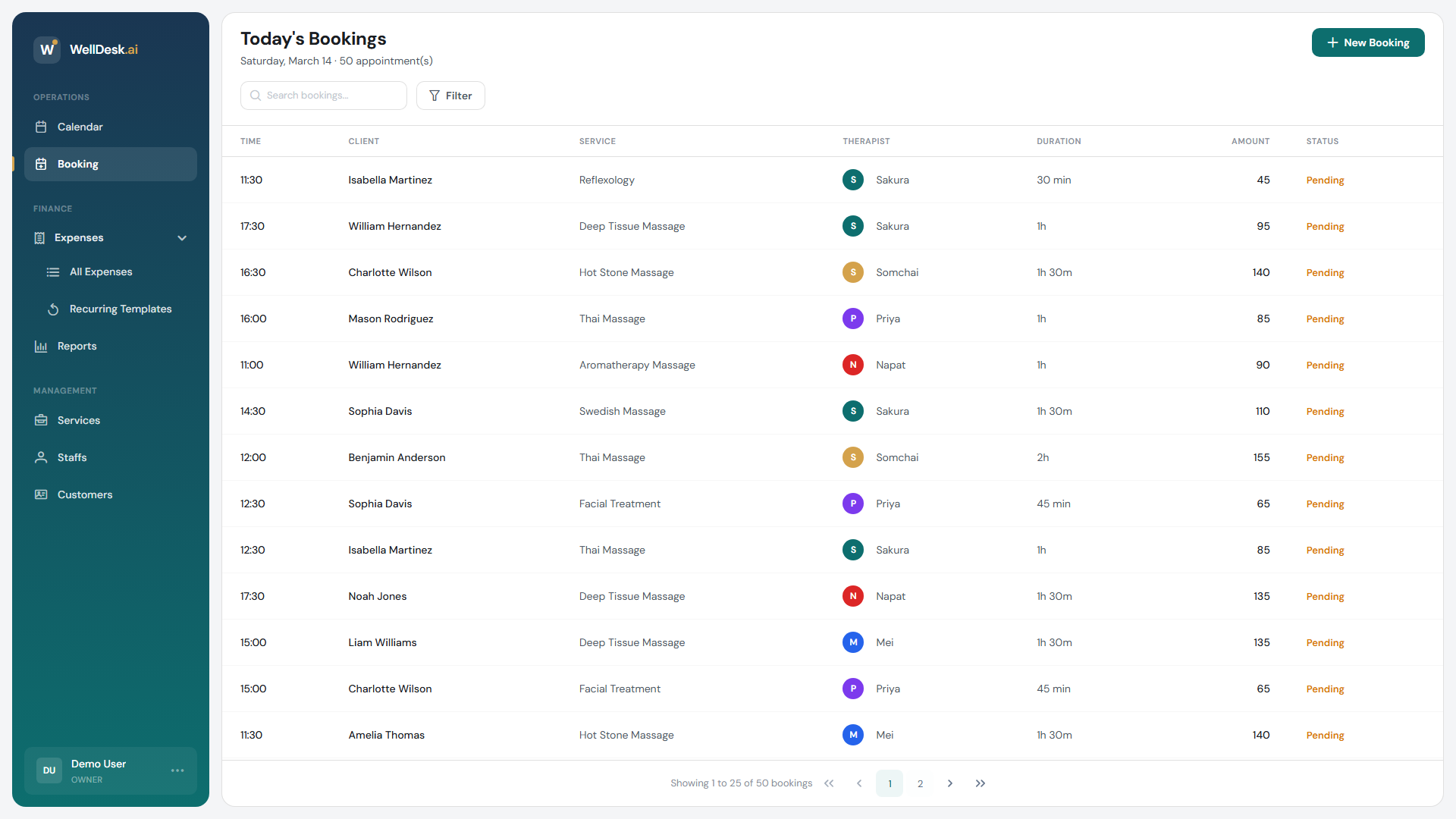
Every booking in WellDesk has a status that reflects where it is in the appointment lifecycle. Understanding and keeping statuses up to date helps your team stay organised and ensures your reports are accurate.
Booking statuses explained
| Status | Meaning |
|---|---|
| Pending | Booking created but not yet confirmed. Default for new bookings. |
| Confirmed | Appointment confirmed — either manually or via client self-booking. |
| Completed | The appointment has taken place. Revenue is counted in reports once marked complete. |
| Cancelled | The booking was cancelled by the business or the client. |
| No-show | The client did not attend and did not cancel in advance. |
How to update a booking status
- Go to Bookings in the main navigation.
- Find the booking you want to update. Use the search bar or filter by date.
- Click on the booking row to open the Booking Detail dialog.
- In the Status dropdown, select the new status.
- Click Save Changes.
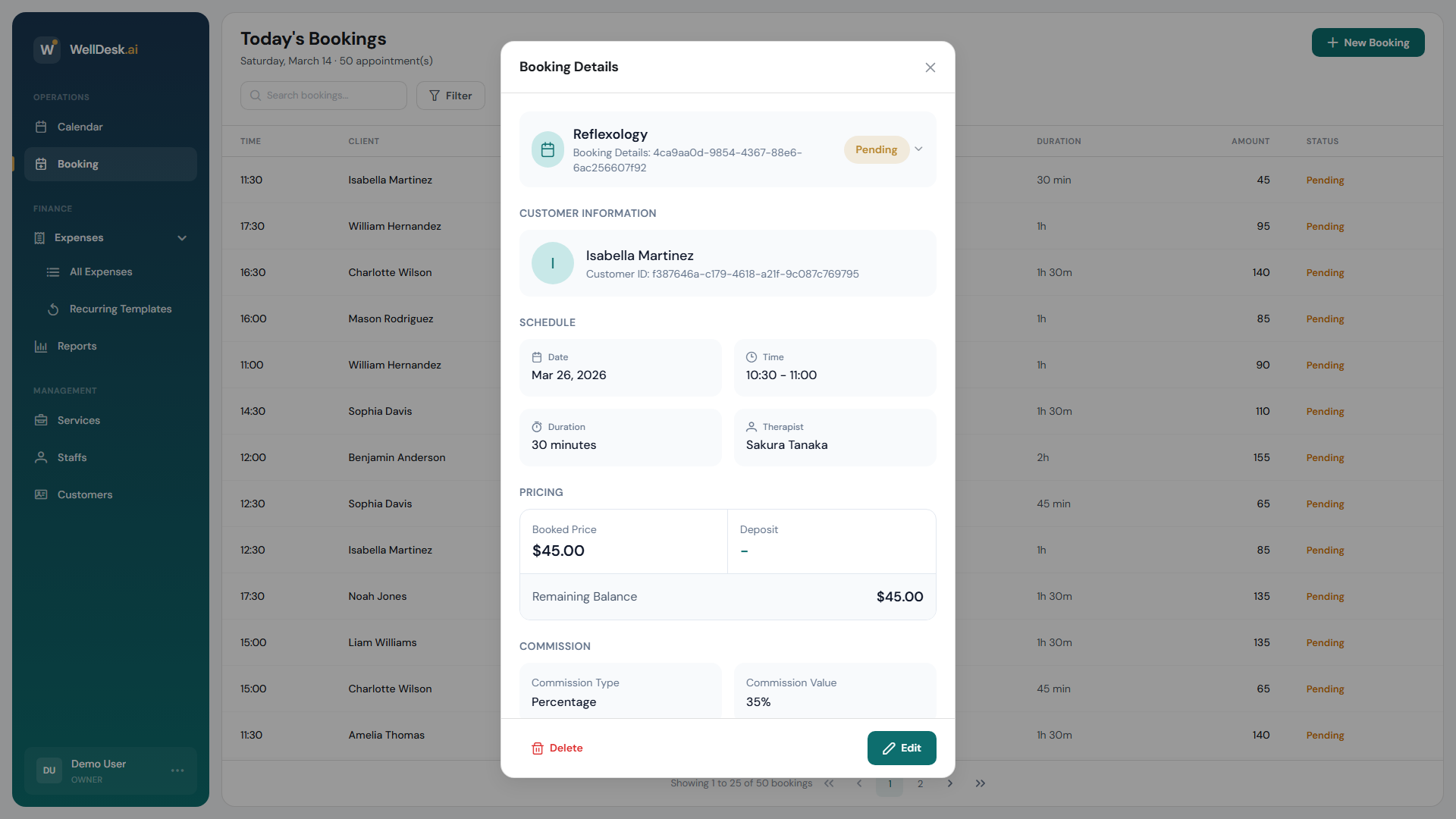
Alternatively, you can right-click a booking on the Calendar to access a quick status update menu without opening the full detail dialog.
Bulk status updates
To update multiple bookings at once:
- In the Bookings table, tick the checkbox next to each booking you want to update.
- Click Update Status in the bulk action toolbar that appears at the top.
- Select the new status and confirm.
Bulk updates are useful at the end of the day to mark all completed appointments.
Status and reporting
Booking statuses directly affect your financial reports:
- Completed bookings are included in revenue calculations and commission reports.
- Cancelled and No-show bookings are excluded from revenue but counted separately in the cancellation summary.
- Pending and Confirmed bookings appear as upcoming revenue (not yet realised).
Best practice: Mark bookings as Completed the same day the appointment occurs. This keeps your revenue reports accurate and ensures commission calculations are timely.
Tips and best practices
- Use the No-show status (not just Cancelled) when a client doesn’t turn up — it lets you track patterns and decide whether to require deposits from frequent no-shows.
- Filter the Bookings table by Pending status each morning to confirm any overnight online bookings.
- Staff members can update booking status for their own appointments; only Admins and Owners can update statuses for other staff.