Services are the treatments and offerings clients book through WellDesk. You need at least one service before you can accept any bookings. This article shows you how to create a service with all the information clients and staff need.
Prerequisites
- Owner or Admin role
- At least one staff member added (to assign who performs the service)
Step-by-step: Creating a service
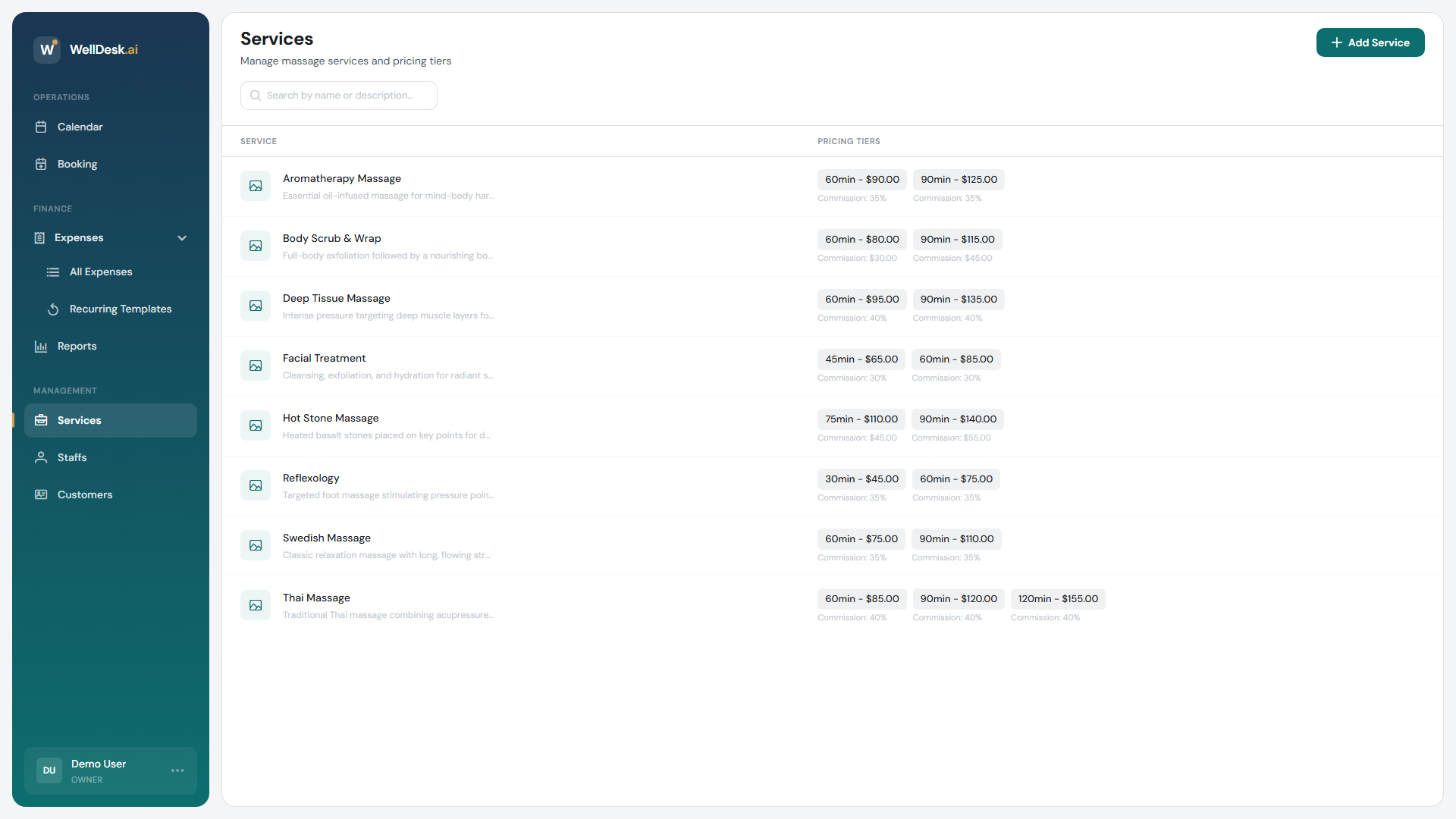
- Navigate to Services in the main navigation.
- Click + Add Service in the top right corner.
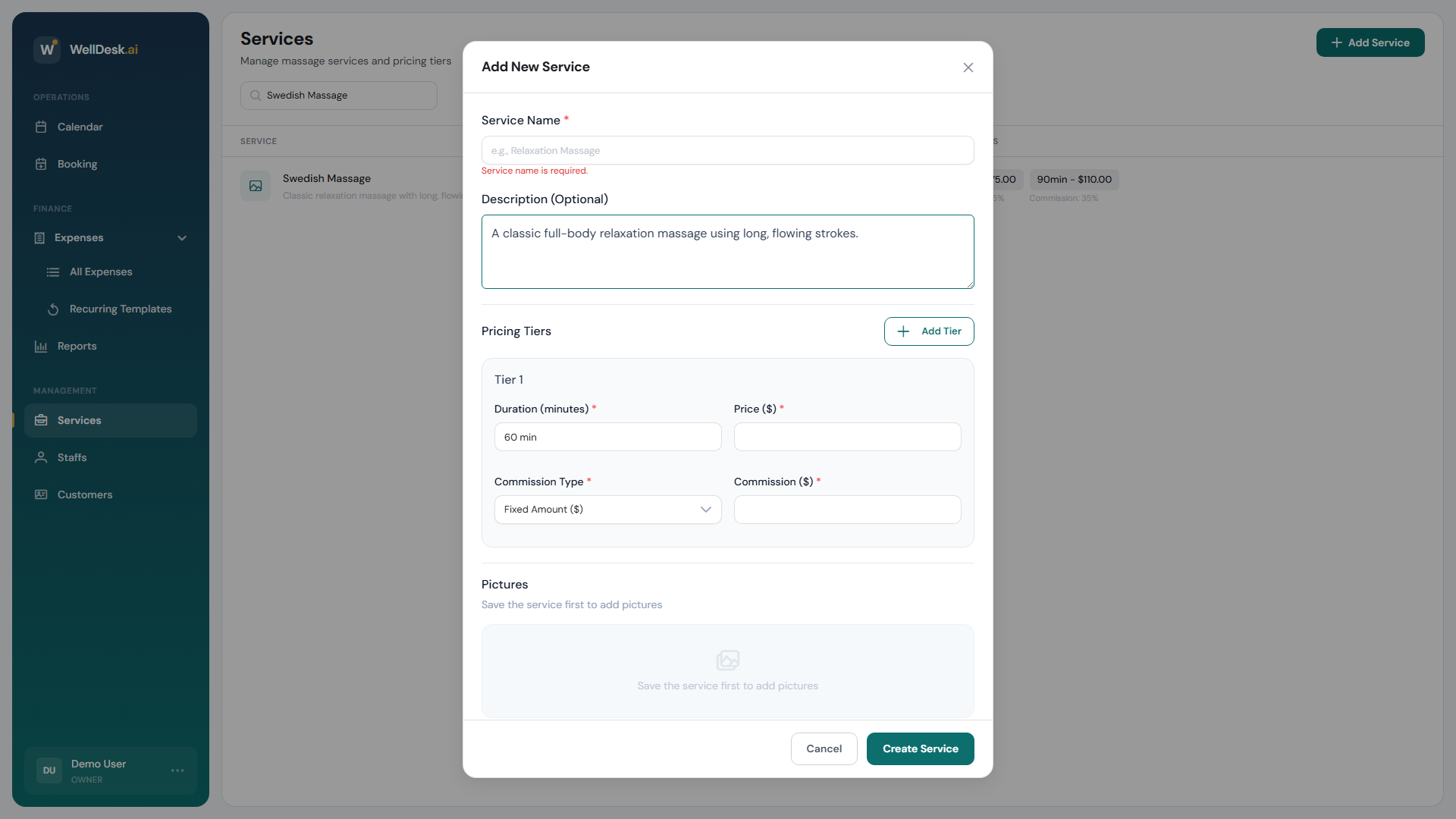
- The service creation dialog opens.
Basic information
| Field | Description |
|---|---|
| Service Name | The name clients see when booking (e.g. “Swedish Massage”) |
| Category | Group services (e.g. Massages, Facials, Nail Services) for easier browsing |
| Description | 2–4 sentences describing what the service involves and its benefits |
| Duration | The default length of the appointment in minutes |
Photos
Upload up to 5 photos for the service. These appear on your public booking page and help clients visualise what they’re booking.
- Recommended size: 1200×800 px
- Accepted formats: JPG, PNG, WebP
- Drag photos to reorder them. The first photo is the thumbnail shown in service listings.
Staff assignment
Select which staff members are qualified to perform this service. Only assigned staff will appear as options when clients (or you) book this service.
Tip: If all staff can perform a service, tick All staff rather than selecting individually. Future team members you add will automatically be included.
Buffer time
Set a buffer time (in minutes) after each appointment. This gives staff time to clean up, prepare for the next client, or take a short break. Buffer time is excluded from available booking slots on your public page.
- Click Save Service.
After creating a service
Your new service immediately appears:
- In the Services table in your admin area
- On your public booking page (unless the service is set to Unlisted)
- As an option when creating bookings manually
Tips and best practices
- Write a genuine description — avoid generic phrases like “relaxing treatment”. Tell clients what makes this service worth booking.
- Keep names consistent — if you call it “Hot Stone Massage” in your marketing materials, use the same name in WellDesk so clients can match them up.
- Use categories — once you have more than five services, categories make your booking page much easier to navigate.
- Upload real photos — services with photos convert significantly better than those without.
FAQ
Can I hide a service from the public booking page? Yes. In the service detail, toggle Online Booking to off. The service still exists for manual bookings but won’t appear to clients browsing your public page.
Can clients see staff availability when booking? Yes. On the public booking page, clients select a service and then see which staff members are available for their chosen date and time.