Notification Settings control which automated emails WellDesk sends to clients and staff when bookings are created, changed, or cancelled. Well-configured notifications reduce no-shows, keep your team informed, and give clients confidence in their appointments.
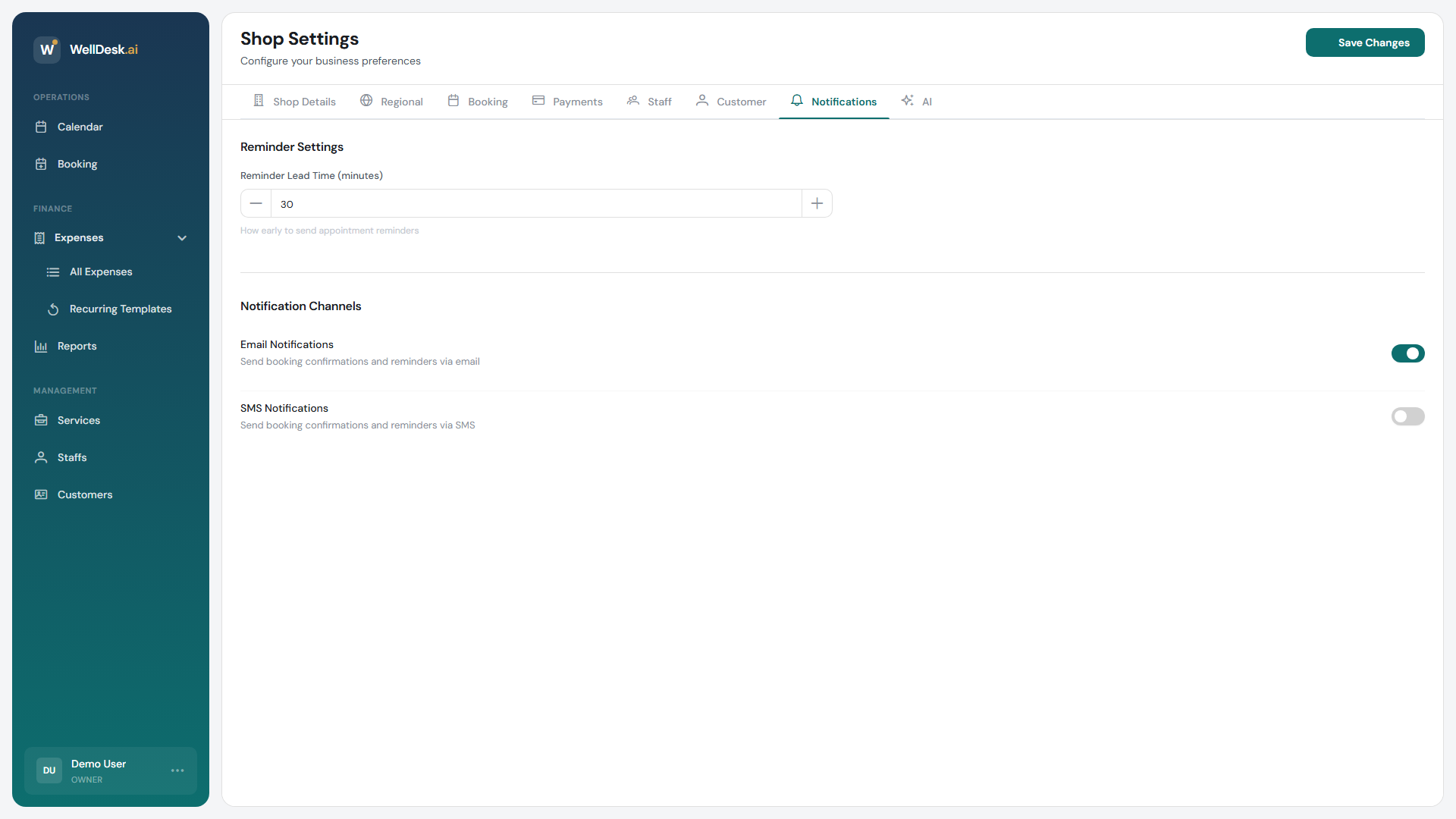
Accessing Notification Settings
- Go to Settings in the main navigation.
- Click the Notifications tab.
Client notifications
These emails are sent to the client’s email address at key moments in their booking journey.
| Notification | Trigger | Recommended |
|---|---|---|
| Booking confirmation | Immediately after a booking is created or confirmed. | Always on |
| Appointment reminder | A set time before the appointment (configurable). | Always on |
| Cancellation confirmation | When a booking is cancelled. | On |
| Reschedule confirmation | When a booking is moved to a new date or time. | On |
| No-show follow-up | When a booking is marked as a no-show. | Optional |
Toggle each notification on or off. At minimum, keep Booking confirmation and Appointment reminder active — these have the greatest impact on reducing no-shows.
Reminder timing
Set how far in advance the reminder email is sent to the client. Common options:
- 24 hours before
- 48 hours before
- 1 hour before
You can enable multiple reminder times simultaneously (e.g. 48 hours and 2 hours before) for high-value or long appointments.
Staff notifications
These notifications are sent to the assigned staff member’s email address.
| Notification | Trigger |
|---|---|
| New booking assigned | When a booking is created and assigned to them. |
| Booking modification | When a booking on their schedule is changed. |
| Booking cancellation | When a booking on their schedule is cancelled. |
| Daily schedule summary | A morning digest of the day’s appointments. |
Individual staff members can further customise their own preferences after logging in under My Profile → Notifications.
Admin and owner notifications
These notifications are sent to the owner or admin notification email address configured in General Settings.
| Notification | Description |
|---|---|
| New online booking | Fires whenever a client books online. |
| New client registration | Fires when a client creates an account on your booking page. |
| Booking cancellation | Fires whenever any booking is cancelled. |
| Daily summary | Morning overview of all appointments for the day. |
Notification email address
By default, WellDesk sends admin notifications to your account login email. To route alerts to a different address (such as a shared reception inbox):
- Go to Settings → General.
- Enter a different address in the Notification Email field.
- Click Save Changes.
Tips and best practices
- Always send booking confirmations — clients expect an immediate email after booking. Disabling this increases uncertainty and support queries.
- Use two reminder times for long appointments — a 48-hour reminder gives clients time to reschedule; a 2-hour reminder is a last-minute nudge that significantly reduces no-shows.
- Route admin notifications to a shared inbox — if your owner is often unavailable, a shared team address ensures booking alerts are seen promptly.
- Enable the daily summary for managers — a morning digest helps with staffing decisions and spotting gaps in the schedule before the day starts.