Business Hours define when your shop is open and when clients can make bookings online. The Timezone setting ensures WellDesk displays and communicates the correct times to you and your clients. Both settings are foundational — configure them before taking your first booking.
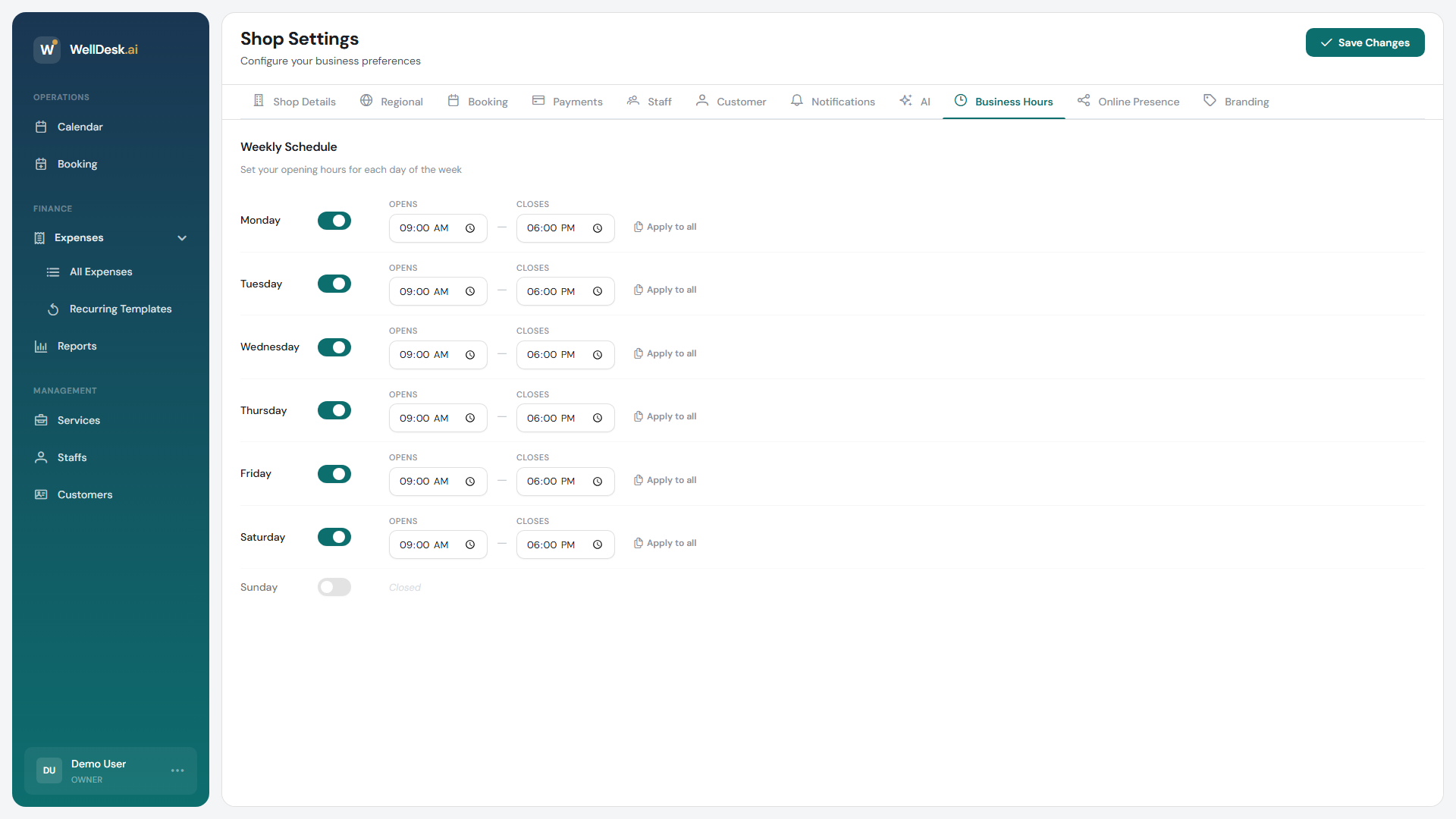
Accessing Business Hours settings
- Go to Settings in the main navigation.
- Click the Business Hours & Timezone tab.
Setting your timezone
- In the Timezone section, click the dropdown.
- Search for or scroll to your timezone (e.g. “Europe/Dublin”, “Asia/Bangkok”).
- Click Save Timezone.
Critical: Set your timezone correctly before taking any bookings. Changing it after bookings exist can shift displayed times and cause confusion. If you need to change timezone after going live, do so at a quiet period and communicate the change to your team.
Configuring business hours
Business hours define the default window within which staff are available for bookings.
- In the Opening Hours section, toggle each day your business is open.
- For each active day, set the Opening Time and Closing Time.
Example: A spa open Tuesday–Sunday:
| Day | Status | Open | Close |
|---|---|---|---|
| Monday | Closed | — | — |
| Tuesday | Open | 09:00 | 20:00 |
| Wednesday | Open | 09:00 | 20:00 |
| Thursday | Open | 09:00 | 21:00 |
| Friday | Open | 09:00 | 21:00 |
| Saturday | Open | 08:00 | 18:00 |
| Sunday | Open | 10:00 | 16:00 |
- Click Save Hours.
Adding breaks
If your shop closes during the day (e.g. a lunch break), add a break period so clients cannot book during that time.
- Click + Add Break under any day.
- Set the break Start Time and End Time.
- Click Save.
Multiple breaks can be added per day — useful for lunch, shift changeovers, or cleaning periods.
Staff hours vs. business hours
Business hours set the outer bounds of availability. Individual staff members can have narrower working hours configured in Staff → [Staff Member] → Working Hours.
For example, your business might be open 08:00–20:00, but a specific therapist only works 10:00–16:00. Clients selecting that therapist will only see slots between 10:00 and 16:00.
Tip: If a staff member is unavailable for a specific day (illness, holiday), use a Calendar Event to block their time rather than changing their regular working hours.
Public holidays and closures
WellDesk does not automatically apply public holidays. To close on a holiday:
- Go to Calendar.
- Create an All Day Event for the holiday date.
- Assign it to all staff members.
- Set the event type to Closed / Unavailable.
Alternatively, you can temporarily adjust business hours for that day in Business Hours & Timezone.
Tips and best practices
- Set hours conservatively — it’s better to extend hours when you’re busy than to have clients book slots you can’t fill.
- Double-check daylight saving time — WellDesk handles DST automatically if you’ve selected a timezone that observes it. Verify in spring and autumn that times are still displaying correctly.
- Communicate hour changes to clients — if you change your regular hours, update them in WellDesk and post an announcement on your booking page or social media.